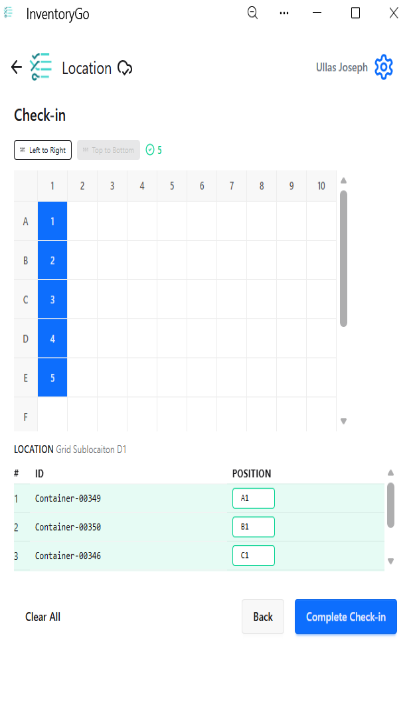
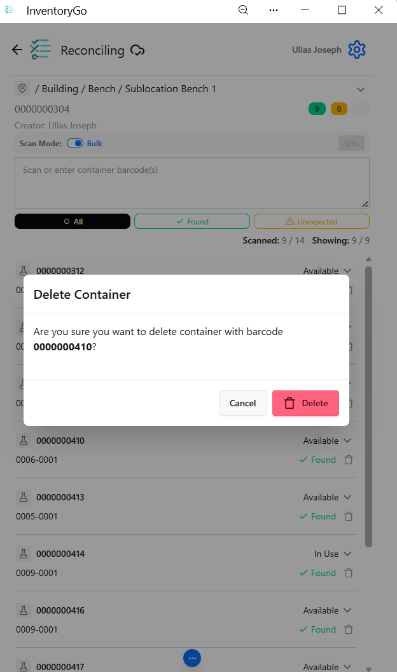
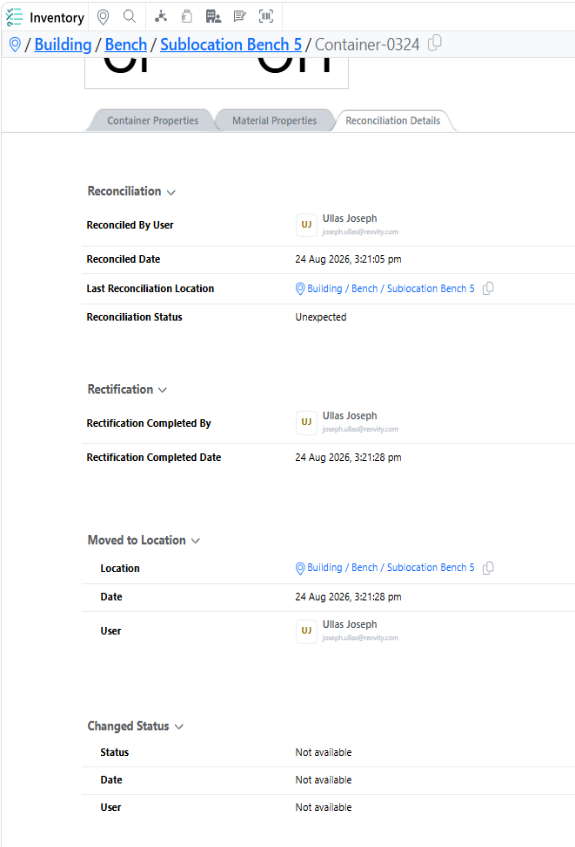
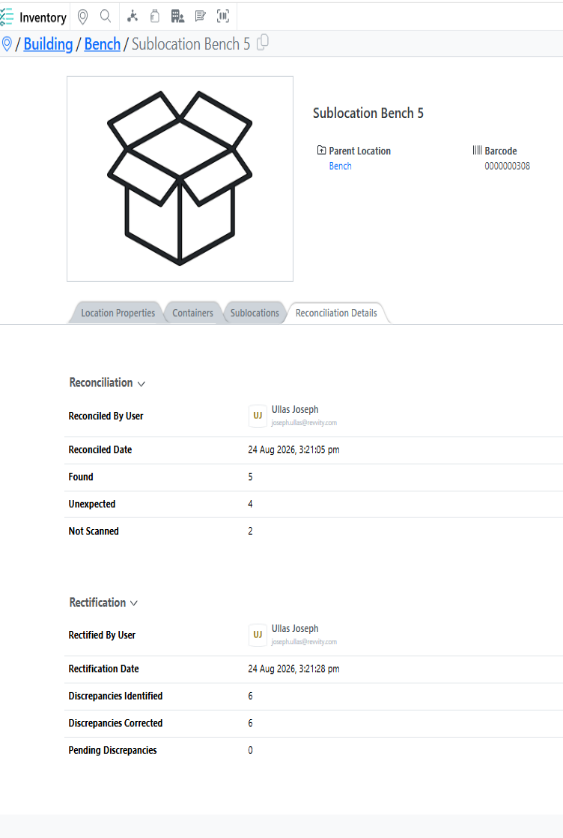
Search

Your Notifications (0)

There are currently no notifications. You're all set!

What's New

Explore recent and historical product updates for Revvity Signals' Cloud Native SaaS Software 

Collapse All

40 releases — this page expanded. Collapse

What’s New

We are delighted to release our new version of Signals, 26.4.

The following improvements are available for users, administrators and developers on the Signals platform. Certain features may only be available with appropriate licensing and/or with enablement by an administrator.

  • Fundamentals
    – Ontologies integration allows terms to be used across experiments, materials, tables, and more available to all systems
    – Ontology integration now supported in Synergy, including Collaboration, Idea, Work Order, and Synergy Experiments Templates, as well as Designs and Reference Table fields available to all systems
    – CSV import handling for ontology terms
    – Ontology support for plate templates
    – External Ontology Sources now support SciBite CENtree
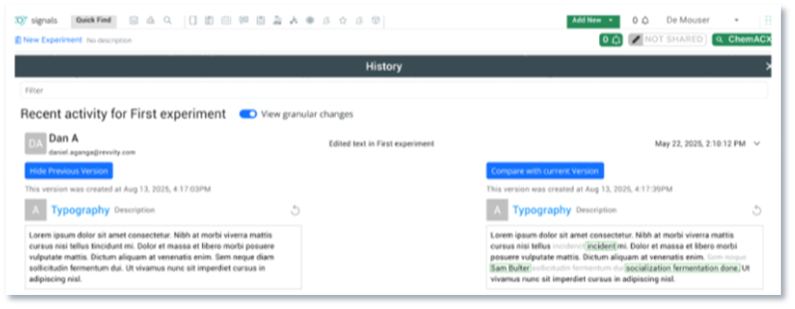
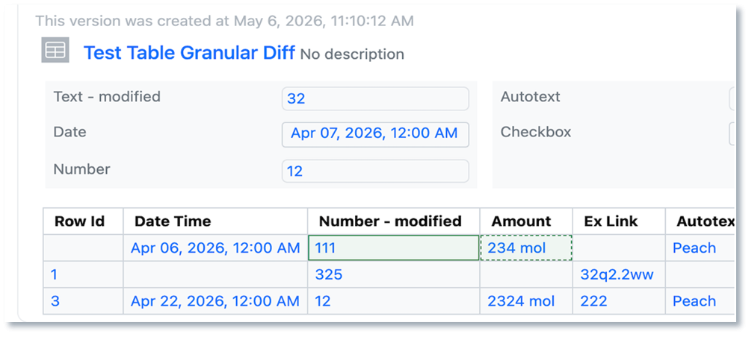
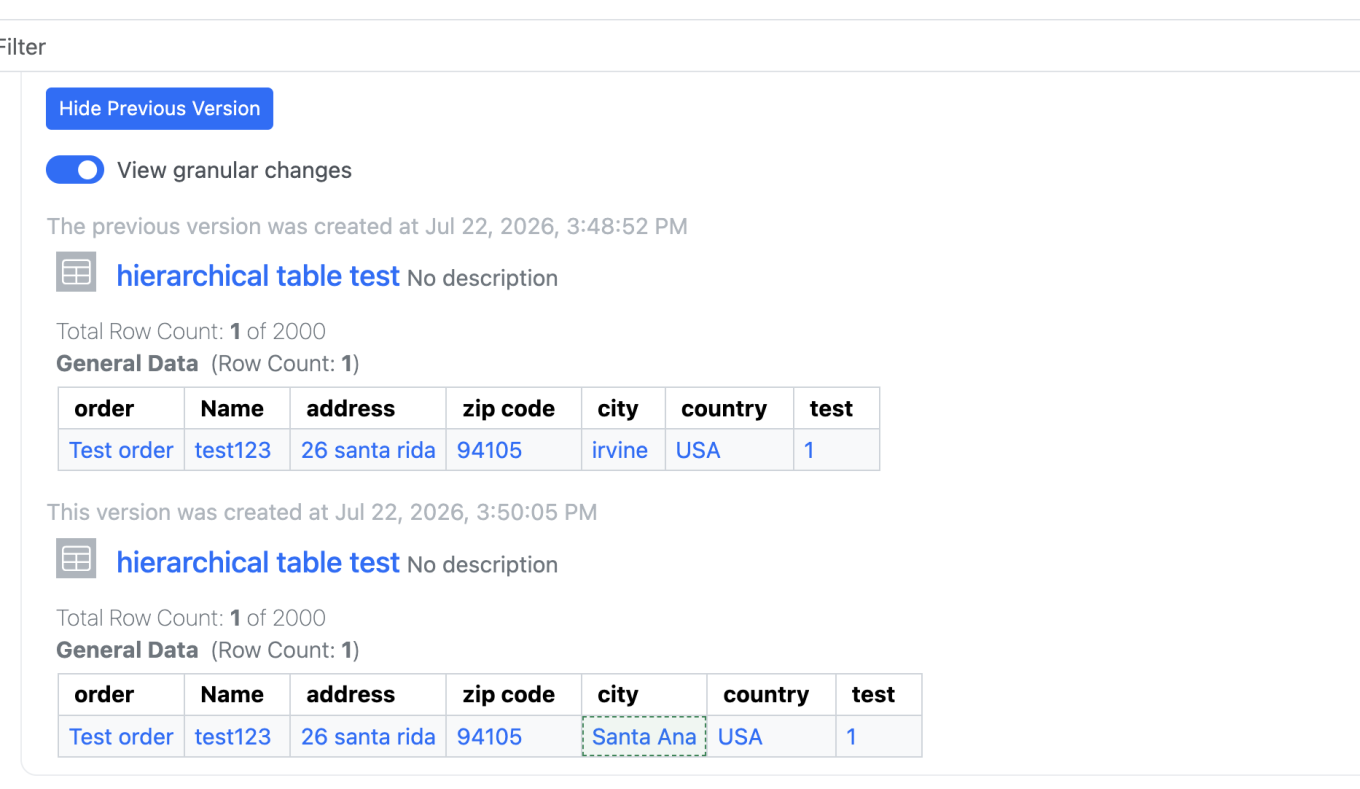
    – Audit trail displays highlighted granular changes for text elements (beta)
  • AI
    – Prompt-to-filter (beta)*
  • Data Workflows & Analytics*
    – Data Assembly continuous viewer
    – Median-based robust Normalizations
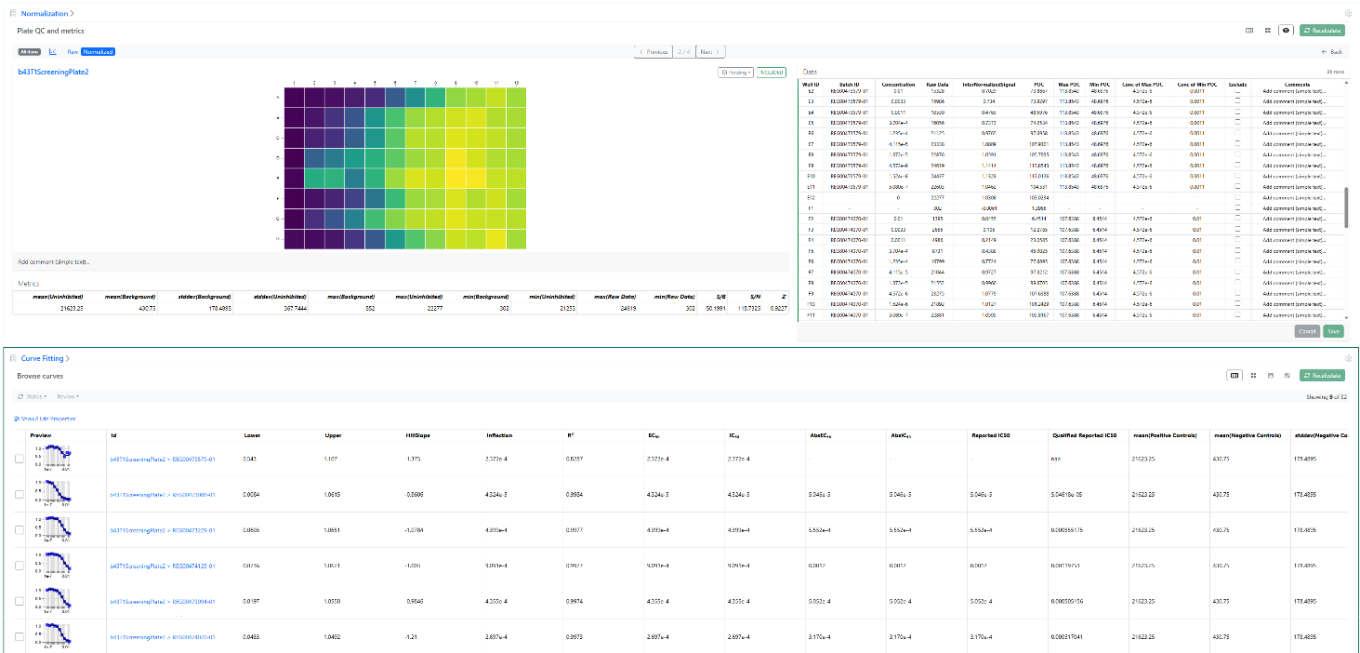
    – Additional Quality Control metrics
  • SAR & Decisioning*
    – Ontology support on Inventa Analysis templates
    – New ChemCharts Biopolymer data functions
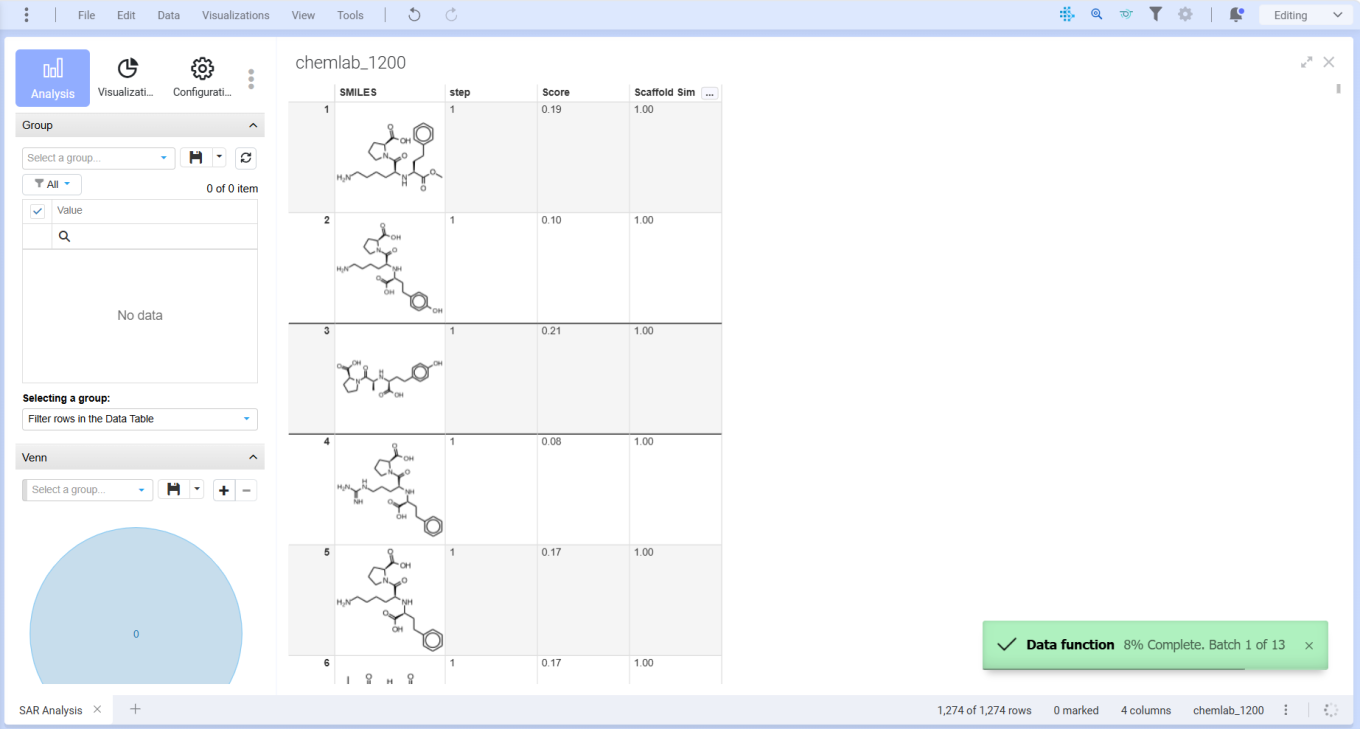
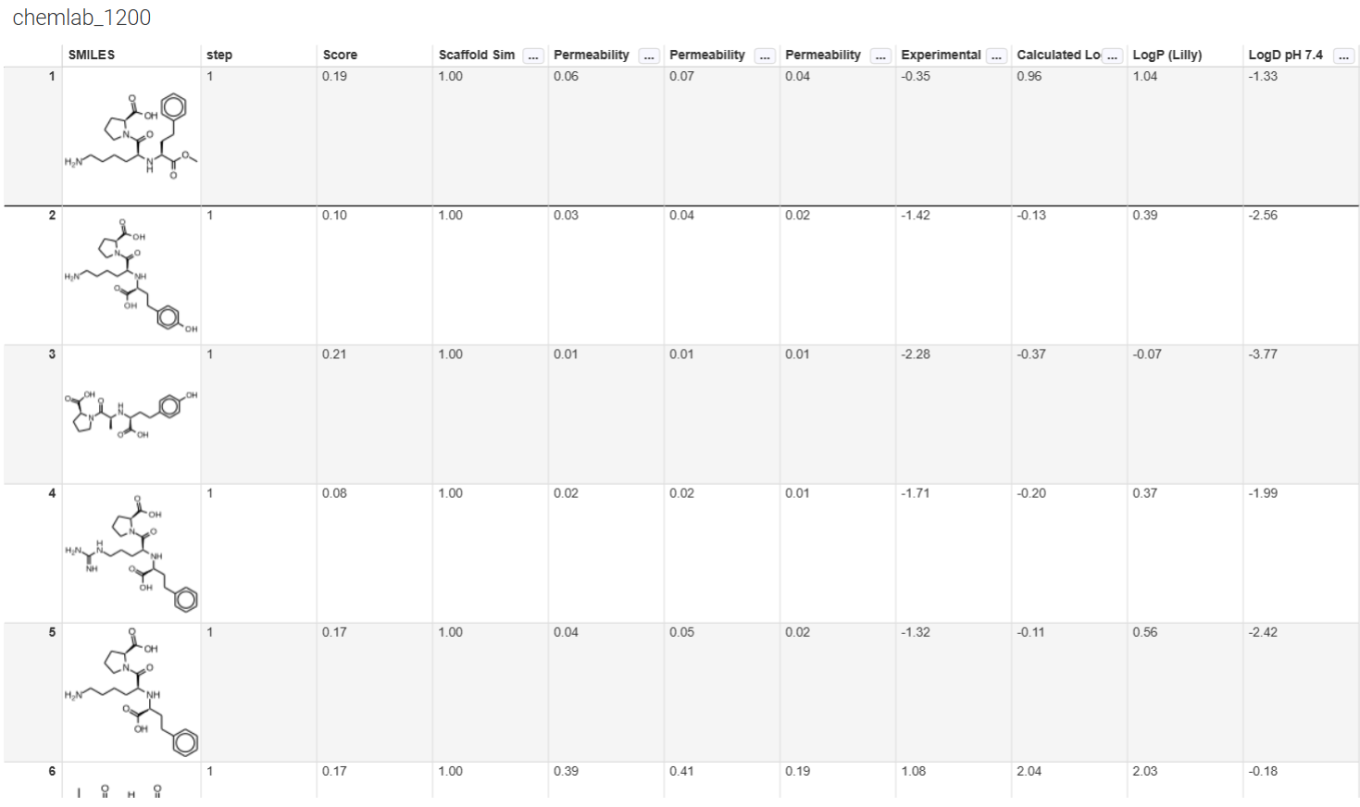
    – ChemCharts Table usability improvements
  • Synergy†
    – Collaboration setting allows Sponsor admin to choose whether to use Material IDs or aliased ExIDs with CROs
    – Search for Synergy Experiments based on Work Order
    – System Snippets are available for CRO users
    – Work Tasks in Work Orders (beta)
  • Chemistry
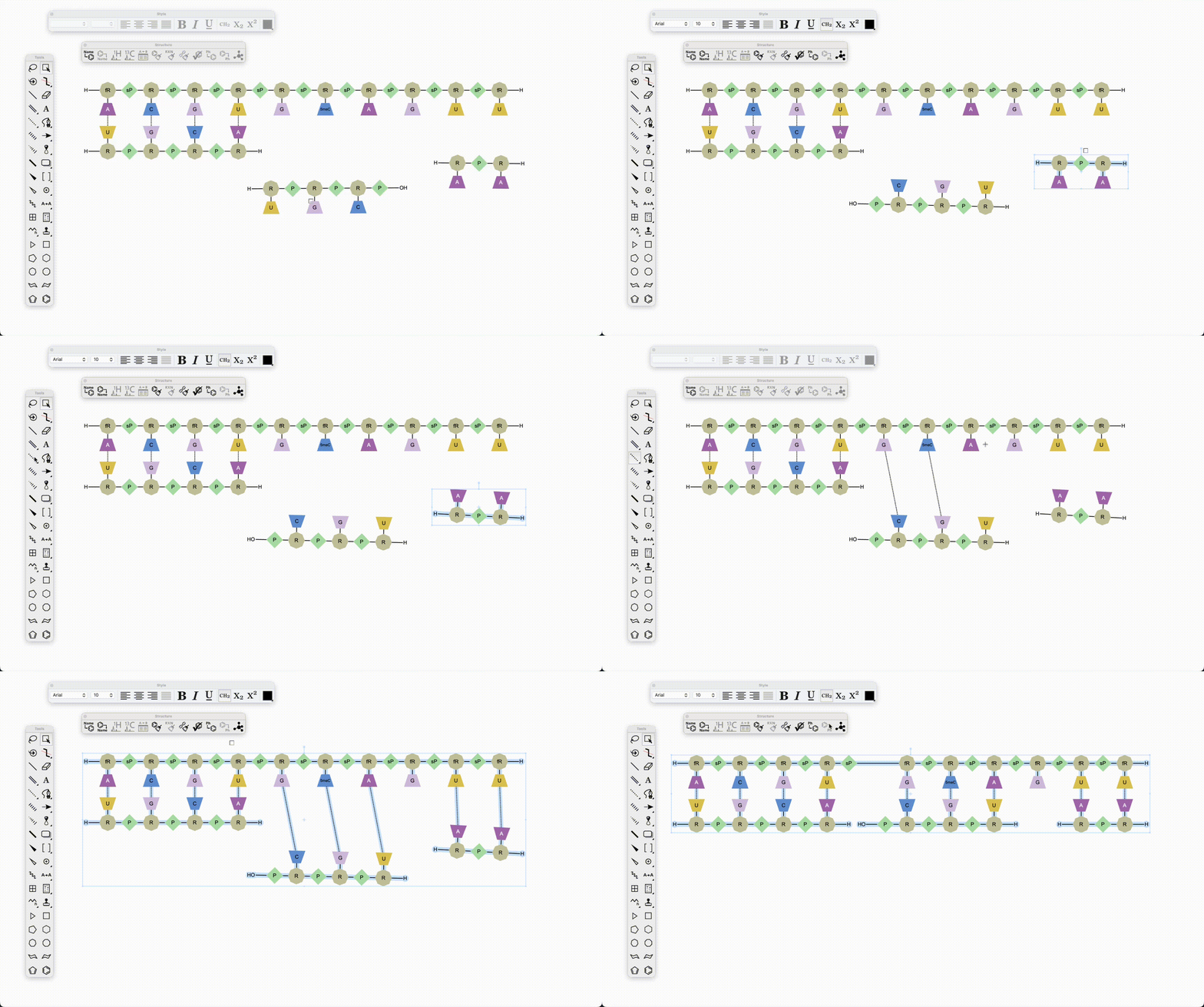
    – Multi-strand and branched complex biopolymers now supported
    – Upload of rdf file types to External Enumerator
  • Tables
    – Definition and display of Scatter Plots on Admin Defined Tables available to all systems*
    – End user adjustment of Scatter Plots available to all systems*
    – Export of image from Scatter Plots available to all systems*
    – Highlight selected rows or points in the Scatter Plot and Table available to all systems*
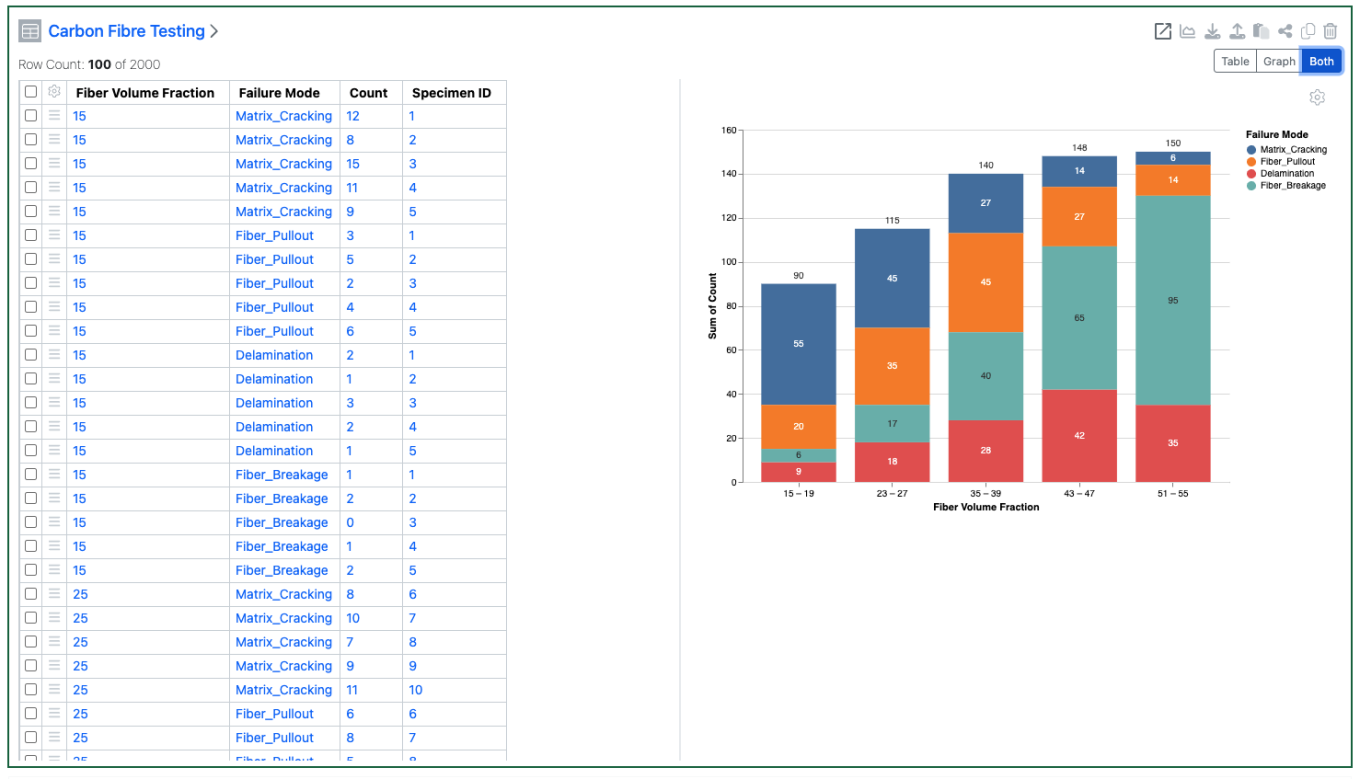
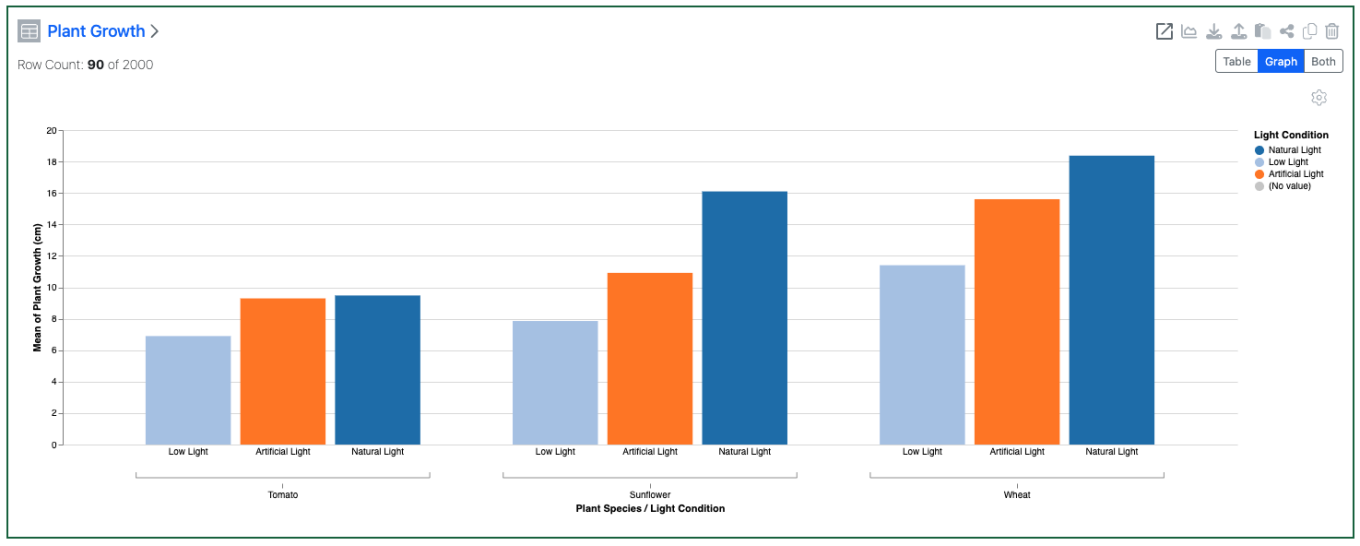
    – Definition and display of Bar Charts on Admin Defined Tables*
    – Define and display Size By and Transparency on Scatter Plot to enable Bubble Charts on Admin Defined Tables*
  • Inventory
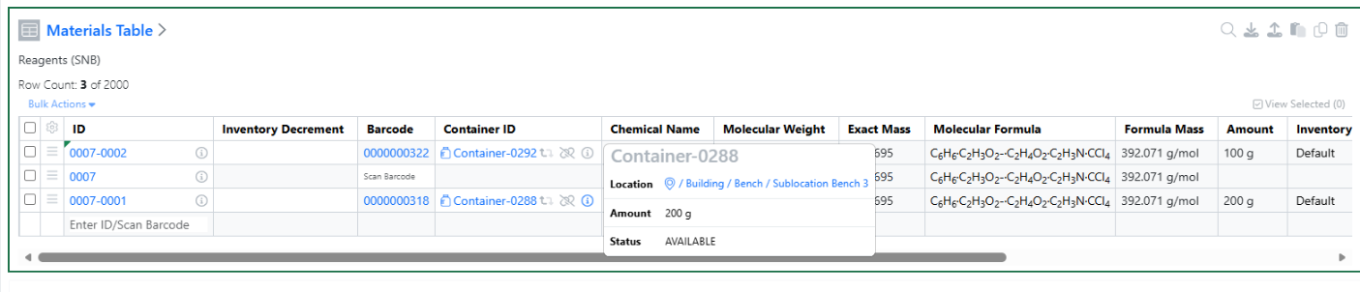
    – Enable container ID and barcode selection directly within Reagent tables
    – Support Inventory Decrement at Sub‑Experiment Level in Parallel Experiments
    – Display container details in Samples table when Material ID is present
    – Multi Select property display in the Container search table
  • InventoryGo‡
    – Flexible reconciliation workflows introduced: Batch vs. Individual scanning options
  • Administration
    – Migration for legacy Data Factory projects
    – ­Spotfire for Signals Online Access privilege available
    – Admin Defined Dashboards
    – Audit trail displays highlighted granular changes for admin-defined tables (beta)
  • Integrations & Interfaces
    – Ontology API Support
    – Salt Stripping Data for Chemical Drawings fetch API
    – Entity properties on Bulk Export API
    – Update Hierarchical Tables Headers API
    – External Enumerator via API
    – Bulk create Samples via Summary Table via API

* Requires Signals One license
† Requires Signals Synergy license
‡ Requires InventoryGo license

We also fixed several small bugs in this release. Details of the enhancements are described below.

Administrators are recommended to subscribe to the channels within our support news site found at https://support.revvitysignals.com/hc/en-us/categories/360004446171-Support-News which contains more information about releases and other pertinent product information.

Data Factory administrators should be aware that the Bulk Delete option from the Inventa Dashboard is now available regardless of the “Enable system-generated Unique Result IDs in Spotfire workflows” setting. However, Using Bulk Delete still requires explicit mapping of a Unique Result ID.

Data Factory Administrators should note that legacy Data Factory projects will be fully deprecated in a future release. A straightforward migration path is now available to support this transition. A specific deadline has not yet been scheduled.

Data Factory administrators should also note that the Advanced Security policies in Inventa apply an “AND” logic across all user groups, restricting access if any groups lack permissions. This behavior differs from the standard Signals security model and will be fixed to align with the standard in a future release.

This content is anticipated for release on our Production E3 environments, and for Private Cloud customers on our deferred release schedule, in November 2026.

Further Details

The following improvements are available for users, administrators and developers on the Signals platform. Certain features may only be available with appropriate licensing and/or with enablement by an administrator.

Fundamentals
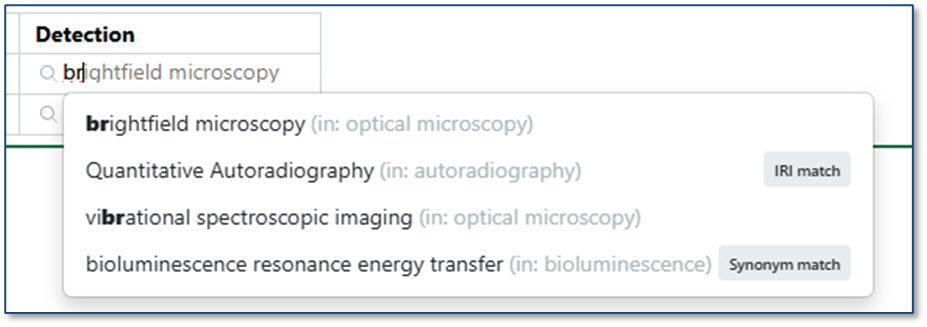
Image 1 from What's New 26.4-2.docx

Ontology support is now available for all systems. Administrators may connect to a ontology provider (BioPortal, OLS, or SciBite CENtree) as an External Ontology. Once a specific ontology from that source is connected, Administrators can create a new type of Attribute, Ontology Lists, which contain a subset of terms from the ontology. This Ontology List can be used in templates and properties across signals, including Experiments, Materials, Tables, Samples, Admin Defined Objects, Plates, Inventa Analyses (for Signals One), Synergy Experiments and Design/Reference Tables, and more.
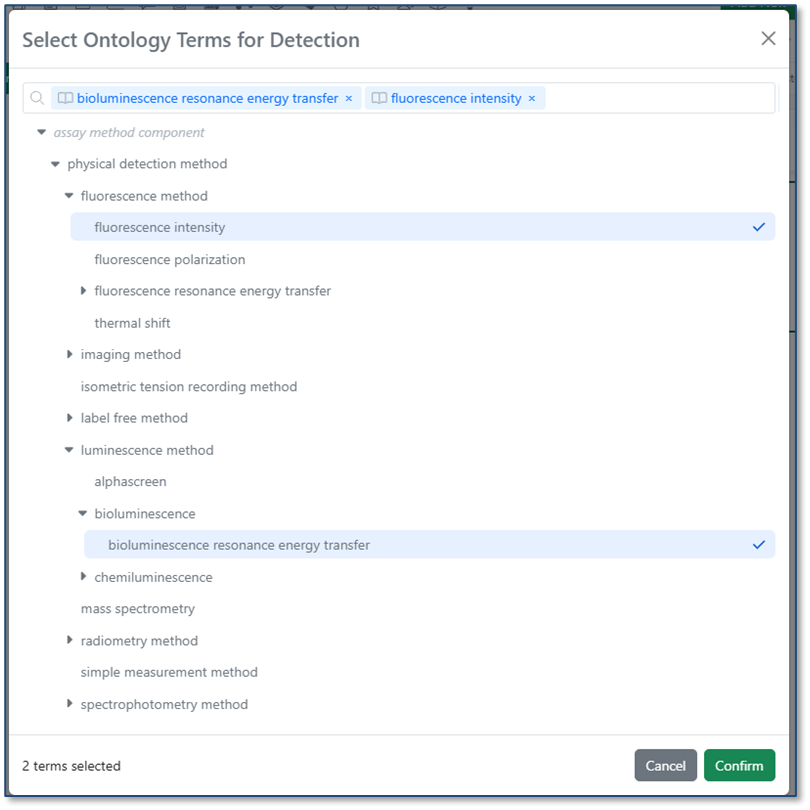
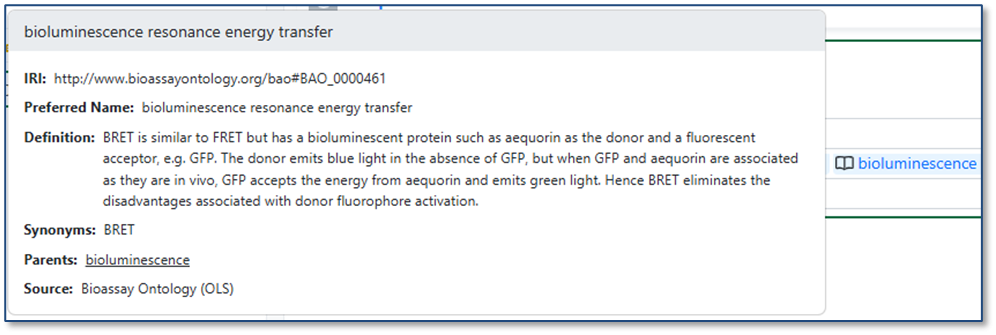
Image 2 from What's New 26.4-2.docx
Image 3 from What's New 26.4-2.docx
Image 4 from What's New 26.4-2.docx

When you import a CSV into a table, ontology values are now validated against the Ontology List for that field. If a value in the CSV matches a term’s preferred name or any synonym, it is automatically mapped to the correct ontology term. If no matching term is found, users can resolve the value during import by selecting the appropriate term from the Ontology List.
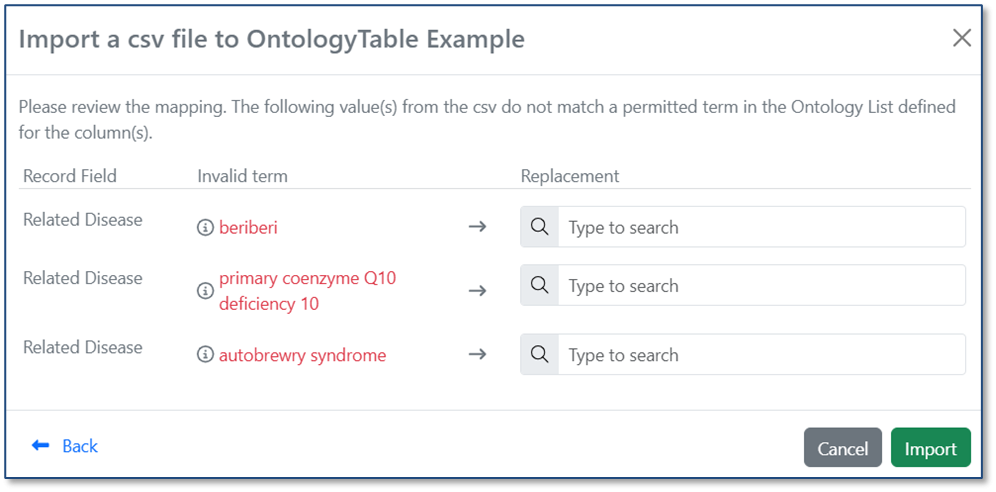
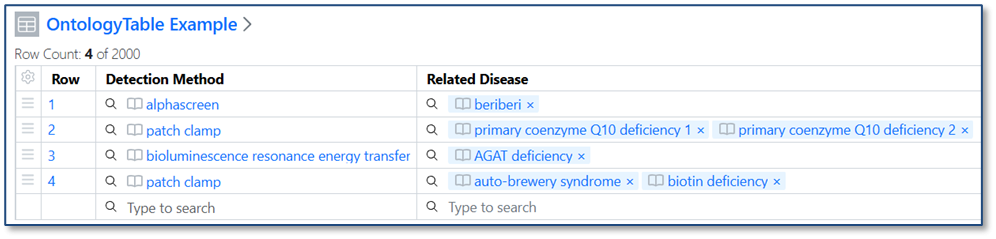
Image 5 from What's New 26.4-2.docx
Image 6 from What's New 26.4-2.docx

Data Workflows & Analytics

Image 7 from What's New 26.4-2.docx

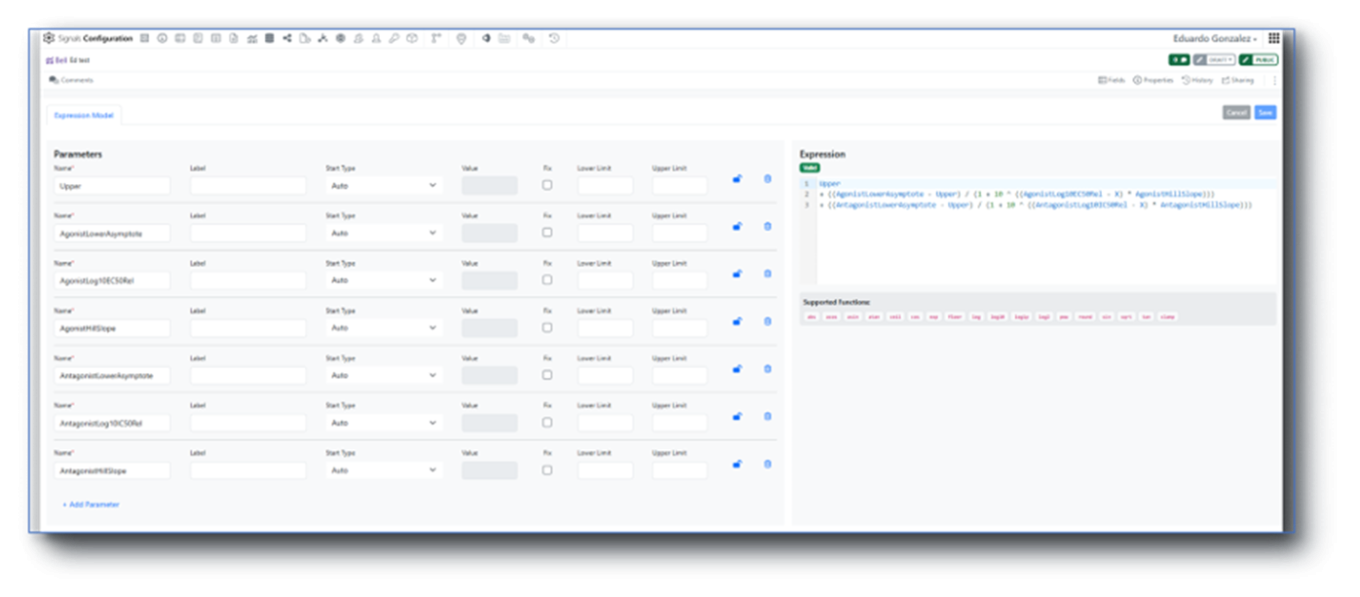
In Signals One, all In Vitro Analysis users will discover that in the Data Assembly step, the 5-rows static preview has been replaced by an interactive viewer with continuous scroll. Numerical and categorical columns can now be filtered, sorted, reordered and hidden to flexibly slice and dice the data that will be used in the Analytics steps. Visual cues indicate the source data of the columns, and which columns were used during the matching process.

In the Analytics steps of the In Vitro Analysis, a couple of new normalization methods, using the median instead of the average, can now be found in the Inter Plate Method menu, both with the “Robust” prefix.
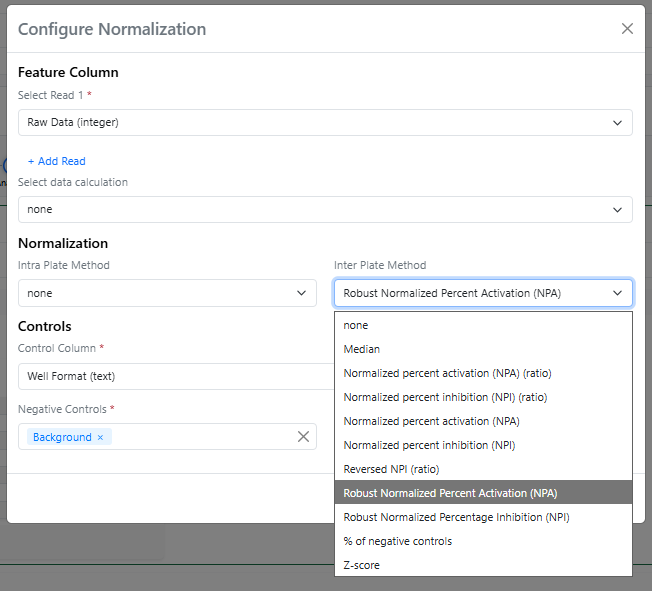
Image 8 from What's New 26.4-2.docx

The Robust Normalized Percent Activation is calculated using the expression: “(value - median(n)) / (median(p) - median(n)) * 100” while the Robust Normalized Percent Inhibition is calculated using the expression: “(median(p) – value) / (median(p) - median(n)) * 100” (where p and n are the values for positive and negative controls). Median-based normalizations are called "Robust" because they are not heavily influenced by extreme outliers.

Finally, the mean and standard deviation of both positive and negative controls are calculated and added to the Normalization results.

SAR & Decisioning
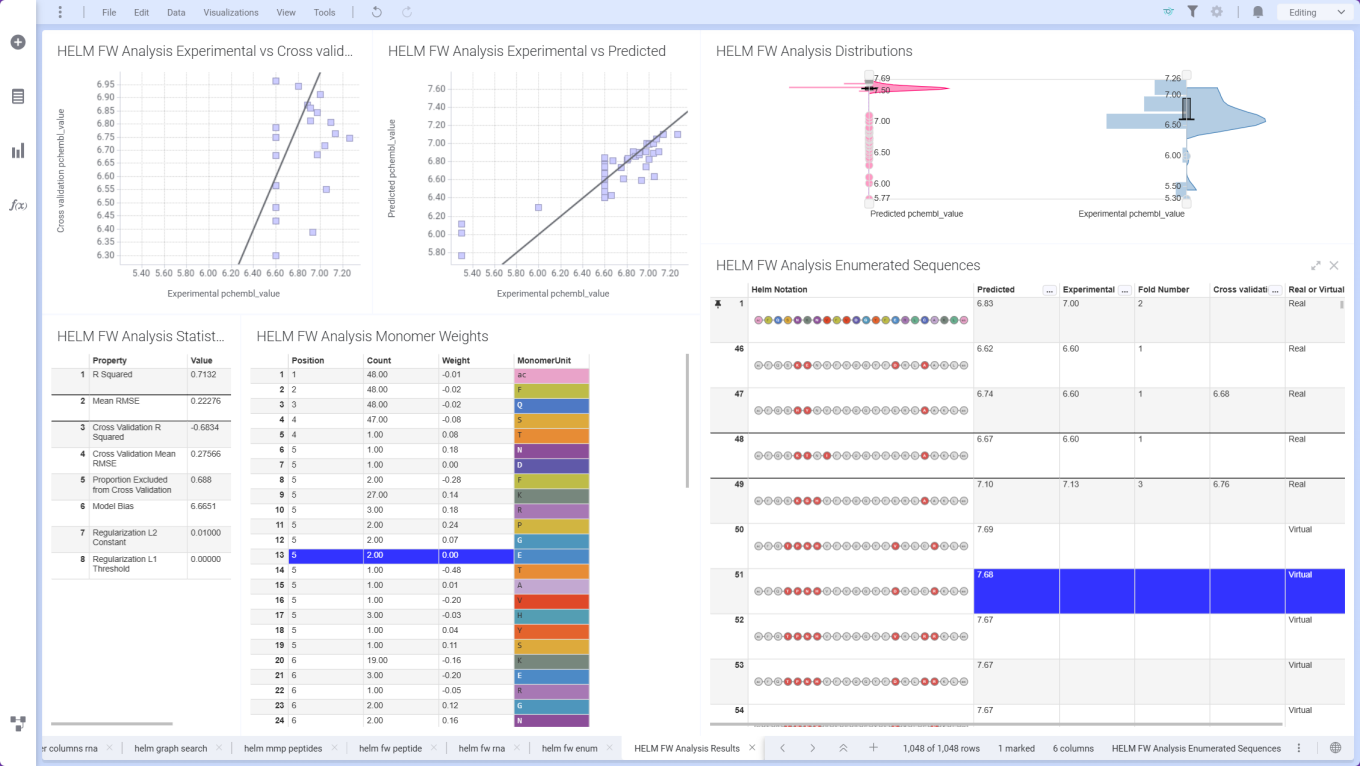
Image 9 from What's New 26.4-2.docx

ChemCharts Data Functions introduce Free‑Wilson analysis for HELM sequences, using aligned sequence and property data to quantify position‑specific monomer contributions. Combined with the Free‑Wilson Enumerator, users can design and prioritize novel HELM sequences based on predicted performance.
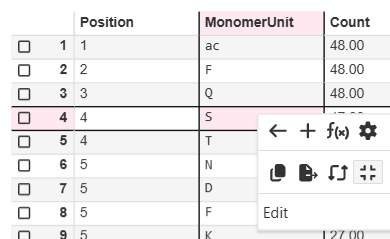
Image 10 from What's New 26.4-2.docx

ChemCharts Table Visualizations now support a crosshair, which once activated highlights the cell, row number, and column header when moving the mouse.

Synergy
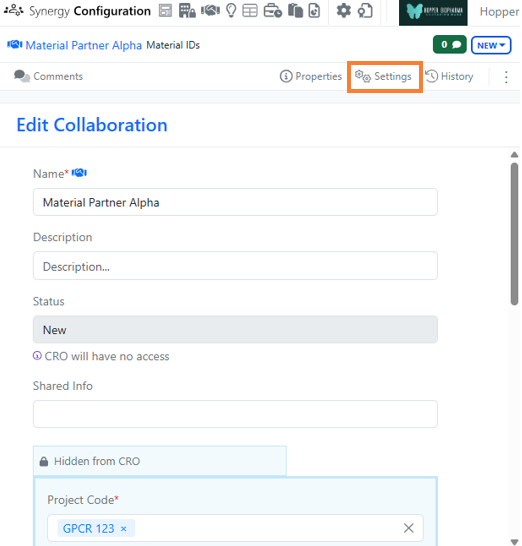
Image 11 from What's New 26.4-2.docx

Synergy now allows the administrator to choose whether to use aliased ExIDs or Material IDs with a CRO on a Collaboration-by-Collaboration basis. An administrator with the privilege Manage Collaborations has access to a new Collaborations Settings menu on a Collaboration where the administrator can choose between aliased ExIDs or Material IDs. The default is ExIDs to support the current behavior. This setting can only be changed while the Collaboration is New (before being sent to the CRO) and no child Work Orders are yet created.
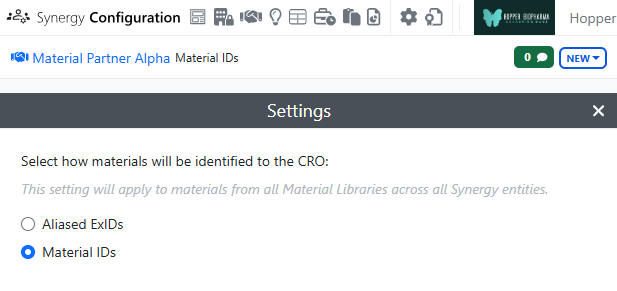
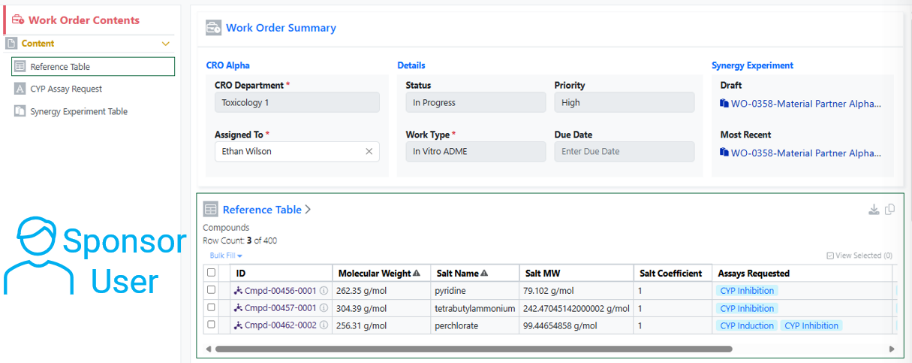
Image 12 from What's New 26.4-2.docx

Image 13 from What's New 26.4-2.docx

If the Collaboration is set to Materials IDs, materials shared via the Reference Table will display with their Material IDs to both the CRO and Sponsor. The Sponsor will not have a toggle to switch between the IDs, indicating that the Material ID will be shared with the CRO.
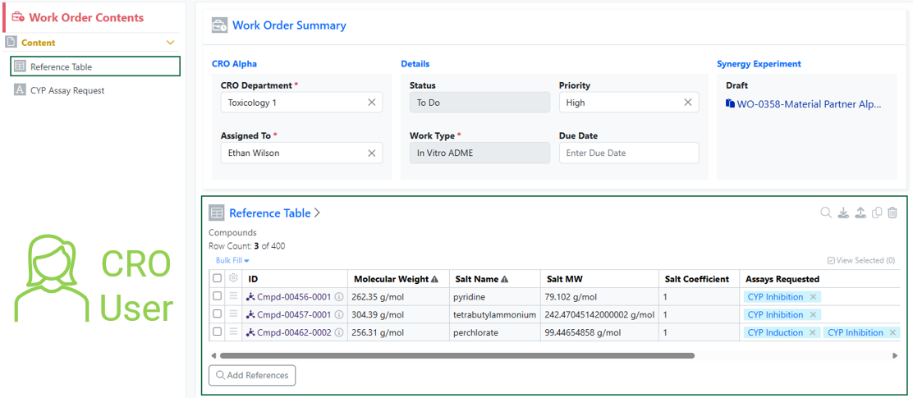
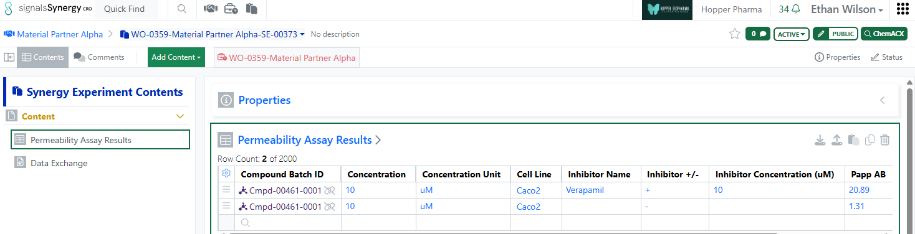
Image 14 from What's New 26.4-2.docx
Image 15 from What's New 26.4-2.docx

The use of Material IDs persists throughout the Collaboration in all child Work Orders and Synergy Experiments. For example, when a CRO user populates an internal reference column in an admin-defined table or when the Sponsor registers a Sample in a Samples table, the column will display the Material ID for both the Sponsor and CRO.
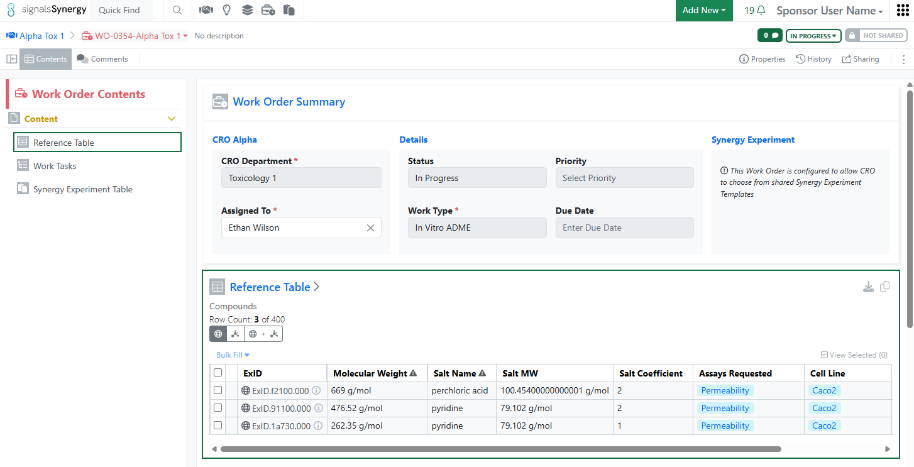
Image 16 from What's New 26.4-2.docx

If the Collaboration is set to ExIDs (default), materials shared via the Reference Table will display with their ExIDs to the CRO, and the Sponsor will have a toggle to switch between the ExIDs, Material IDs, or both (existing behavior).
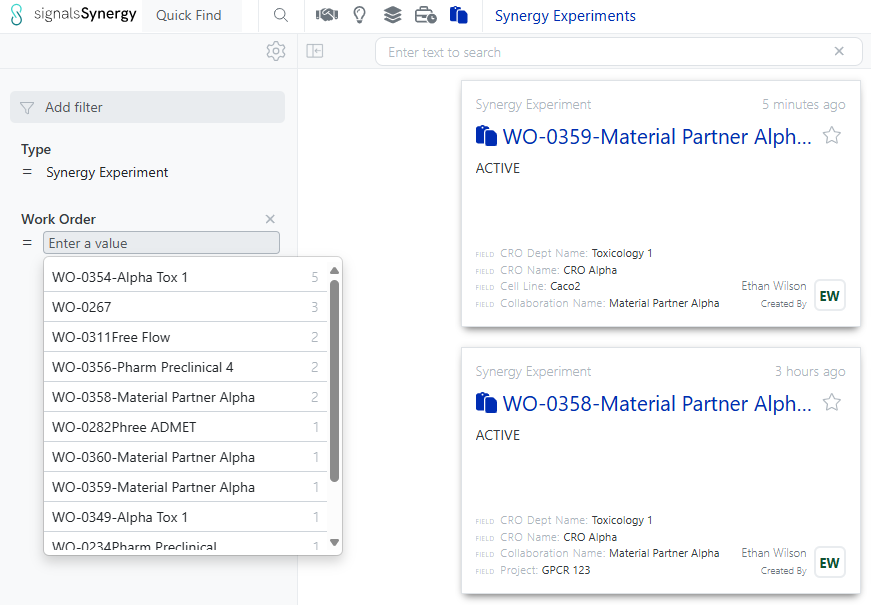
Image 17 from What's New 26.4-2.docx

Both Sponsor and CRO users can now search for Synergy Experiments by the associated Work Order ID. The Work Order filter can be added in Advanced Search, typically alongside Type = Synergy Experiment, or to the Synergy Experiments Smart Folder.
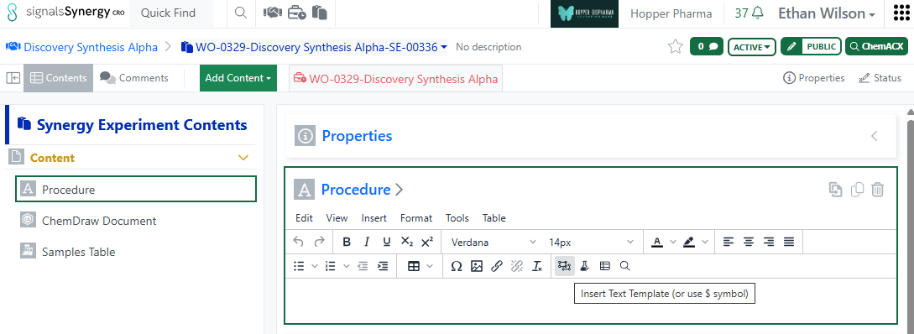
Image 18 from What's New 26.4-2.docx

Finally, CRO users can now access and insert System Snippets using the Insert Text Template on any Text element. Note, CRO users cannot save text templates to avoid cluttering the template options for all users.
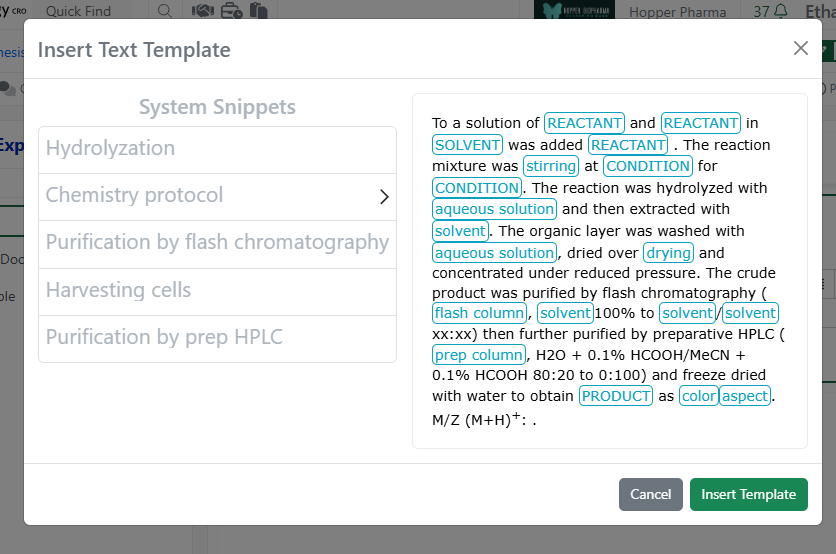
Image 19 from What's New 26.4-2.docx

Chemistry

Image 20 from What's New 26.4-2.docx

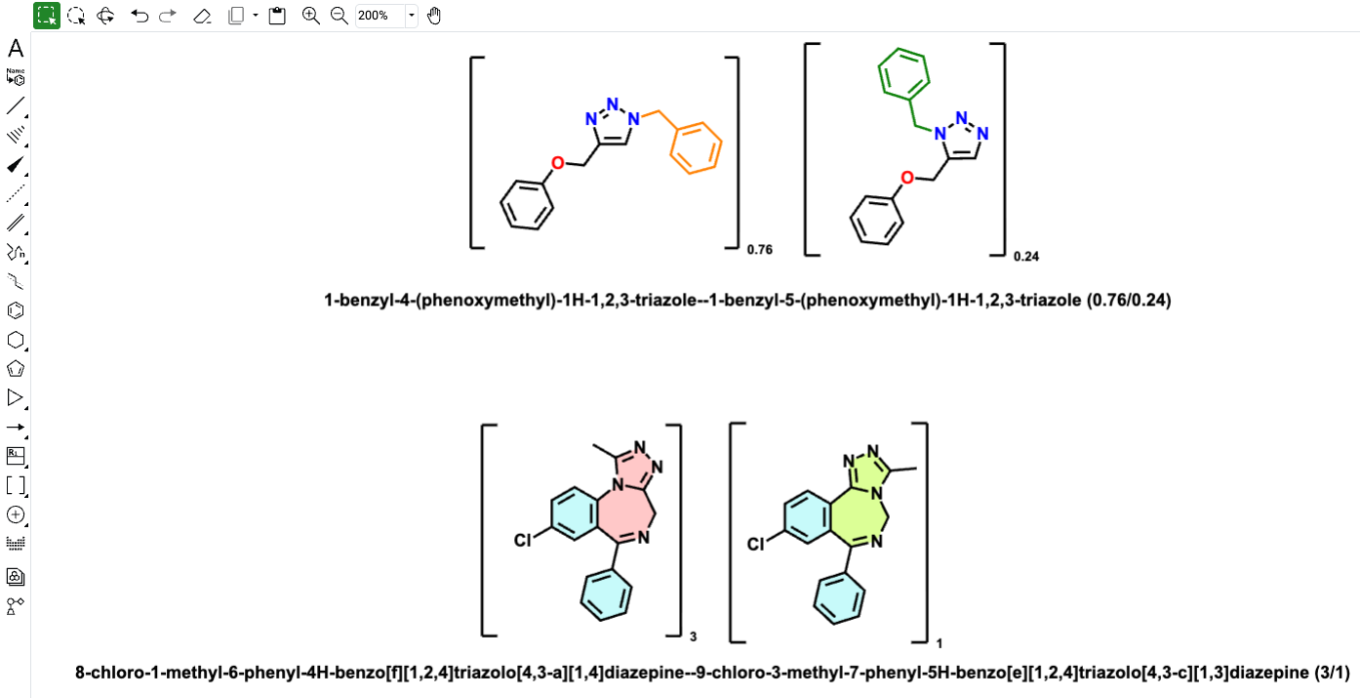
The ChemDraw editor now supports rendering and cleanup of multi-strand and branched complex biopolymers, making these structures easier to display in a clear, aligned, and readable layout.
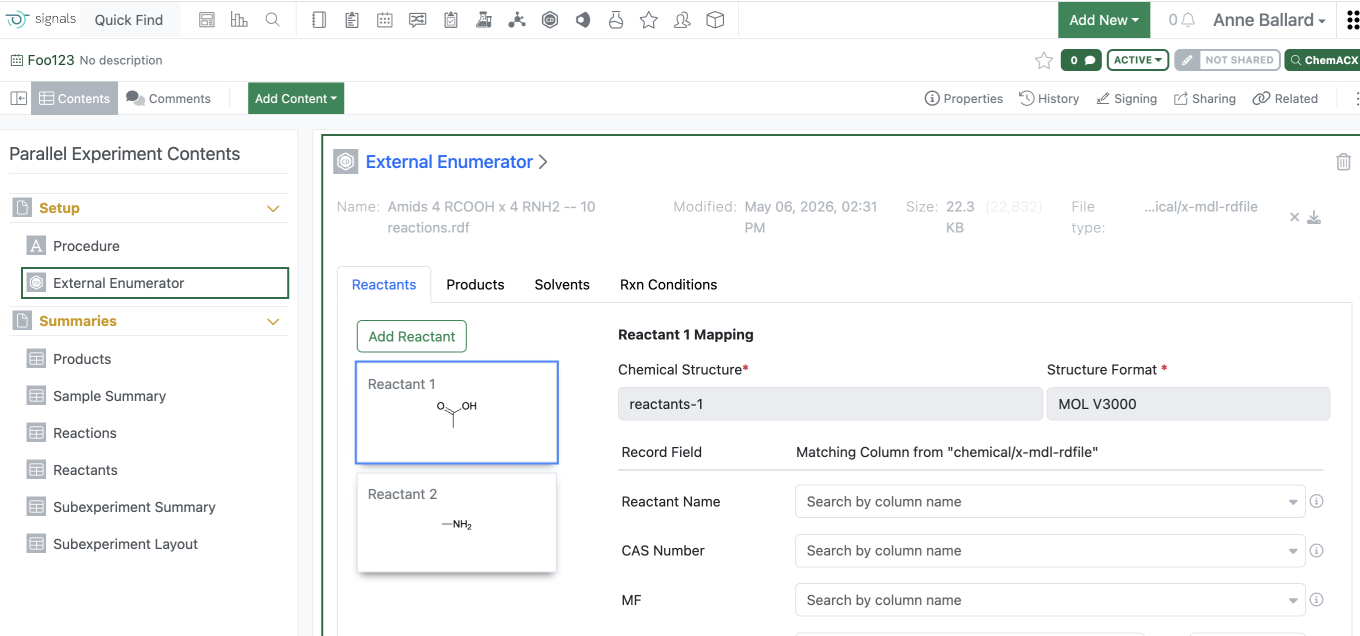
Image 21 from What's New 26.4-2.docx

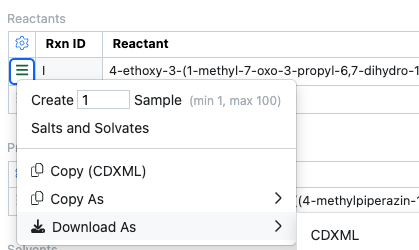
Users are now able to load an RDF type file into the External Enumerator for Parallel Experiment enumeration. Fields within the rdf can be mapped into the external enumerator. Reactant order is defined by the rdf file. Solvent and Rxn Conditions are not commonly included in the rdf file and therefore will need to be added manually.

Additional reactants or products can be added manually similarly to what can currently be managed.

Tables
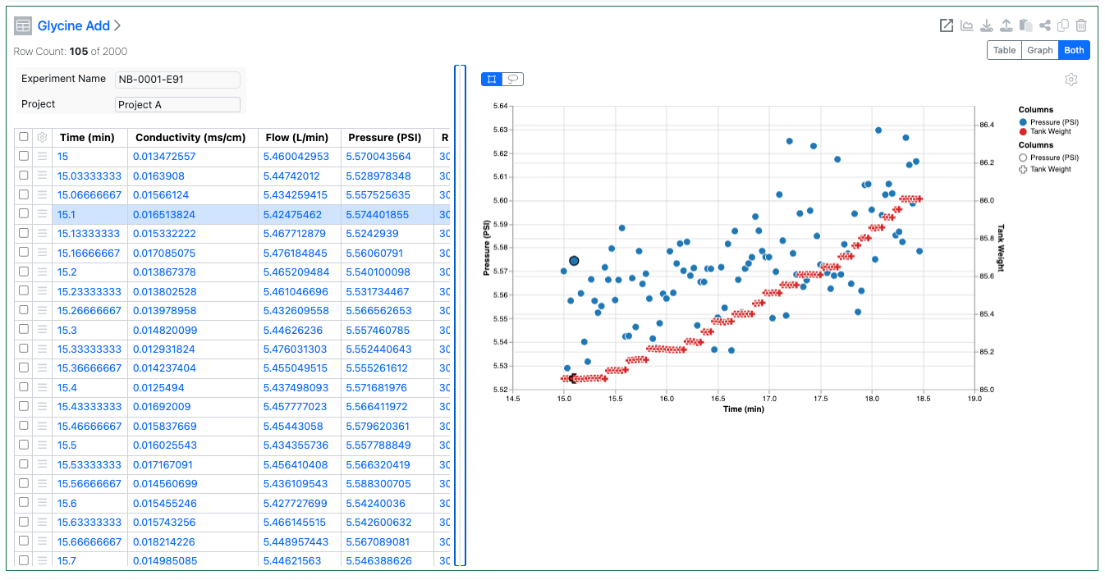
Image 22 from What's New 26.4-2.docx

Scatter Plots are now available to all tenants. End users require a Signals One license to view and edit charts in ADTs.
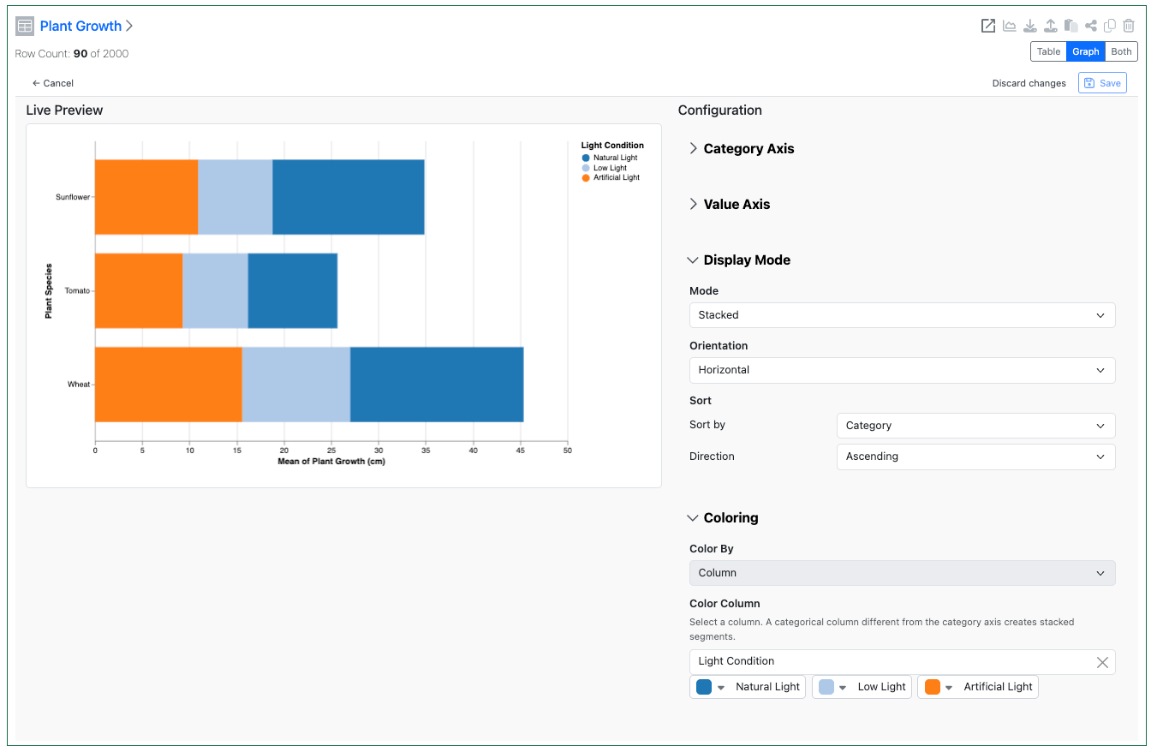
Image 23 from What's New 26.4-2.docx

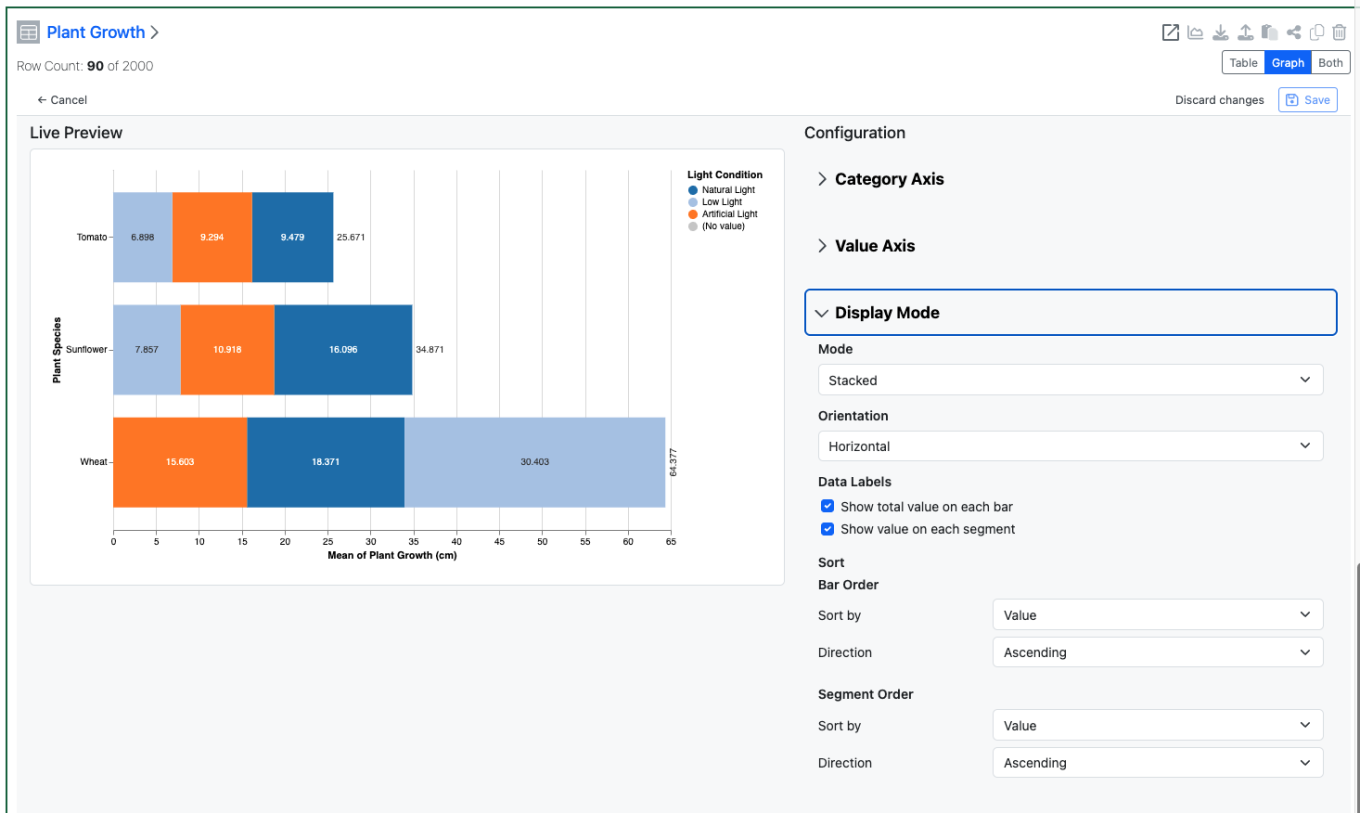
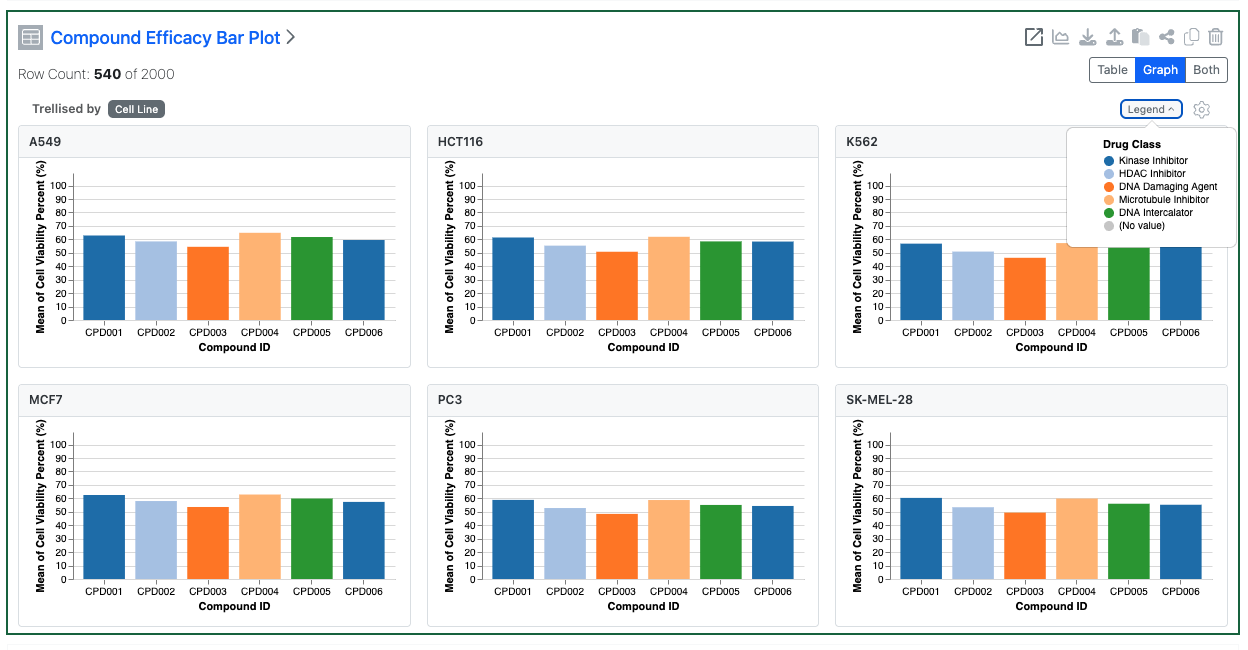
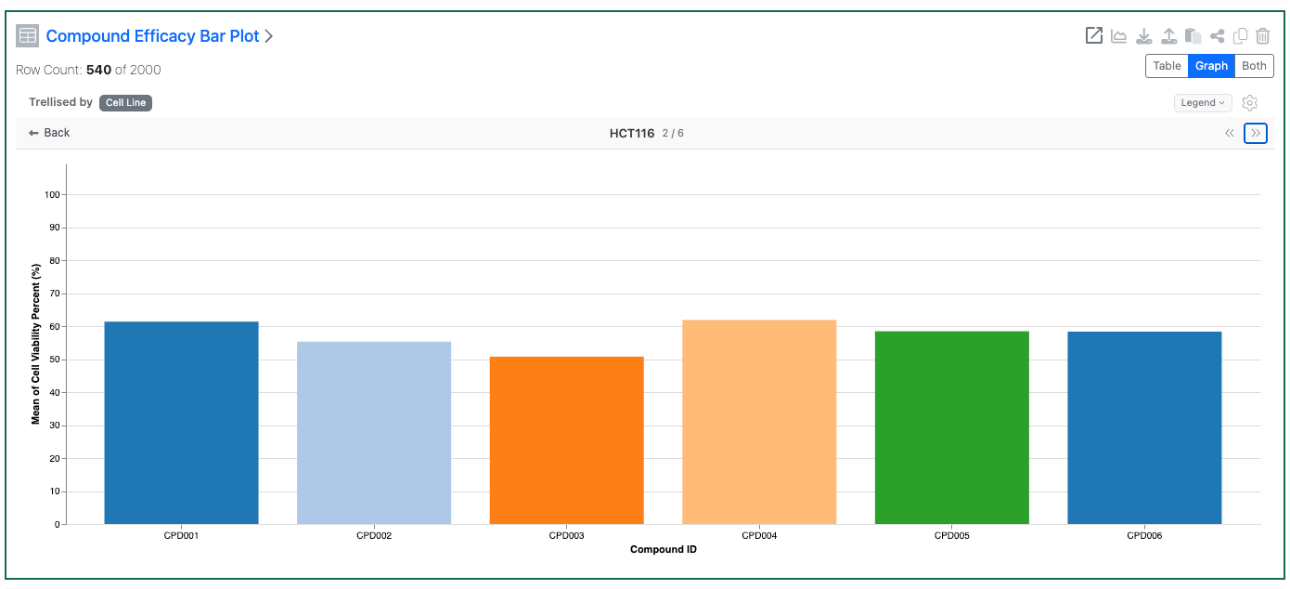
Configuration Administrators can now choose to define a Bar Chart on Admin Defined Tables. Similar to the definition of Scatter Plots, administrators can define the Bar Chart on the Table template including setting properties for the value and categorical axis. The chart can be a simple, stacked or 100% stacked bar chart and can be displayed vertically or horizontally. The admin can also choose if the end user is able to adjust the settings for the chart.
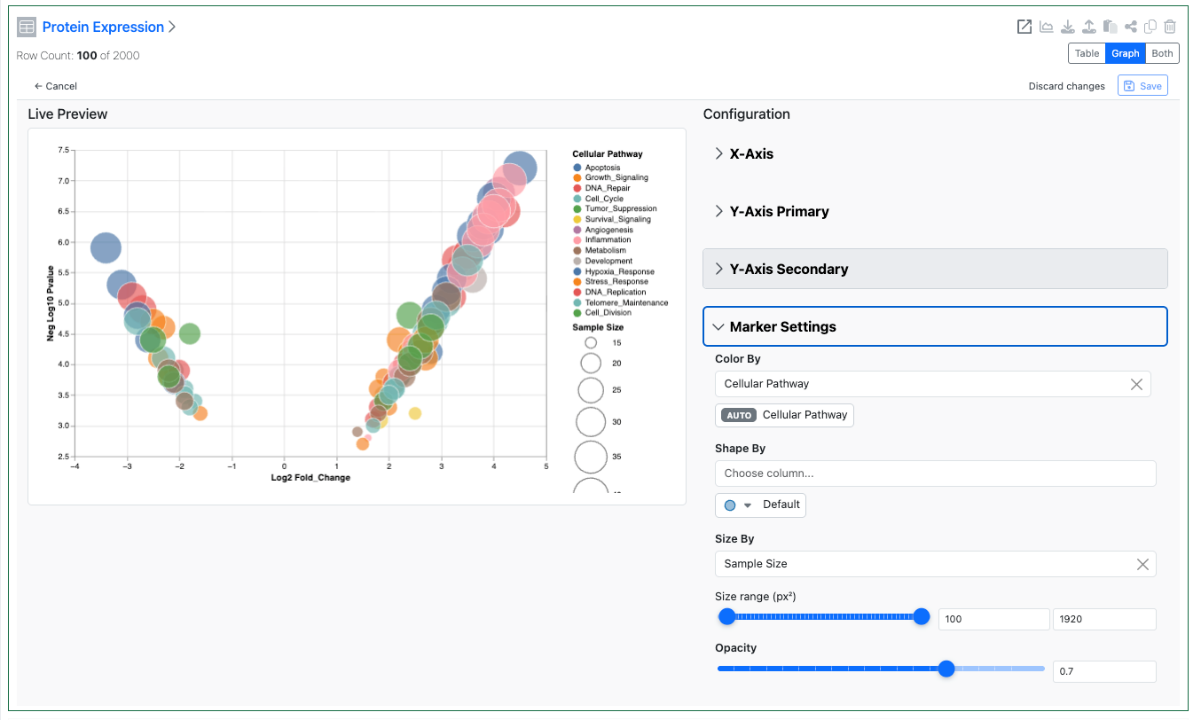
Image 24 from What's New 26.4-2.docx

Configuration administrators can also now define a Size By and an Opacity setting for Scatter Charts. These two settings allow for the creation of Bubble Charts using the Scatter Chart type. If the end user is allowed to change chart settings these options are also available directly within the Admin Defined Table.

Inventory

Image 25 from What's New 26.4-2.docx

Users with the right permissions can now assign or reassign containers in cloned or pre-defined experiments, even after container details are cleared, enabling more flexible and accurate inventory workflows in Reagent table.
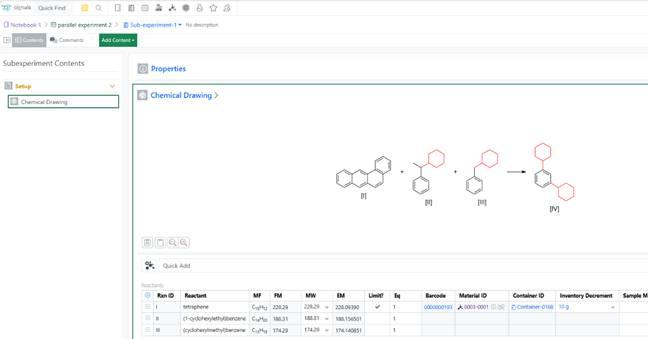
Image 26 from What's New 26.4-2.docx

Inventory Decrement can now be entered at the sub‑experiment level, allowing users to accurately update container usage when working with parallel, cloned, or reagent‑specific sub‑experiments.

Image 27 from What's New 26.4-2.docx

Container details are now accessible from the Samples table even when a Material ID is provided, ensuring consistent visibility across sample workflows.
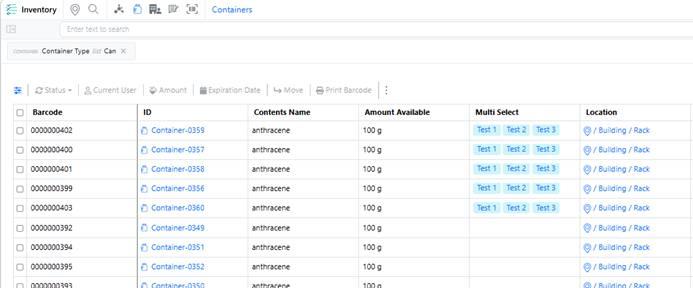
Image 28 from What's New 26.4-2.docx

Container multi‑select properties are now available in the Container table, allowing users to view multi‑select container properties directly from the inventory view.

InventoryGo
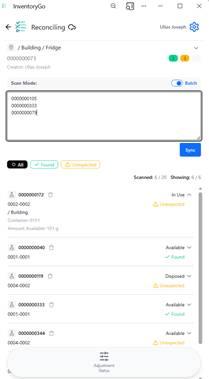
Image 29 from What's New 26.4-2.docx

A new Scan List mode has been added to reconciliation, allowing users to scan containers in bulk and fetch results on demand, with a toggle to switch between batch and individual scanning for more reliable and faster workflows.

Administration
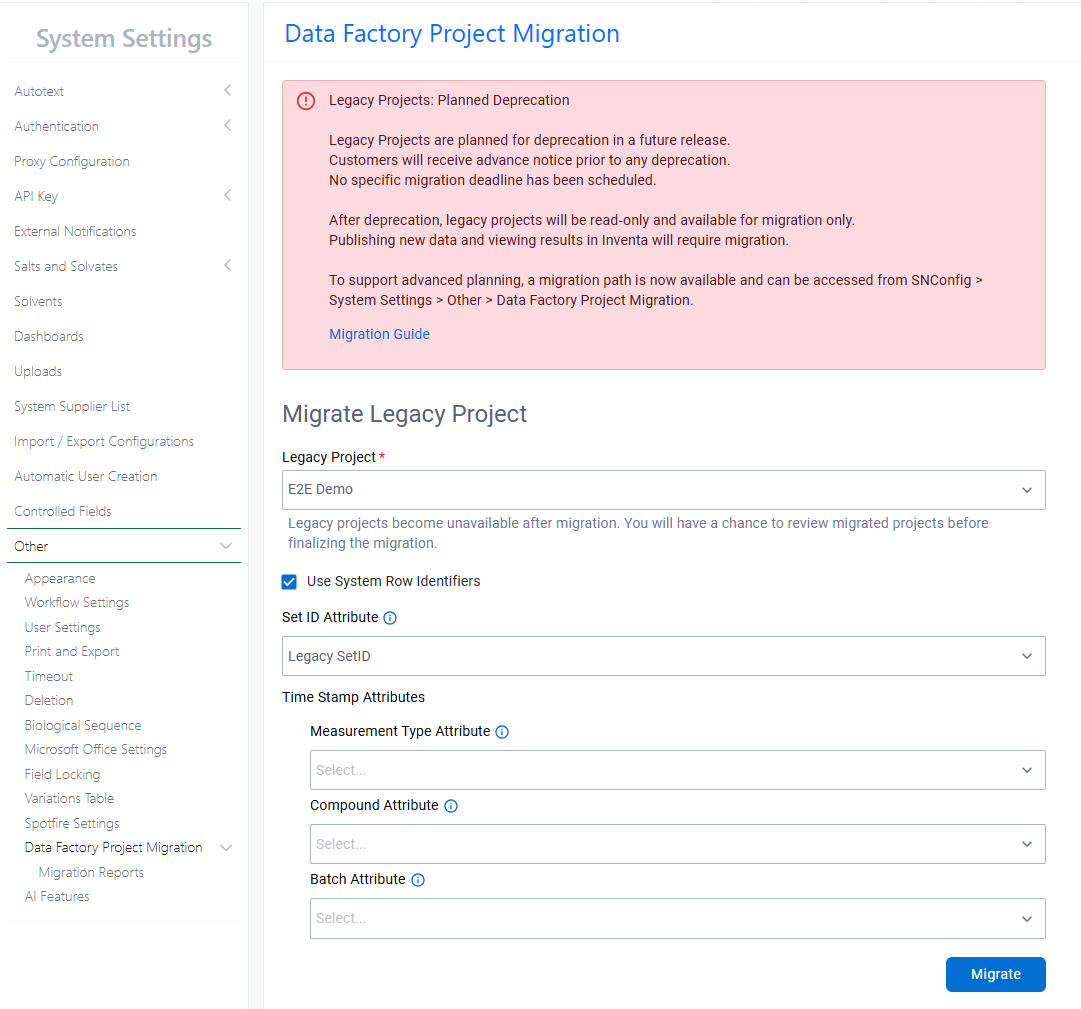
Image 30 from What's New 26.4-2.docx

A migration path for legacy Data Factory projects is now available. Legacy Data Factory will be deprecated in a future release; administrators are encouraged to migrate to the latest Data Factory as soon as possible. The Legacy Project Migration tool is available from System Settings > Other. Before migrating, review the Migration Guide within the Signals Configuration Guide.
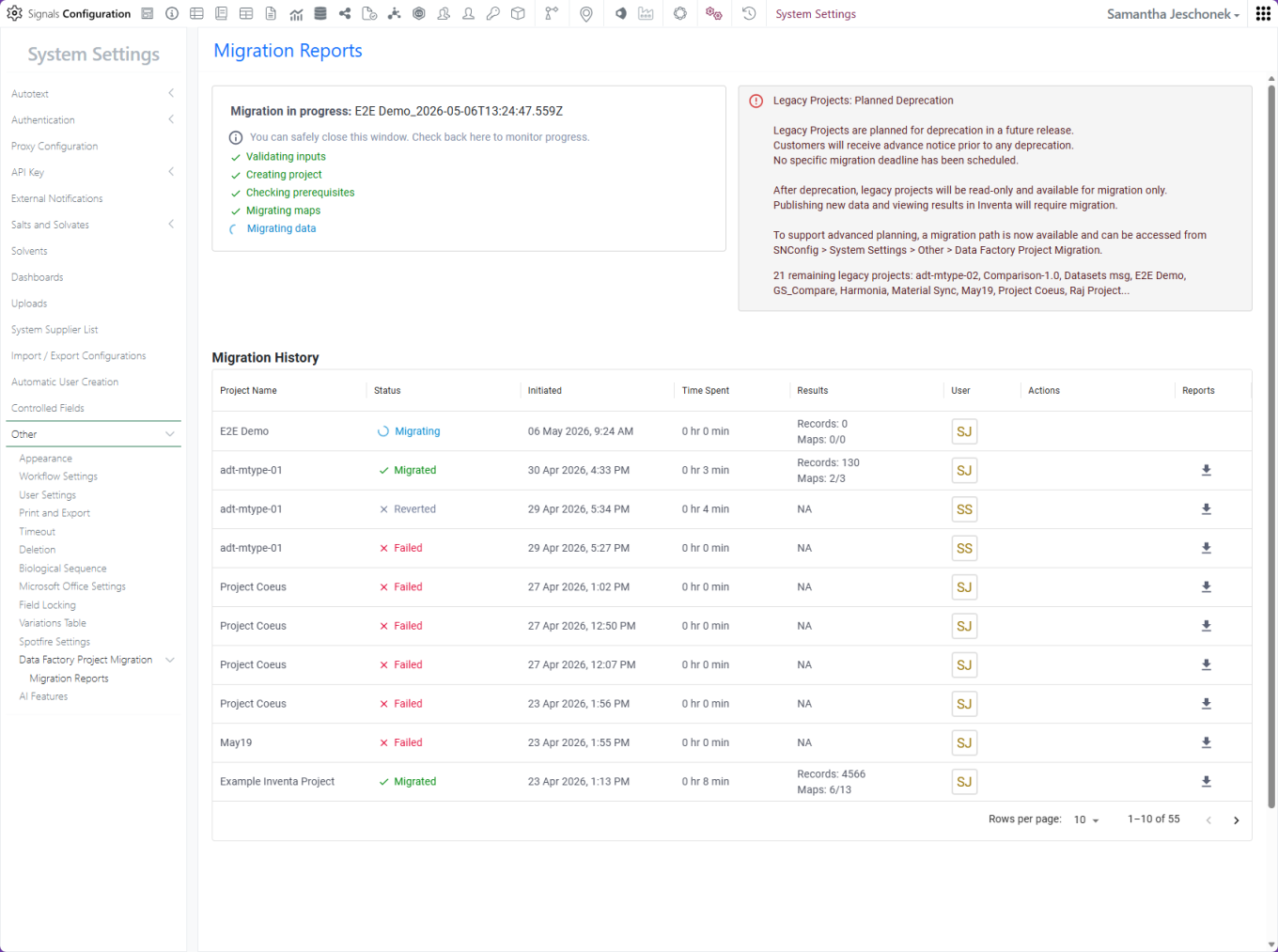
Image 31 from What's New 26.4-2.docx

Migration status and history are captured in the Migration Report.

Image 32 from What's New 26.4-2.docx

After a successful migration, administrators can review the migrated project before committing the changes.

Image 33 from What's New 26.4-2.docx

After you commit, the migrated project is ready to use and can be accessed from the Inventa Dashboard. The legacy project is no longer available for publication or data retrieval in Inventa.
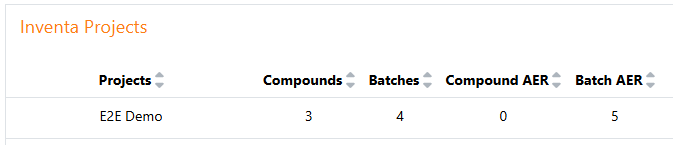
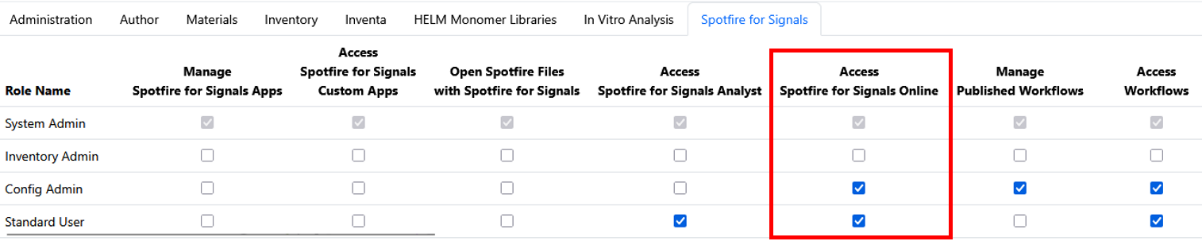
Image 34 from What's New 26.4-2.docx
Image 35 from What's New 26.4-2.docx

Spotfire for Signals Online Access privilege available to control which users can access and substantiate Spotfire for Signals Online. Users without this privilege will be limited to Spotfire for Signals Analyst use.
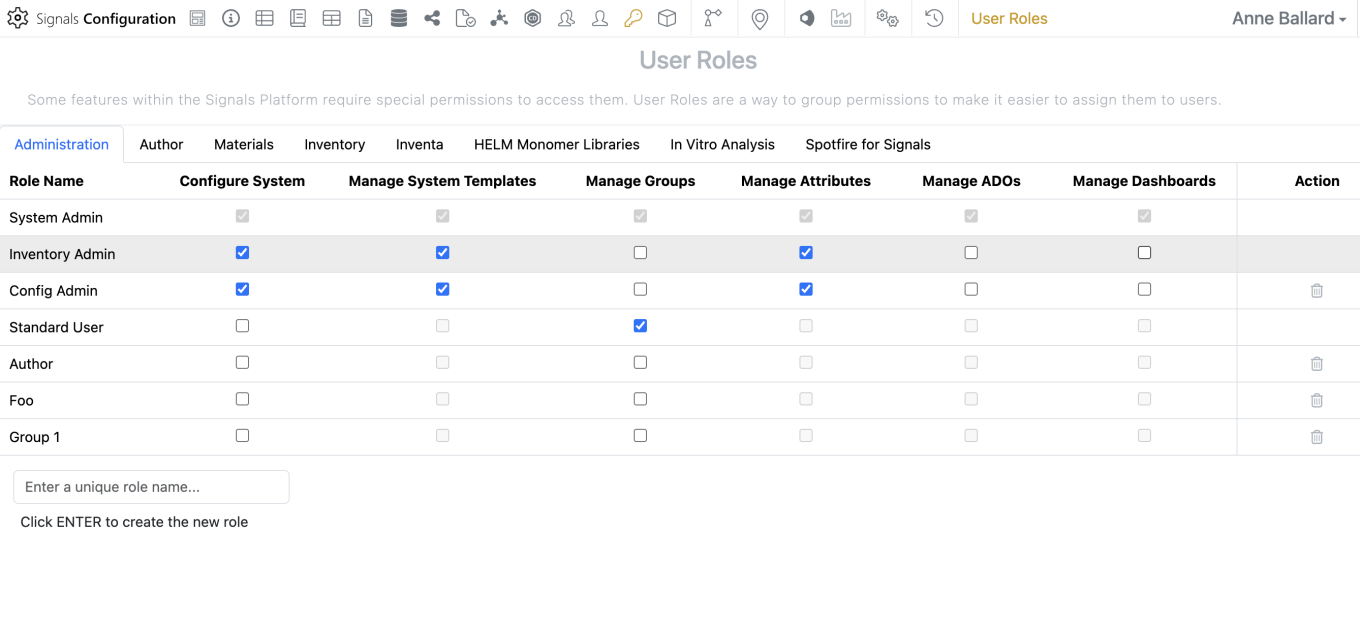
Image 36 from What's New 26.4-2.docx

Administrators should now be able to create and share dashboards from the SN Config. To edit, share or create dashboards, a user must have the “Manage Dashboards” privilege and access to the SN Config as Admin Defined Dashboards can only be edited or created within the SN Config.
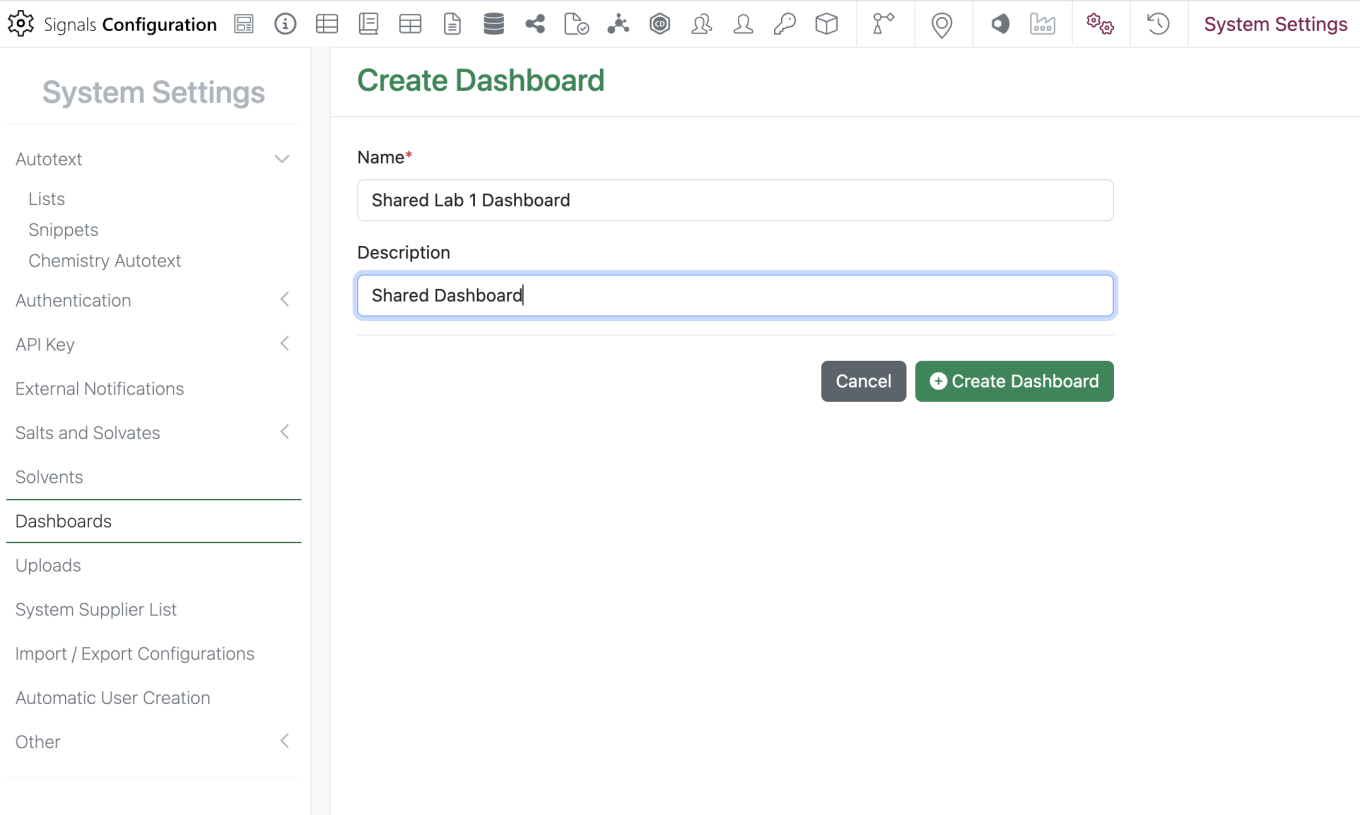
Image 37 from What's New 26.4-2.docx

The new “Dashboards” section can be found in the System Settings. To create a dashboard, the admin should select the green “Create Dashboard” button then they are prompted to enter a dashboard name and description.
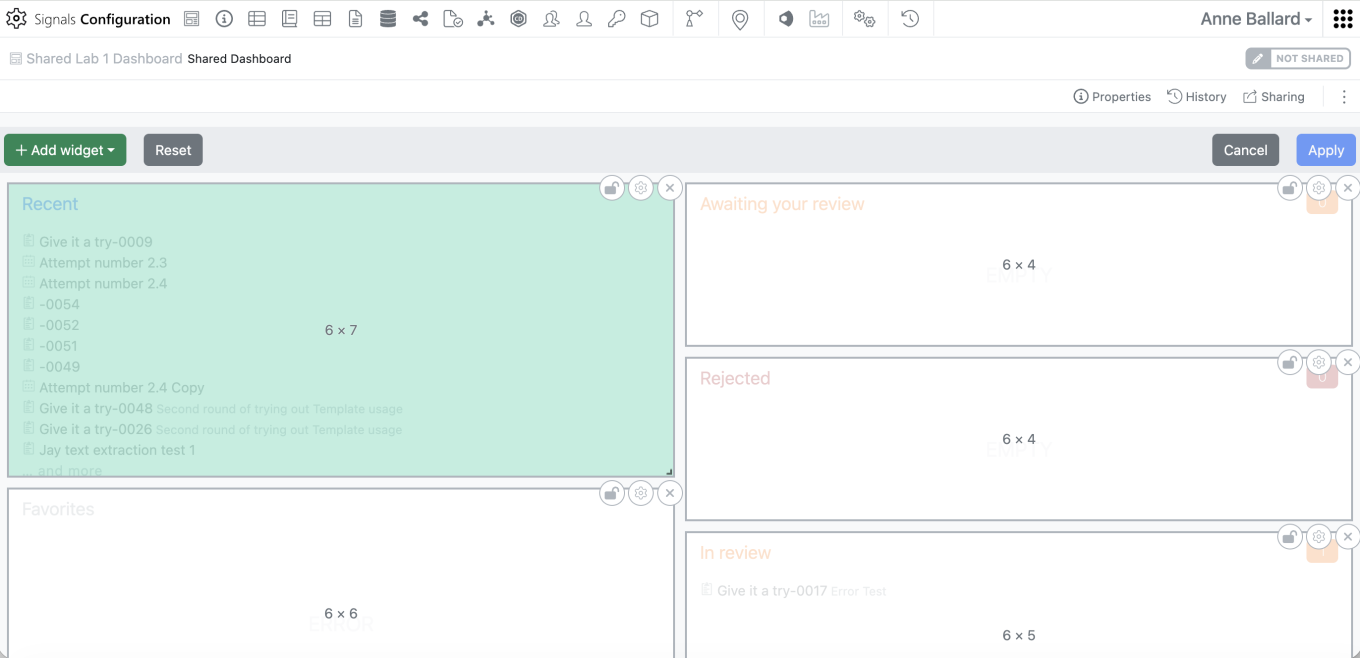
Image 38 from What's New 26.4-2.docx

When the admin clicks on “Create Dashboard” they will be brought to the Dashboard edit screen. Here they can add, remove, edit, or resize widgets similarly to what can be done with a personal Dashboard.
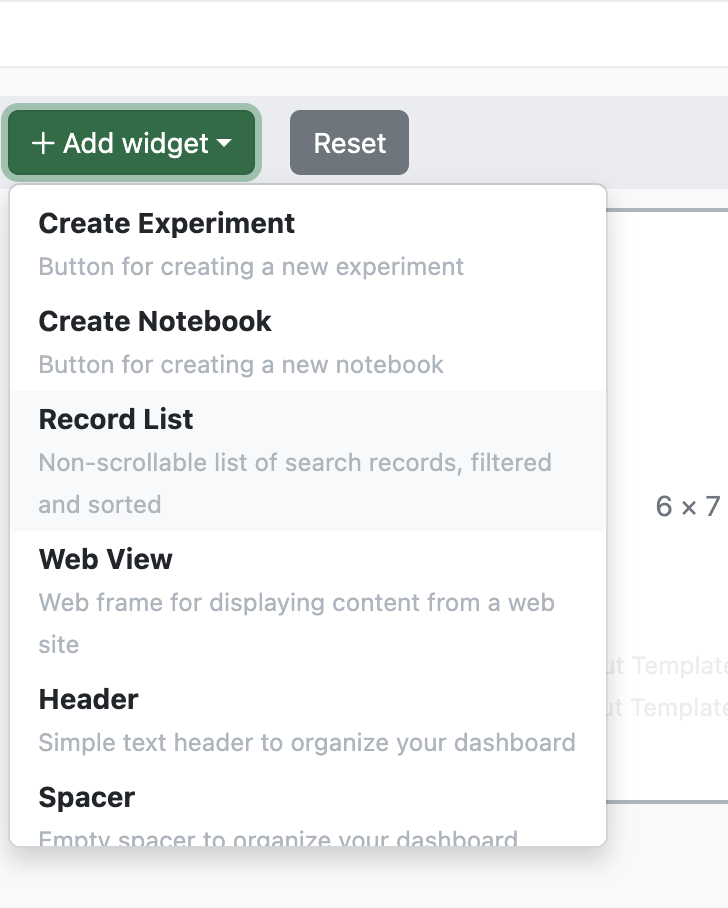
Image 39 from What's New 26.4-2.docx

To add a new “Record List”, the most commonly utilized widget, the admin would select “Add Widget” > “Record List”. Under “List Source” the admin can select from a standard set of predefined lists or select “Define List” to create a new search list.
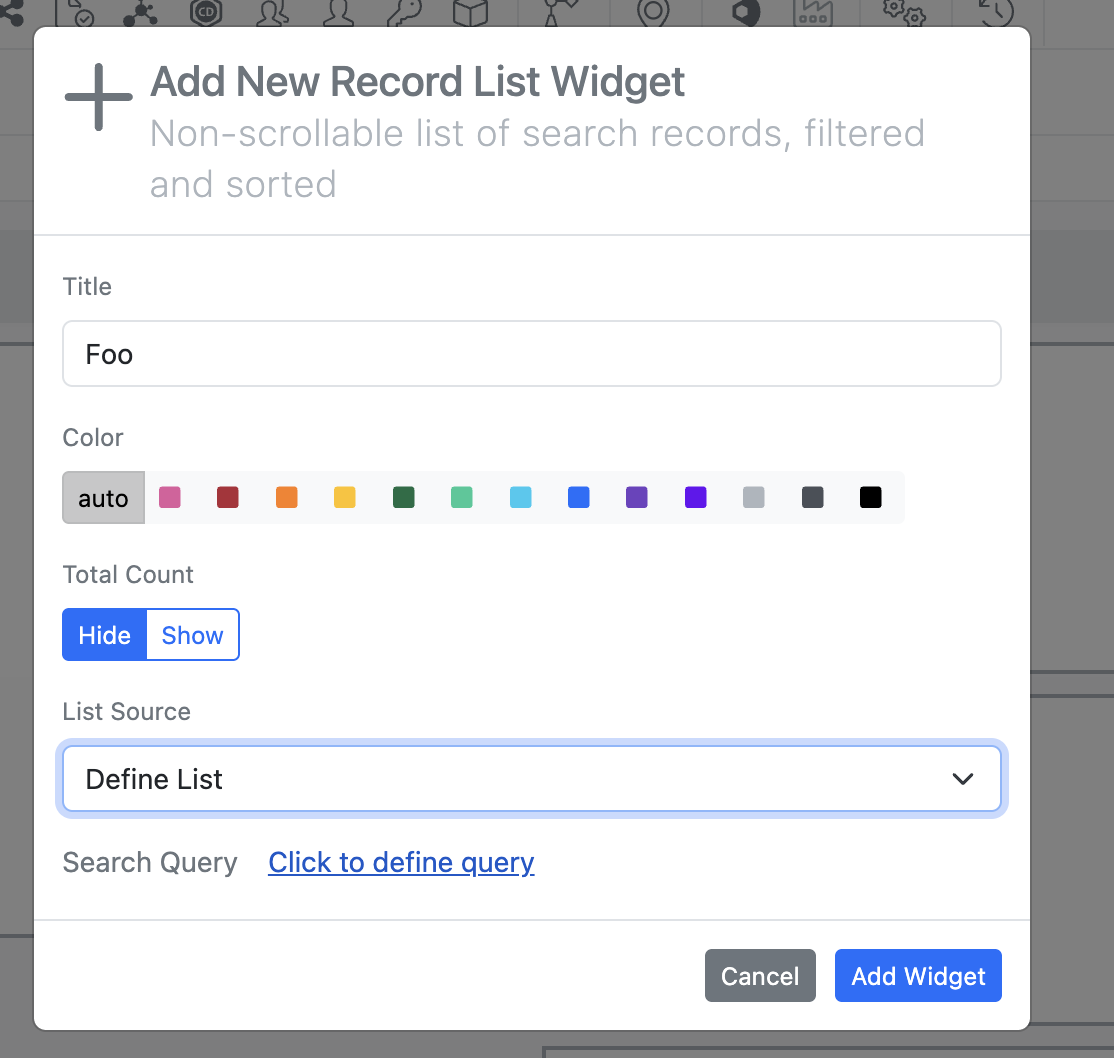
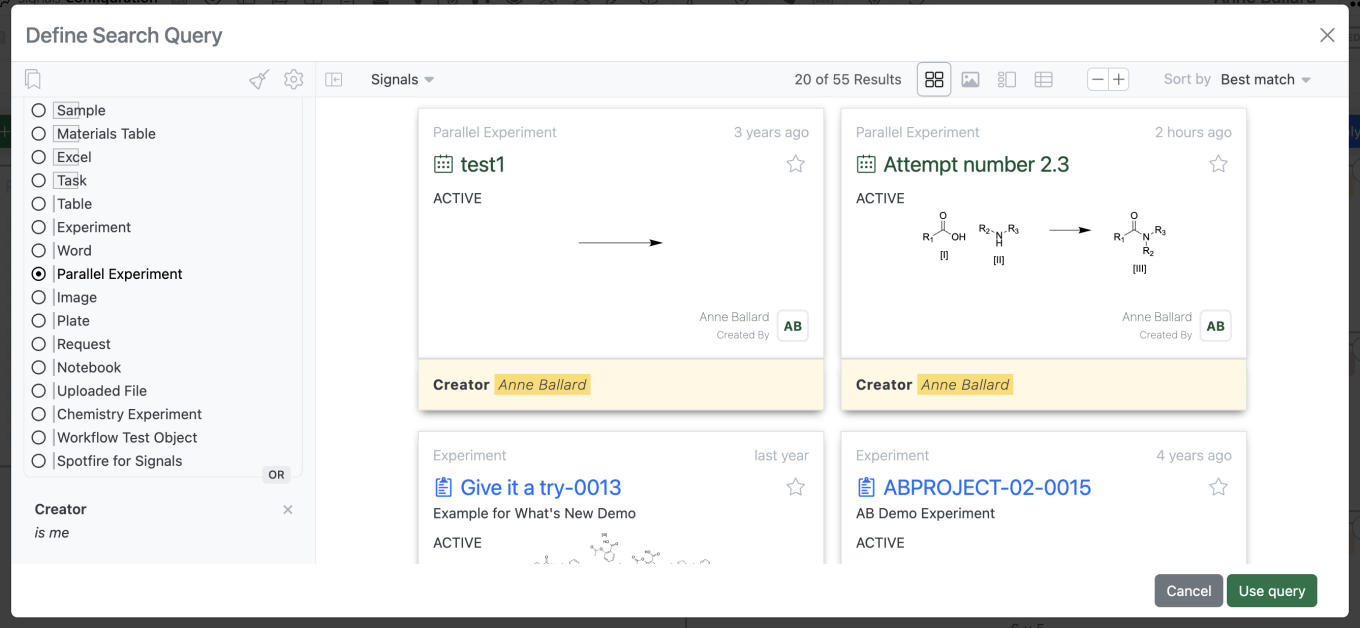
Image 40 from What's New 26.4-2.docx
Image 41 from What's New 26.4-2.docx

Selecting “Define List” > “Click to define query” brings up a search query builder the admin can utilize to define their search list.
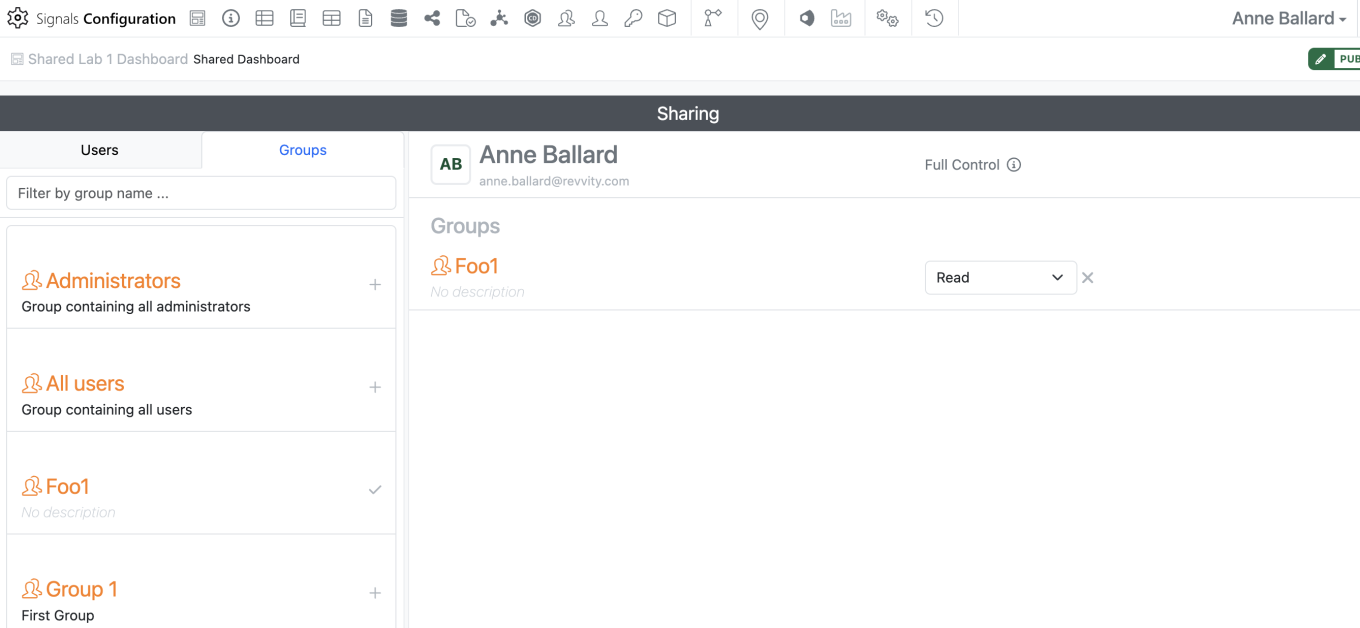
Image 42 from What's New 26.4-2.docx

Changes to the selected dashboard are saved by selecting the blue “Apply” in the top right corner.

The admin can then share the dashboard with other users or groups similarly to how sharing is managed in other elements.
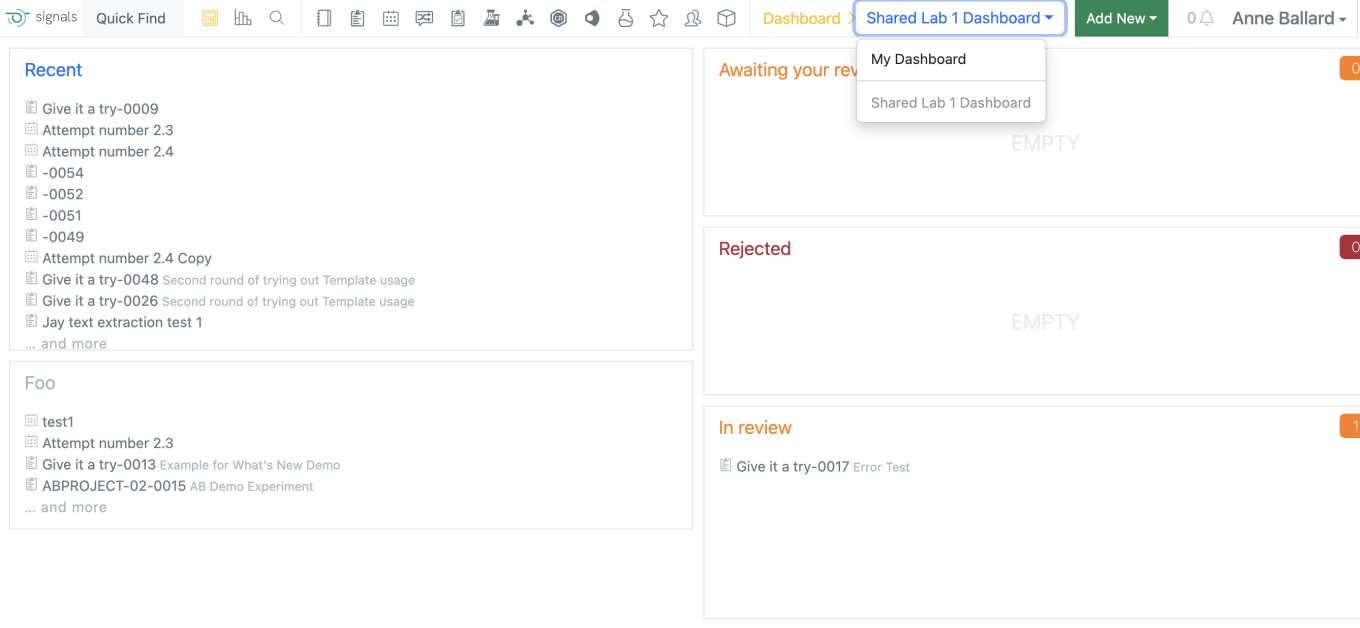
Image 43 from What's New 26.4-2.docx

Dashboards are automatically shared with Read access. If a dashboard is shared with write access or full control to a user or group that does not have access to the SN Config, they will be unable to edit or share the dashboard as shared dashboards are Read Only outside of the SN Config.

For end users, their current personal dashboard has now been named “My Dashboard” on the dashboard menu. Users are still able to edit their own “My Dashboard” as they were previously able to do. All shared dashboards appear below “My Dashboard”. If the user selects one of their shared dashboards this selection is sticky.

Integrations & Interfaces

We have added API support for writing to Ontology List fields. These are enhancements to all APIs which write to entities that support Ontology List fields and properties. There are new APIs to fetch and explore Ontology Lists. The “id” values found here are used to set values on Ontology List fields and properties.
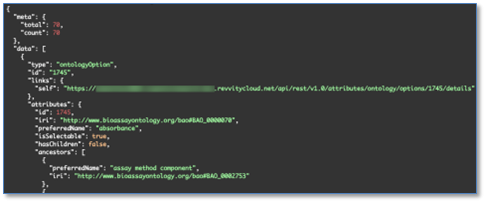
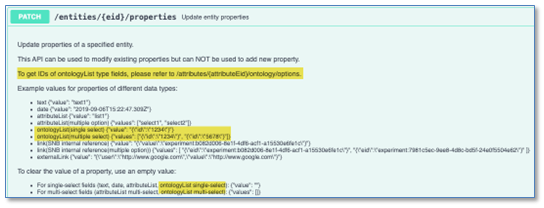
Image 45 from What's New 26.4-2.docx
Image 46 from What's New 26.4-2.docx
Image 47 from What's New 26.4-2.docx

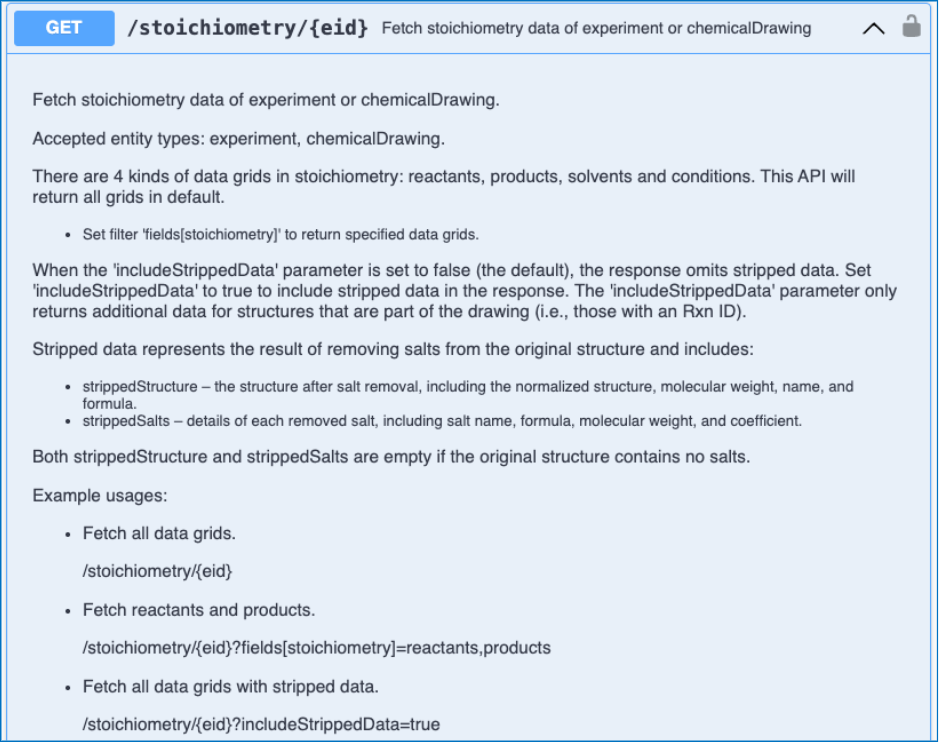
We have enhanced the stoichiometry fetch API to include salt stripping data for a Chemical Drawing. This is a new URL parameter (includeStrippedData) which when true will include the stripped structure and the salts that were stripped from the Chemical Drawing as data in the response.
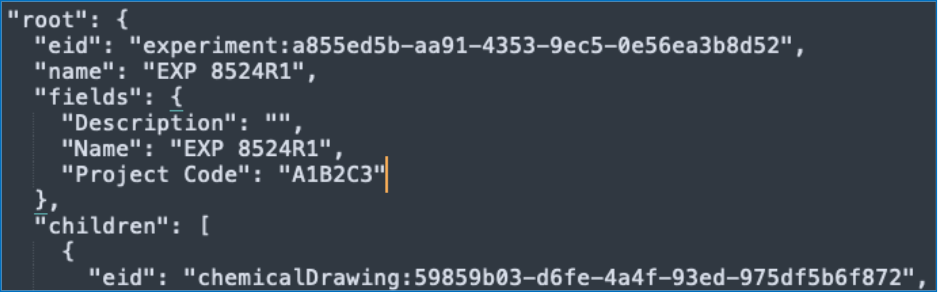
Image 48 from What's New 26.4-2.docx

We have enhanced the API for bulk export of an entity to include the entities properties as part of the table of contents.

Image 49 from What's New 26.4-2.docx

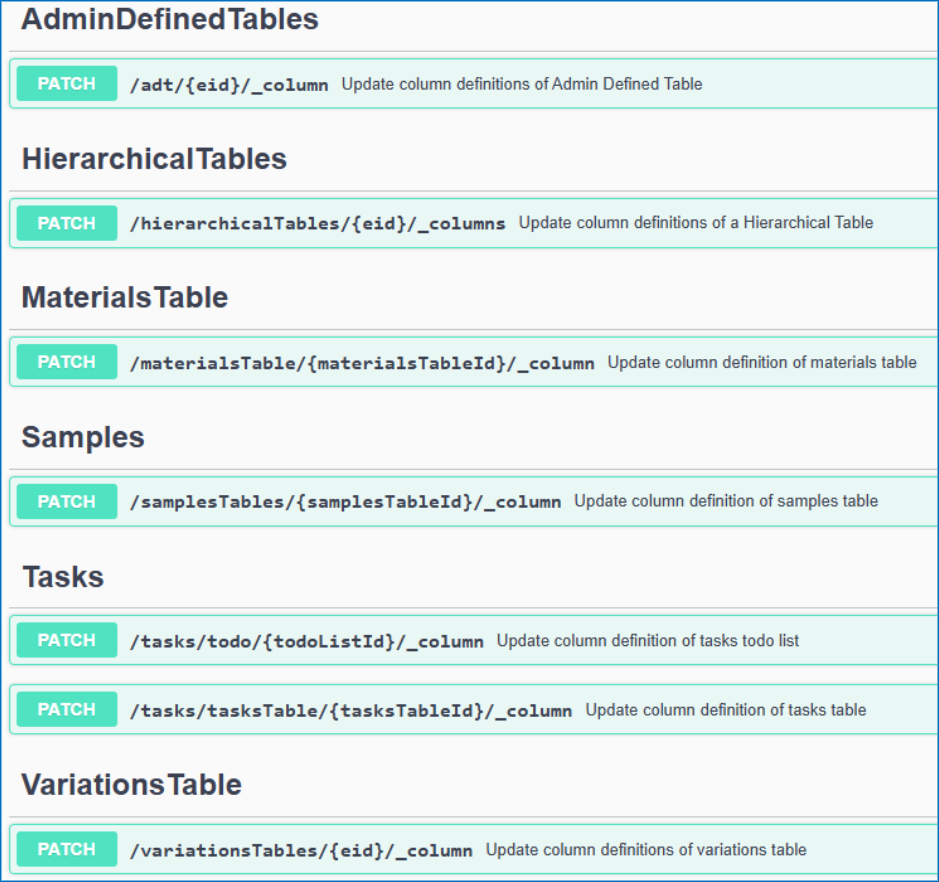
We have added a new API to allow patching of Hierarchical Table headers.
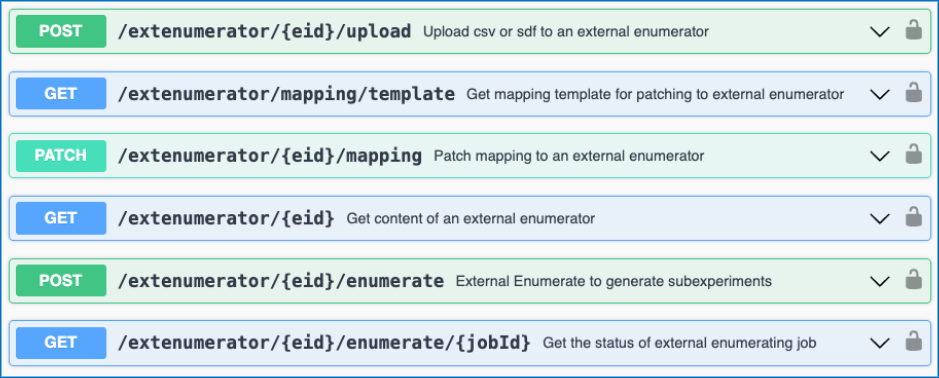
Image 50 from What's New 26.4-2.docx

We have added new APIs to support the External Enumerator for Parallel Experiments. These APIs allow for usage of a csv or sdf file upload for use with the External Enumerator. There are APIs to fetch and update the mapping for the external enumerator. Lastly, there are APIs to kick off the enumeration and check its status.

Image 51 from What's New 26.4-2.docx

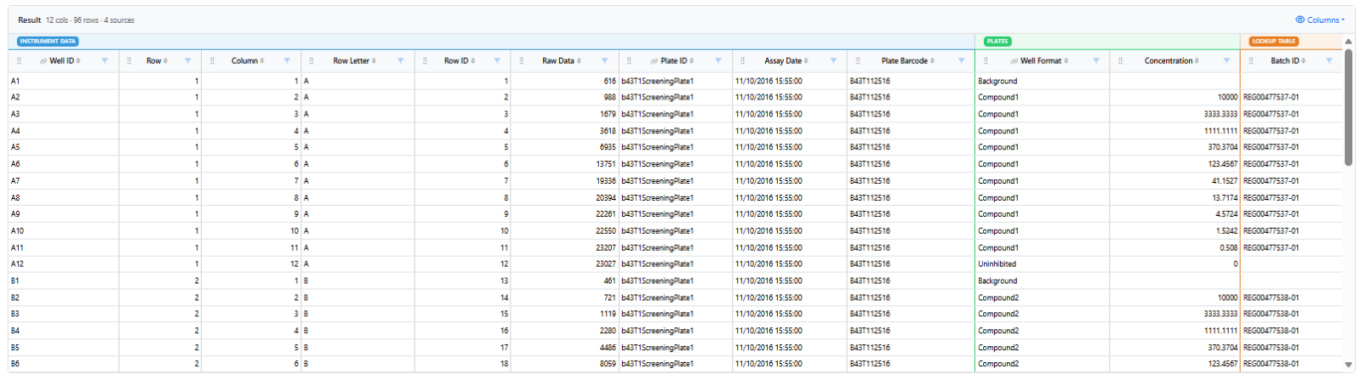
We have added new APIs to support the bulk creation of Samples in a Parallel Experiment Summary table. This is an asynchronous job which has two endpoints, first to create the job and second to check the status. There is a URL parameter to support creating multiple samples per row. The request body allows for specifying specific rowIds to create samples from, defaulting to all rows. You may also optionally specify sample properties for all samples created as part of the request body.
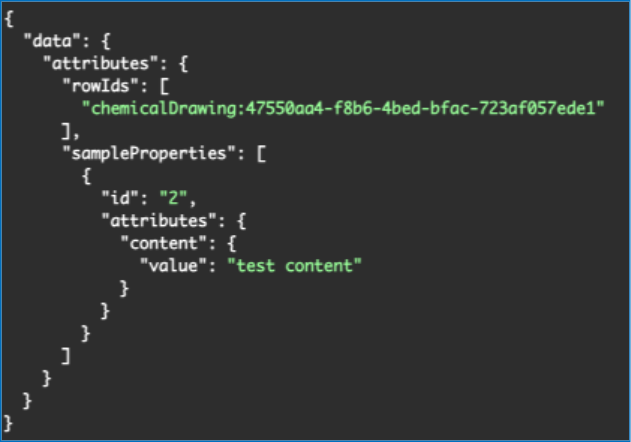
Image 52 from What's New 26.4-2.docx

Beta Features

The following capabilities are in beta and are available for users, administrators and developers on the Signals platform upon request. Please contact your account representative or our support team if you would like access to the following features.

Fundamentals
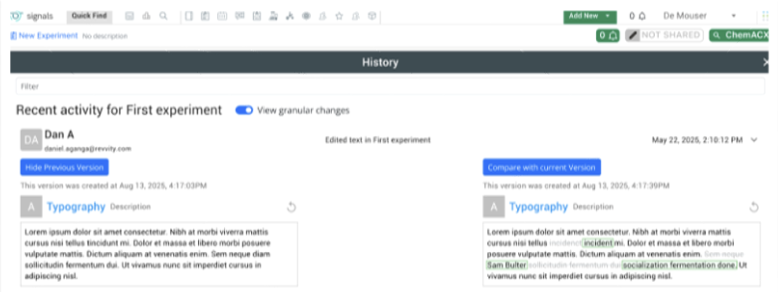
Image 53 from What's New 26.4-2.docx

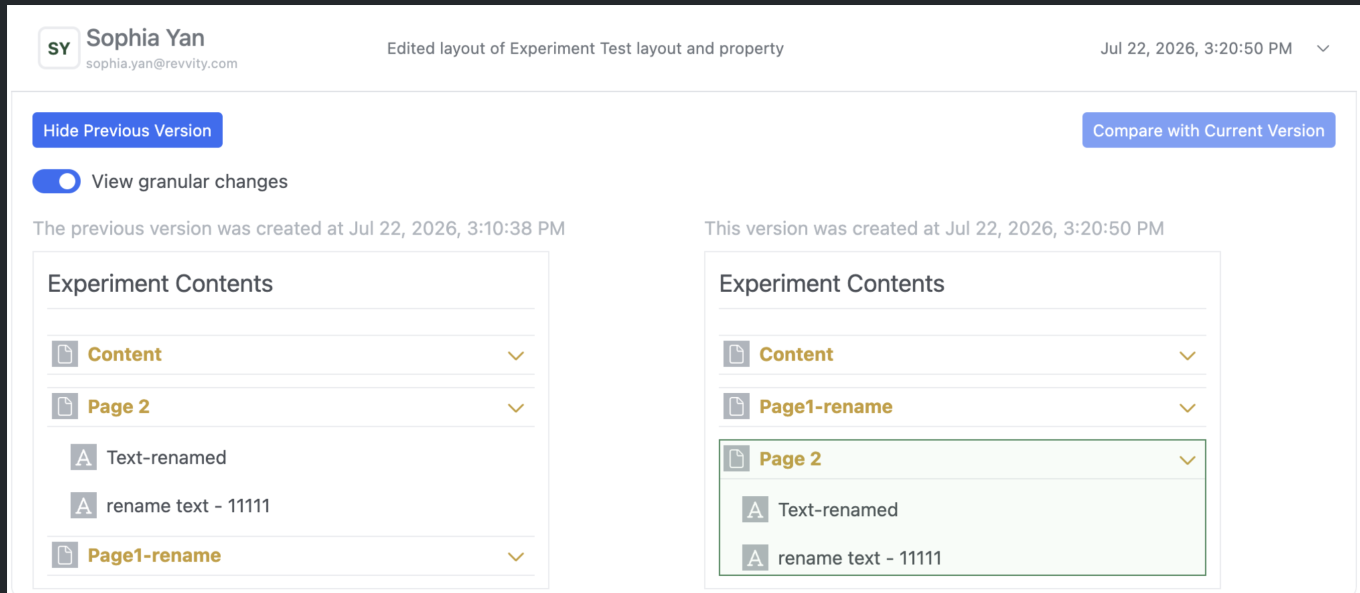
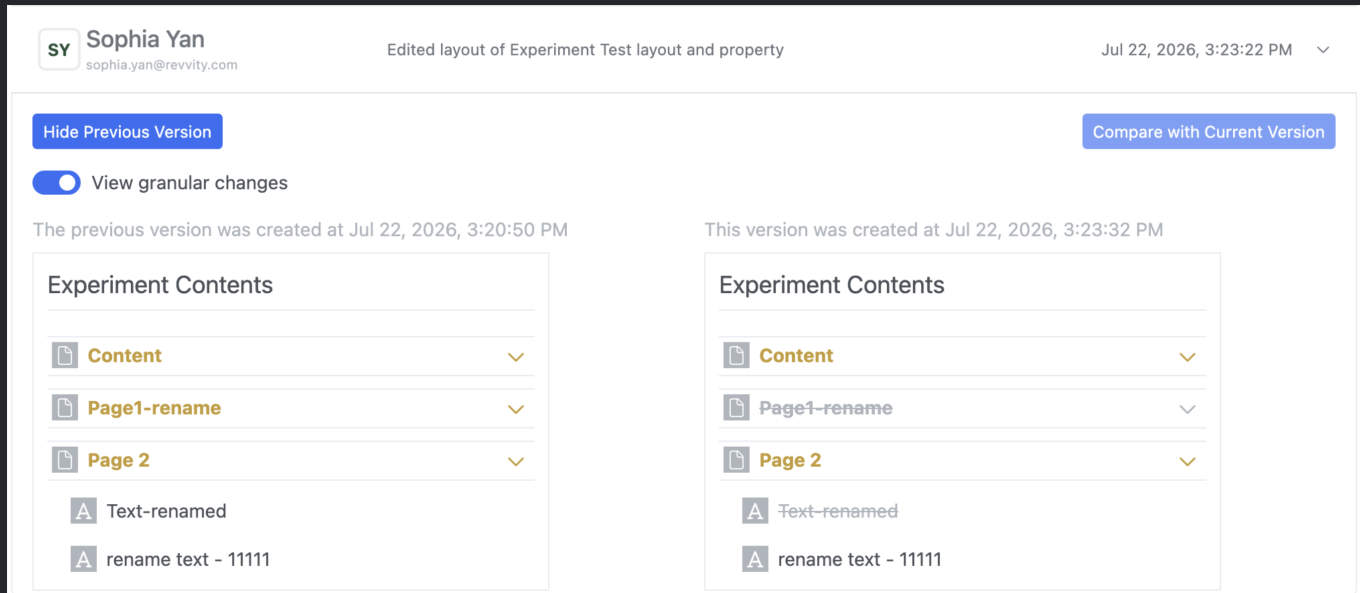
Audit trail displays highlighted granular changes within records for text elements in experiments and experiment-like objects. When users compare an audit record with a previous version, there is a "view granular changes" toggle. Selecting this toggle will show users a clear visual summary: gray highlighting shows text that was edited or removed and green highlighting shows newly added or updated text.

AI
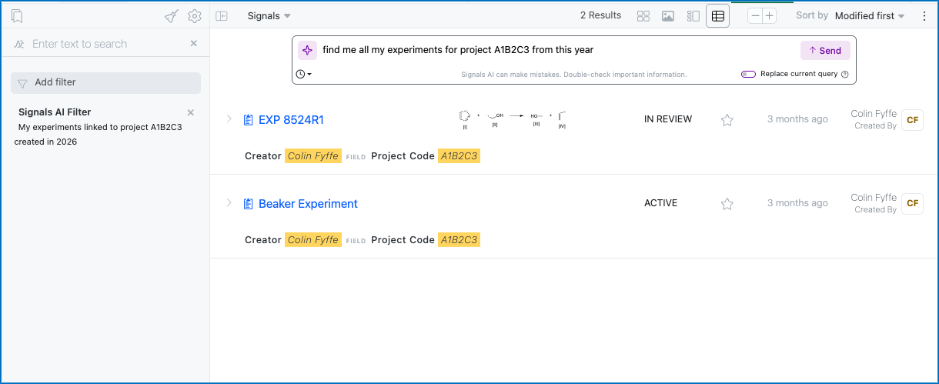
Image 54 from What's New 26.4-2.docx

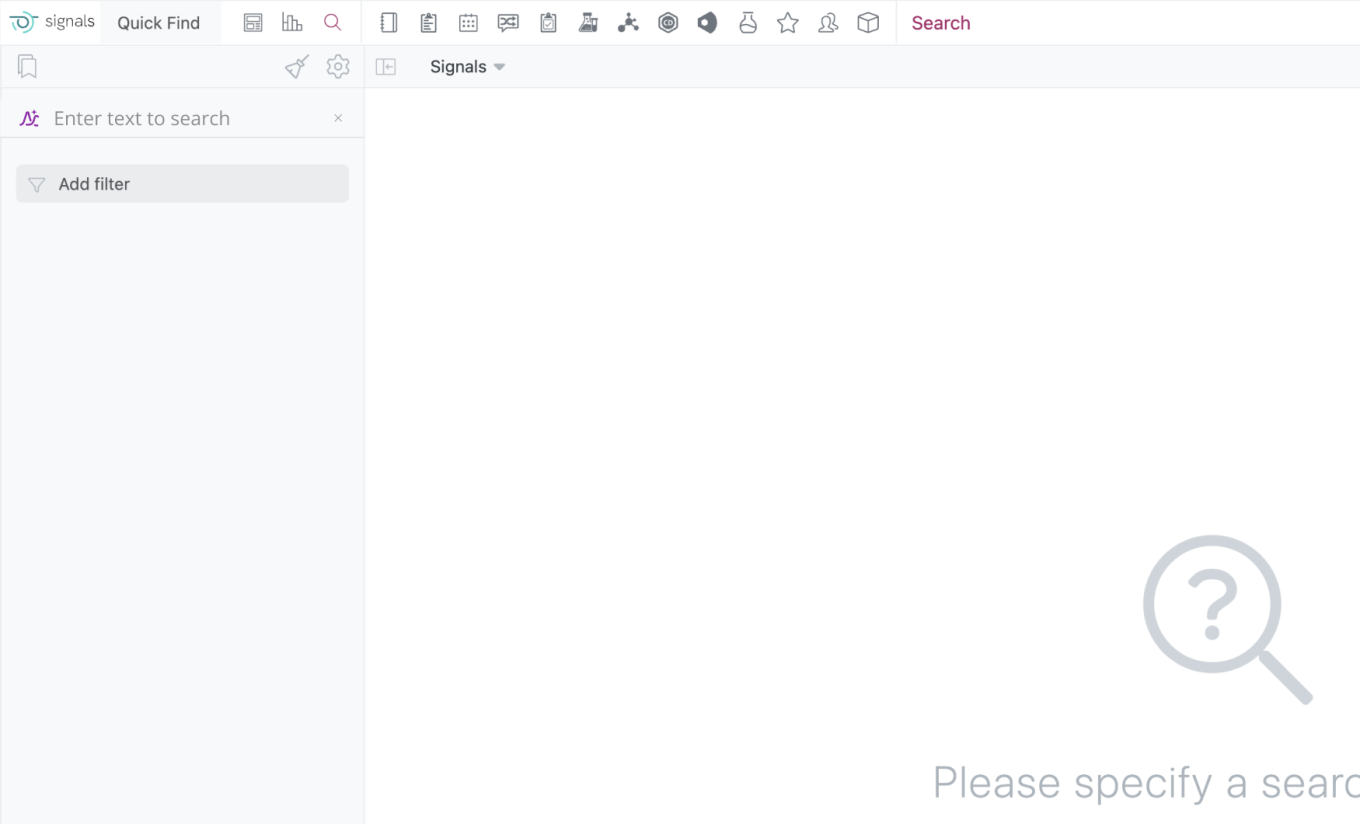
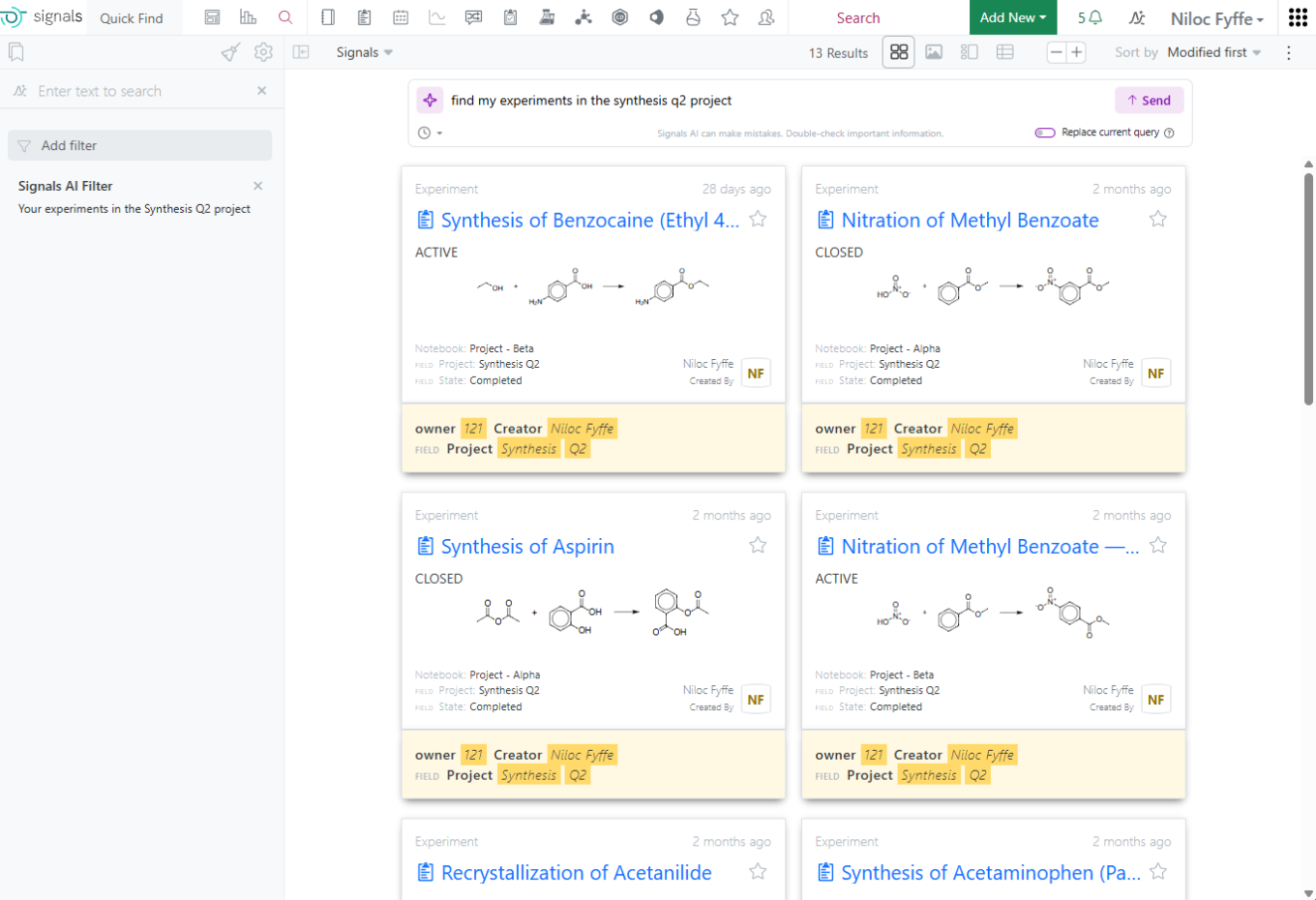
We have added a new Beta AI feature allowing a user in Advanced Search to create a filter using a natural language prompt. This filter will be added on top of your existing filters unless the toggle to replace your existing query is enabled. This is limited to Signals One customers.

Synergy
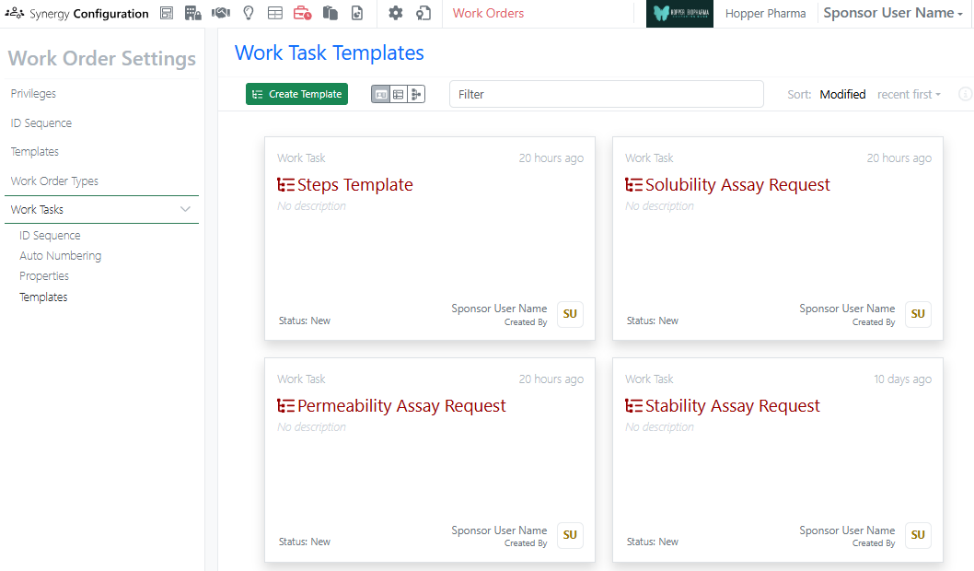
Image 55 from What's New 26.4-2.docx

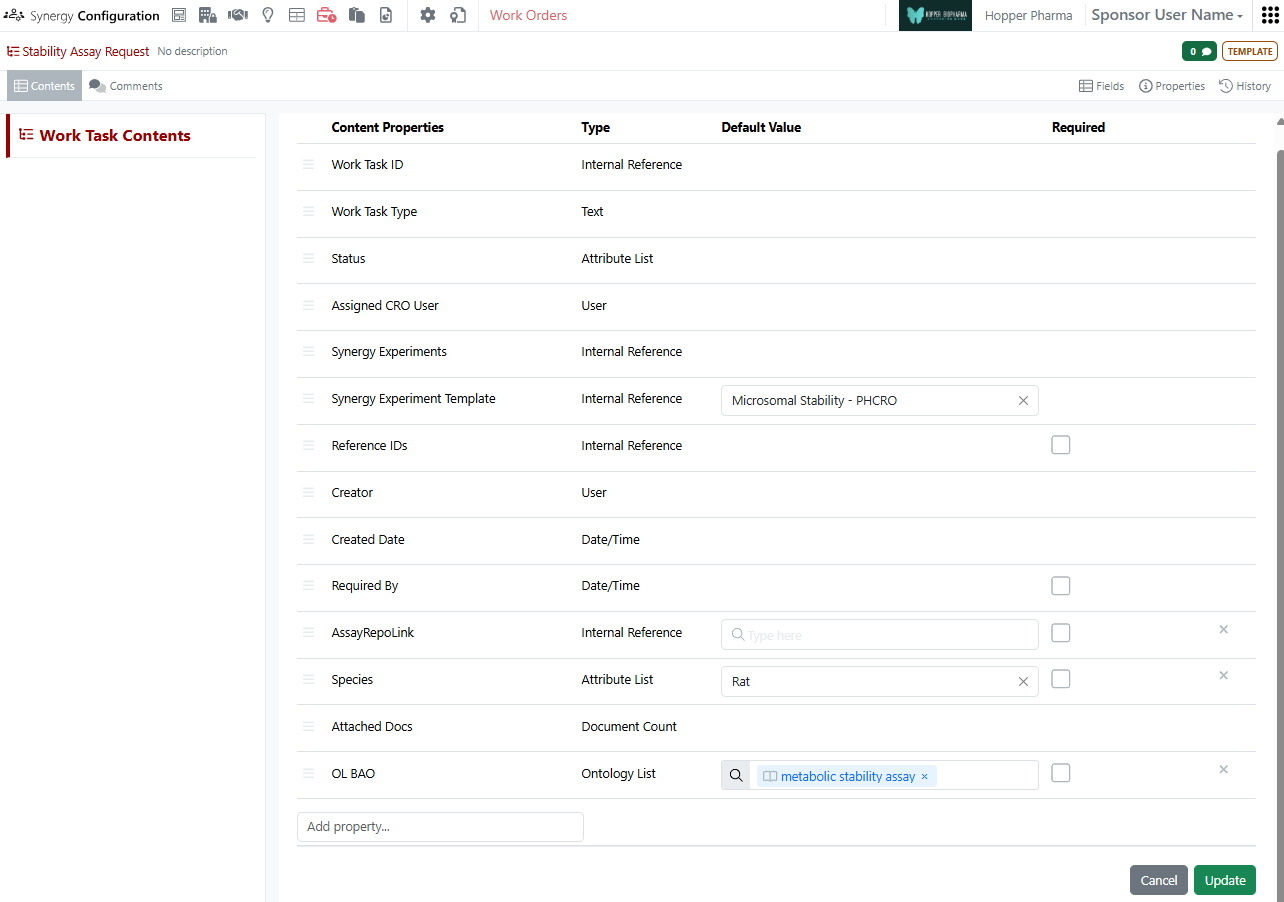
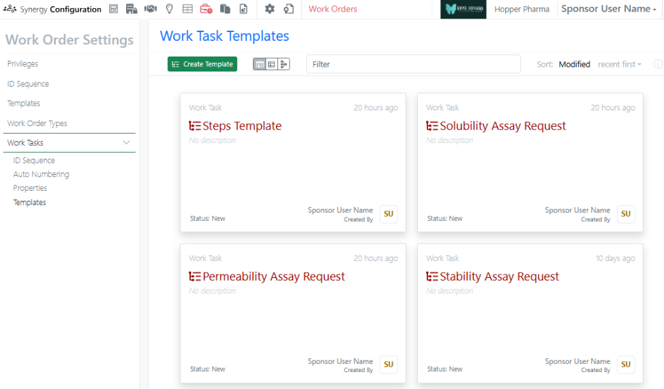
Works Tasks can now be configured and added to Work Orders to create a series of trackable, assignable, and templateable sub-tasks for a Work Order. Work Task properties and templates can be configured in Synergy Configuration > Work Orders > Work Tasks.
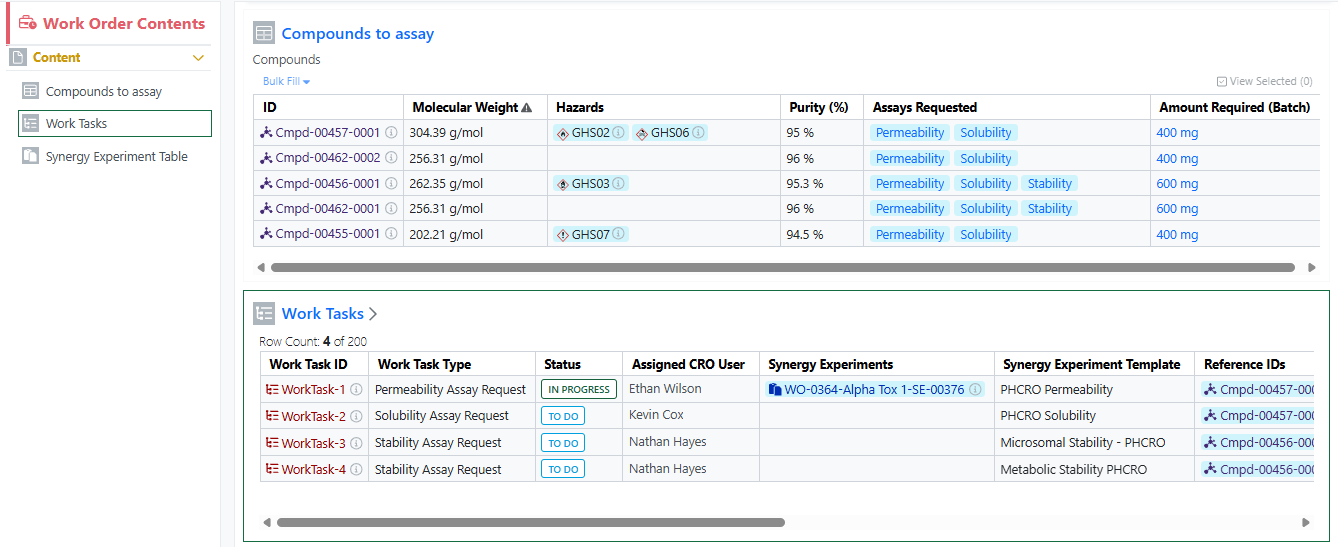
Image 56 from What's New 26.4-2.docx

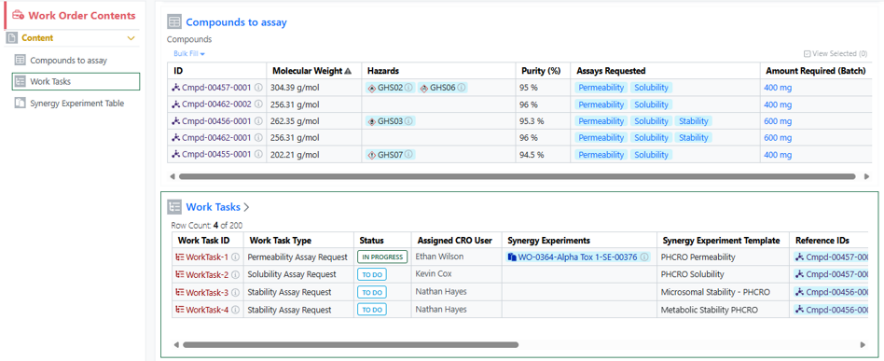
A Sponsor user can add a Work Task to a Work Order when the Work Order is in an editable status (Draft, To Do, On Hold). The Sponsor can optionally specify a Synergy Experiment Template to be used for the Work Task, as well as specify which References the Work Task applies to.
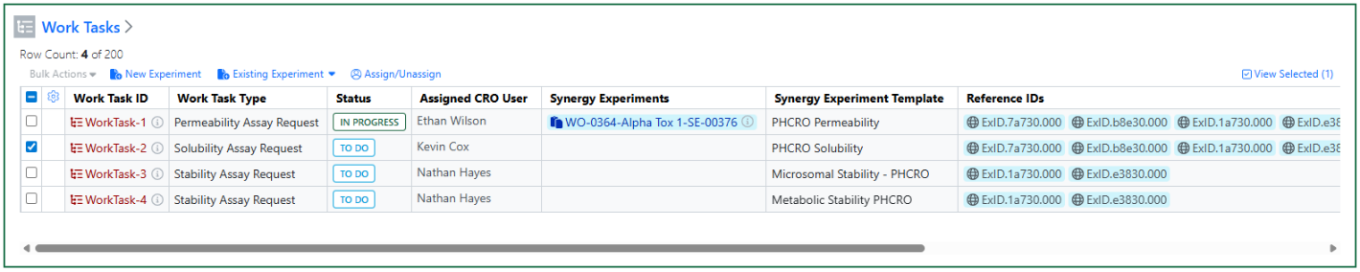
Image 57 from What's New 26.4-2.docx

Once a Work Order is sent, Work Task(s) Status changes from New to To Do. A CRO Department manager can optionally assign the Work Task(s) to a CRO user. A CRO user can start one or more Work Tasks by selecting the Work Task(s) and creating a New Experiment or adding the Work Task to an Existing Experiment. The Work Task(s) Status then changes from To Do to In Progress.
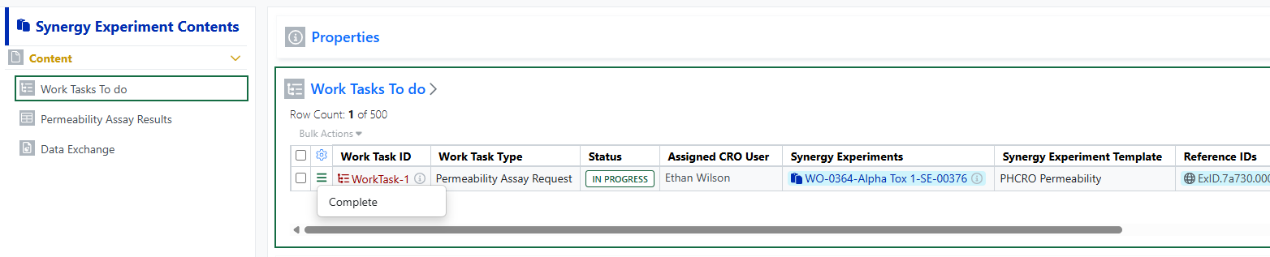
Image 58 from What's New 26.4-2.docx

Note, when creating a New Experiment, the specified Synergy Experiment Template will be used when applicable. Also, each Work Task can have multiple Synergy Experiments associated, and additional Synergy Experiments can be added to an In Progress Work Task from the Work Task table in the Work Order.

Work Tasks display in a Work Tasks To Do table in each associated Synergy Experiment. When the task is done, the CRO user can Complete the Work Task. Work Task(s) must be Completed before submitting the Synergy Experiment.

Administration
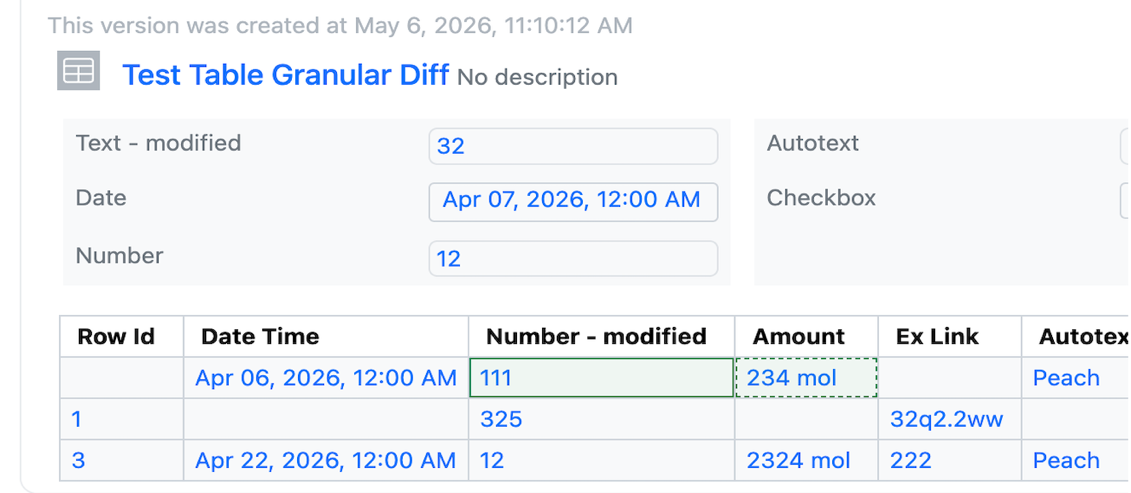
Image 59 from What's New 26.4-2.docx

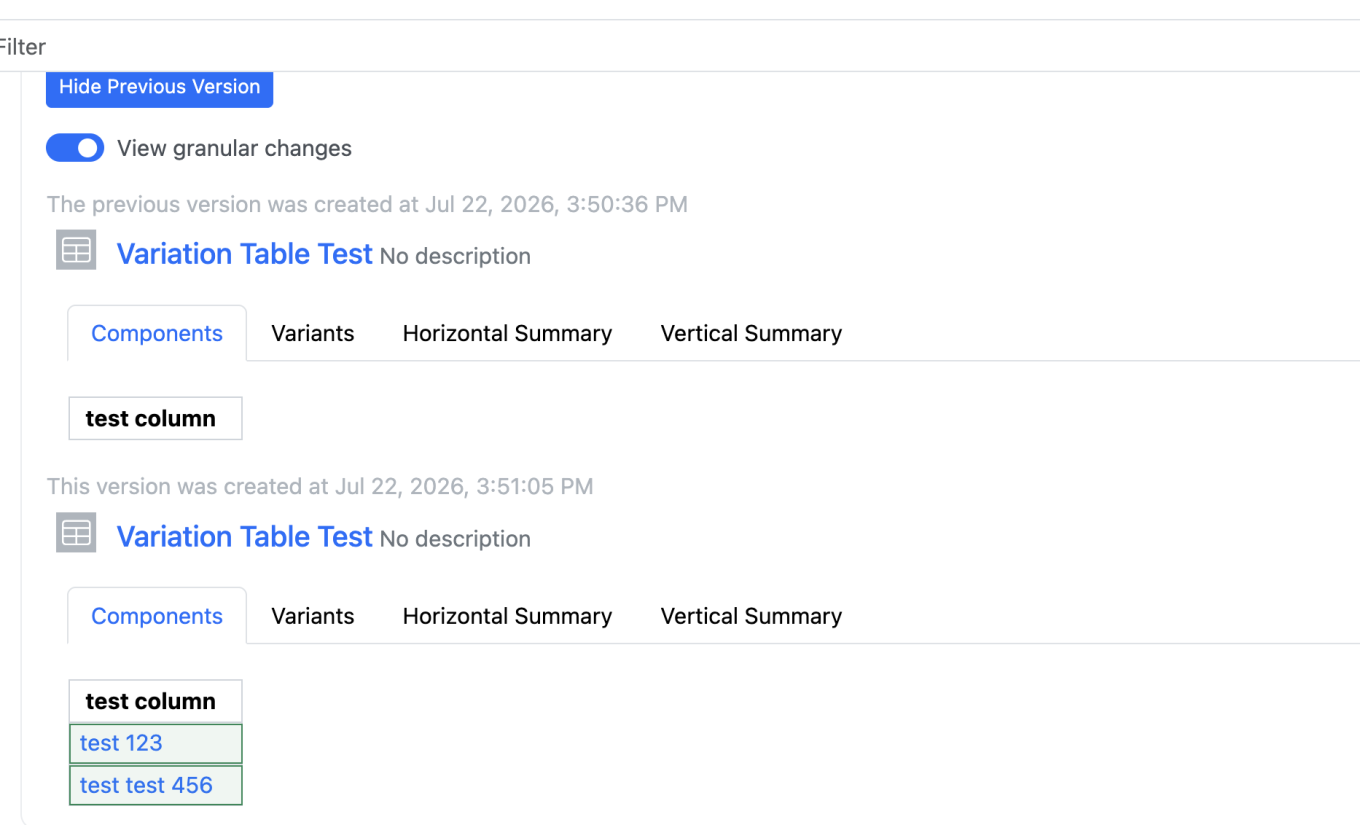
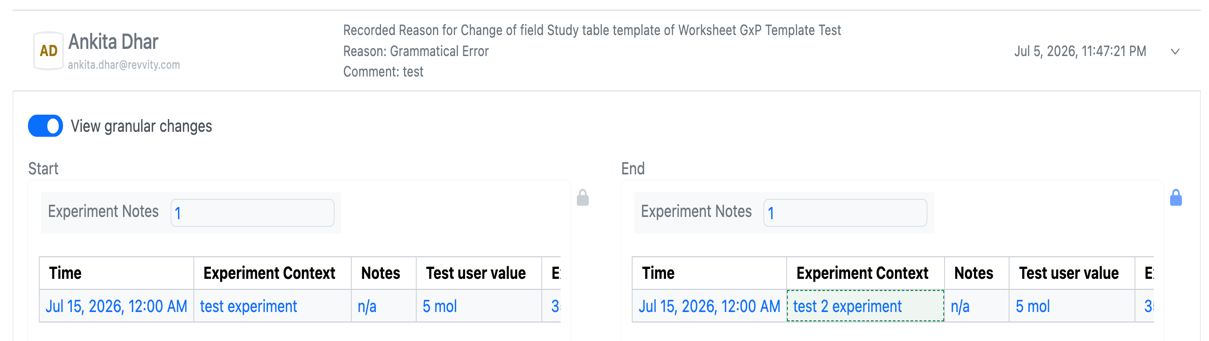
Audit trail displays highlighted granular changes within audit records for admin-defined tables. When admins or users compare a table audit record with a previous version, there is a "View granular changes" option. Selecting this toggle will show users a clear visual summary: gray highlighting shows data that was edited or removed and green highlighting surrounding table cells reflects newly added data. Green highlighting with a dashed border reflects text that was updated.
What’s New

This latest Signals release includes updates to ChemDraw+. Highlights include Drawing and Notebook properties, new filtering capabilities and expanded complex biopolymer support. This release also includes bug fixes.

The following improvements are available for users of Signals ChemDraw. Certain features may only be available with enablement by an administrator.

ChemDraw+

  • Drawing & Notebook Properties
  • New column filters for faster list view searching
  • Multi-strand and branched complex biopolymers now supported

ChemDraw+

Drawing & Notebook Properties

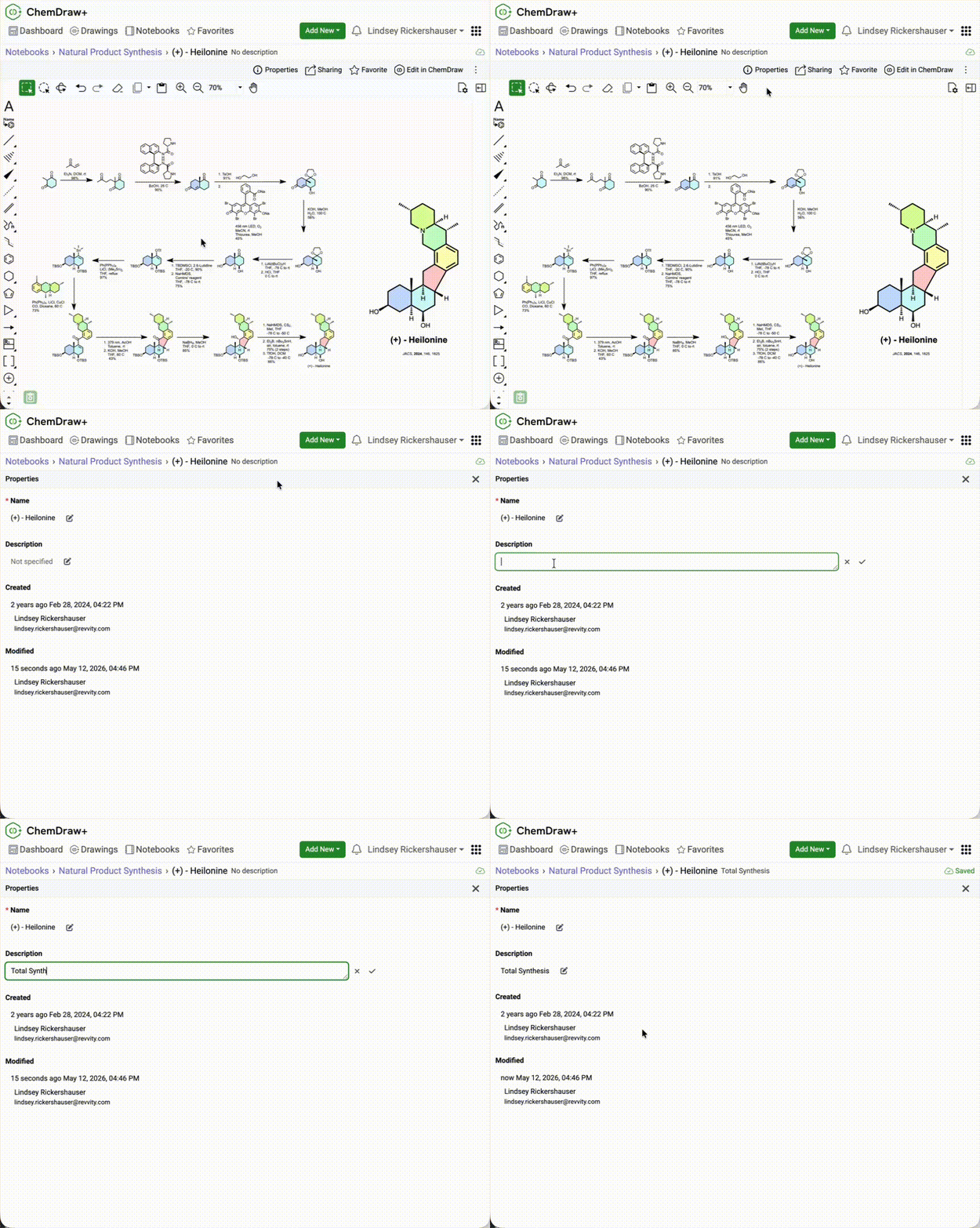
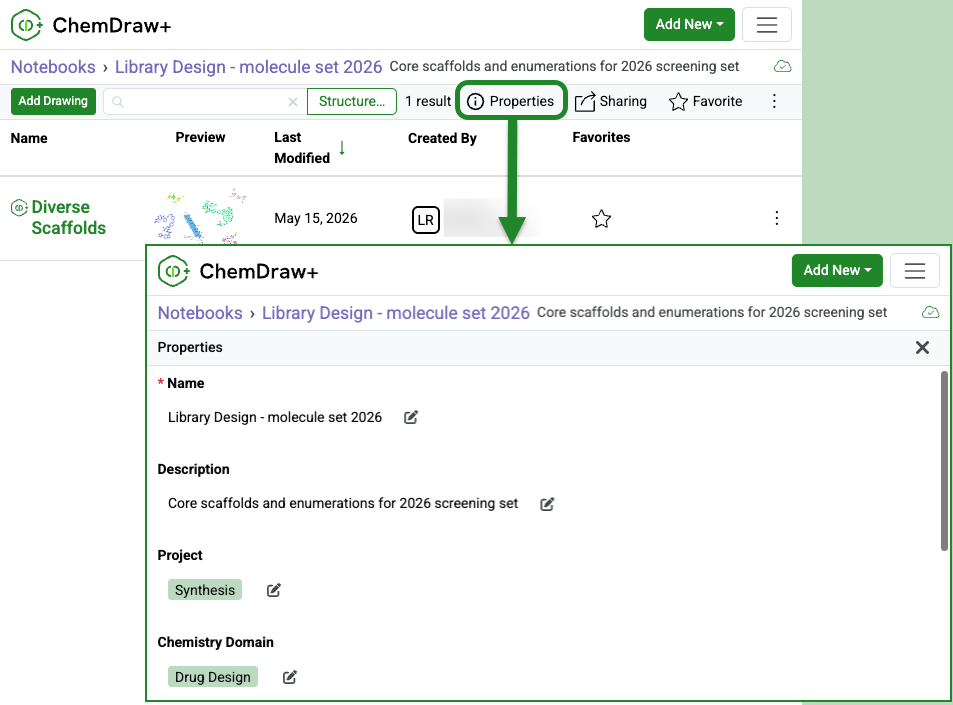
ChemDraw+ now includes a properties page for notebooks and drawings, making it easier to view and update details like name, description, created and modified information details in one place.

Image 1 from Signals ChemDraw What's New 26.4_May_2026.docx

Custom properties configured by an administrator can also be viewed and edited directly from the same page for Notebooks.

New column filters for faster list view searching

Image 2 from Signals ChemDraw What's New 26.4_May_2026.docx

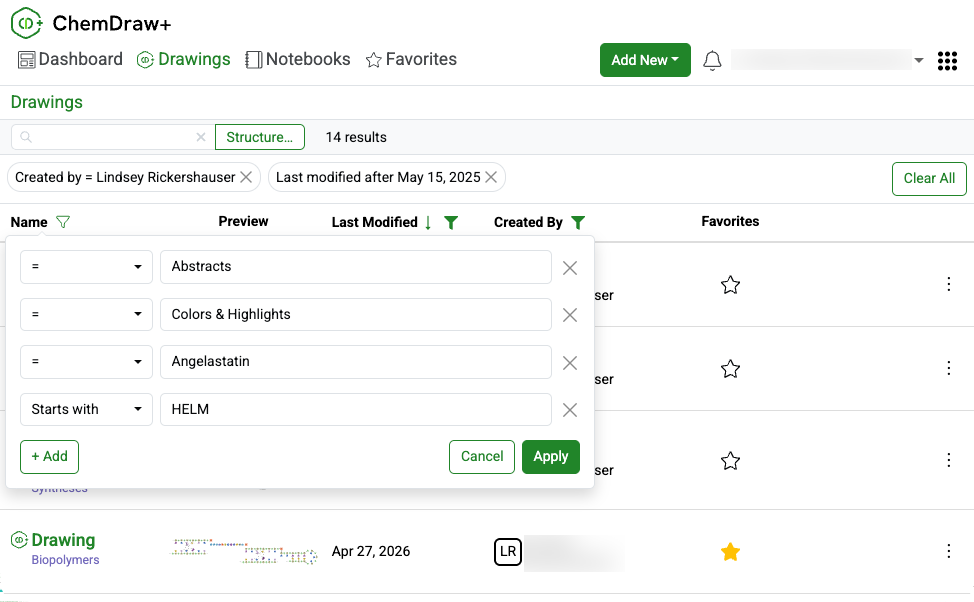
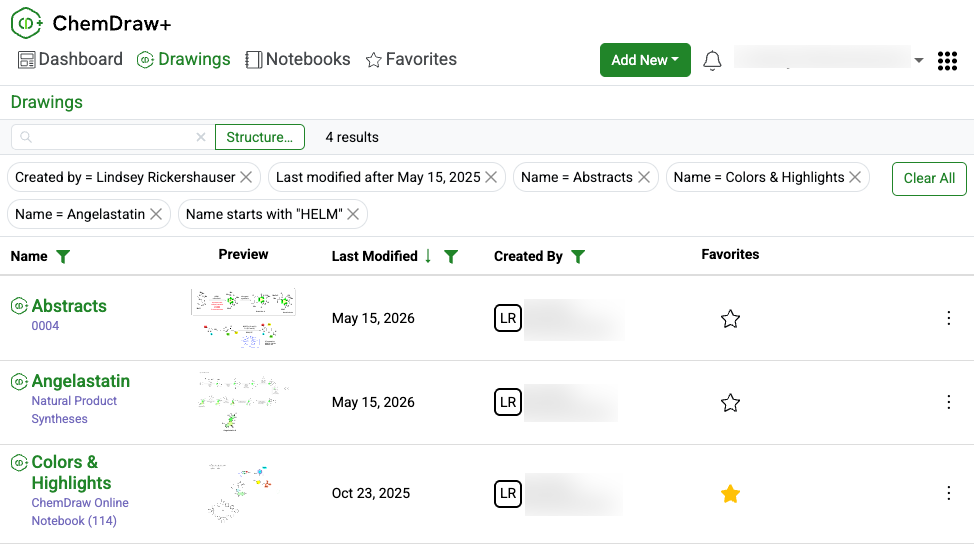
New column filters in ChemDraw+ make it easier to find drawings and notebooks in Drawings, Notebooks, Notebook Details, and Favorites. Filter by name, creator, or last modified date using options like exact match, starts with, today, this week, last month, or a custom date range.

Image 3 from Signals ChemDraw What's New 26.4_May_2026.docx

Use multiple filters across one or more columns to narrow results faster. Active filters appear above the table and can be removed individually or cleared all at once.

Support for Multi-strand and Branched Biopolymers

Image 4 from Signals ChemDraw What's New 26.4_May_2026.docx

ChemDraw Editor now supports cleanup for multi-strand and branched complex biopolymers, making these structures easier to display in a clear, aligned, and readable layout.

What’s New

We’re delighted to introduce new enhancements that improve accuracy, performance, and flexibility in version 26.0 of ChemDraw Desktop. This release focuses on more efficient chemical property calculations, expanded HELM rendering capabilities, updated atomic standards, and extended Python support. We have also addressed several bugs to ensure a smoother experience.

ChemDraw Desktop

  • Chemistry Improvements
  • Advanced Biopolymer (HELM) Improvements
  • Extended Python Support

Chemdraw Desktop

Chemistry Improvements

Image 1 from 26.0 ChemDraw Desktop May 2026.docx

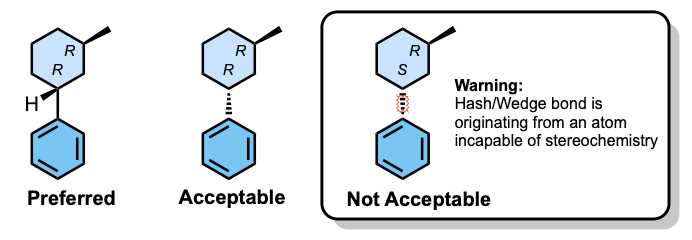
A stereochemical warning is now shown when a stereo bond originates from a non-stereo atom, improving structural validation.

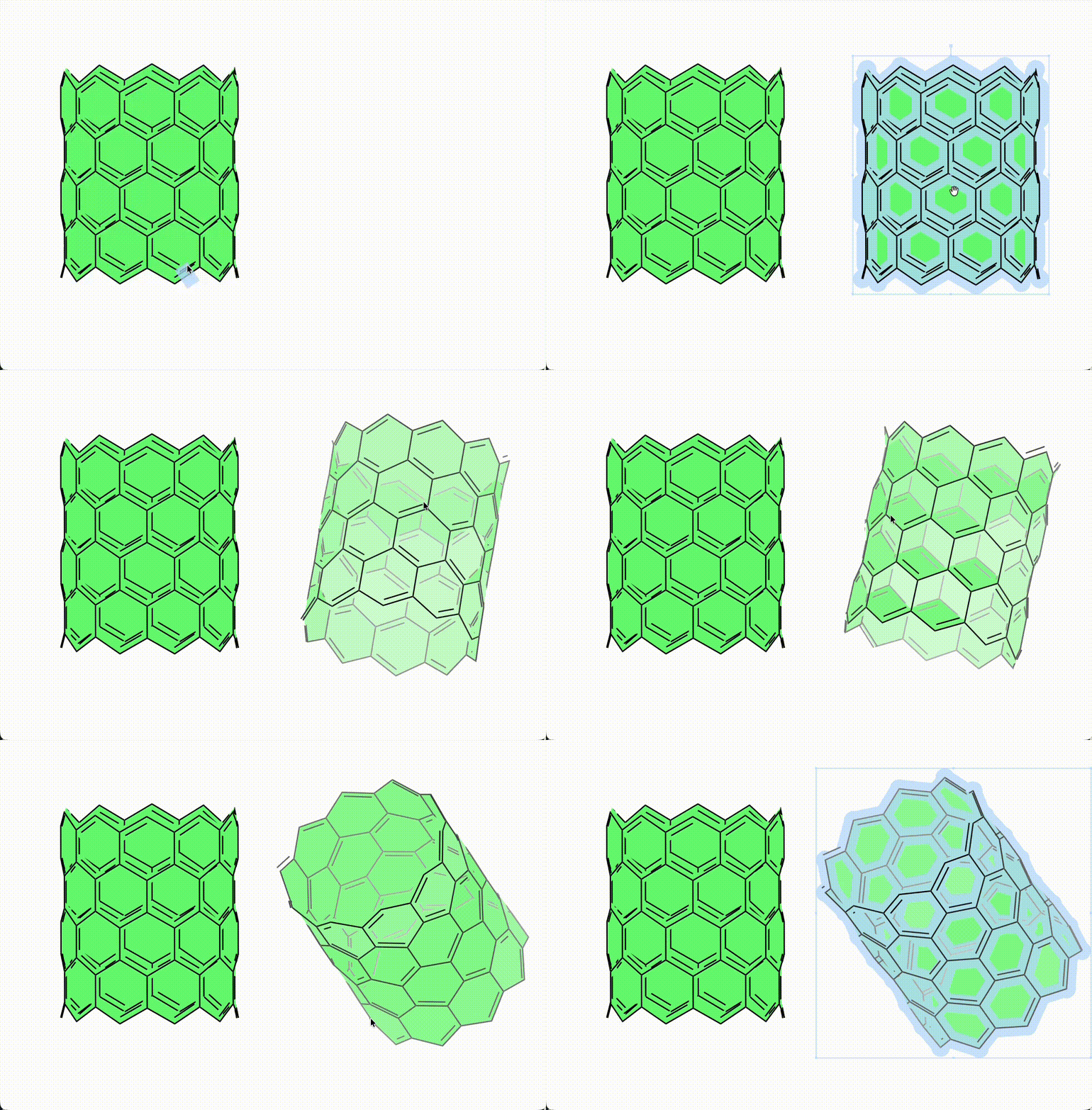
When viewing structures in 3D, selection highlighting is suppressed while dragging so that depth and perspective shading are easier to observe.

Chemical property calculations now run more efficiently, allowing you to continue drawing and editing seamlessly, even with large structures.

LogP calculations support up to 150 heavy atoms or 50 fluorine atoms, while other property calculations support up to 1,000 atoms.

Element atomic weights have been updated to IUPAC 2024 standards for Gadolinium, Lutetium, and Zirconium.

HELM Improvements

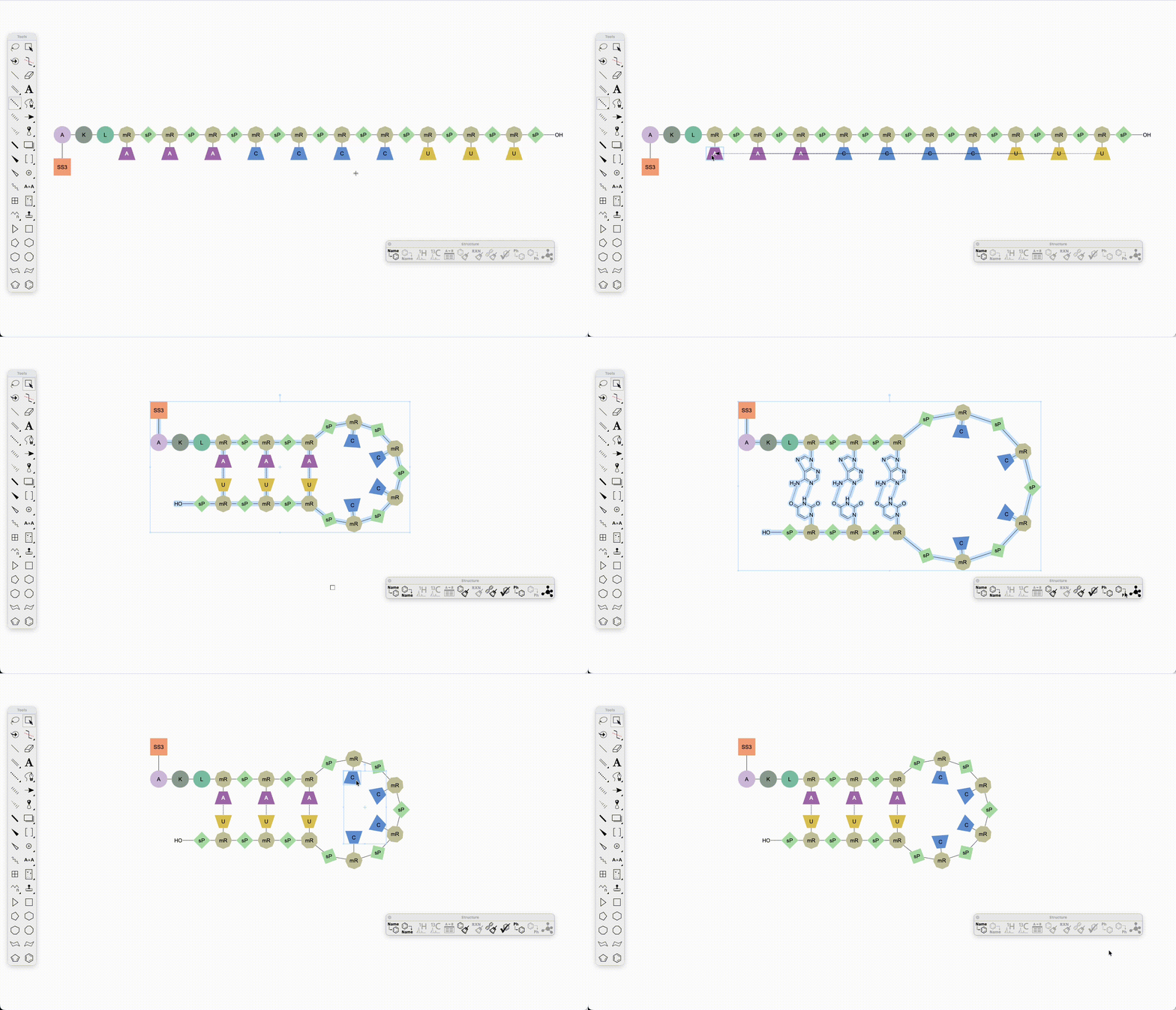
ChemDraw now supports hairpin structures in oligonucleotides. When hydrogen bonds are drawn between complementary bases within a single sequence, cleanup automatically forms the corresponding hairpin loop. Monomers within the hairpin can also be expanded and contracted. Pendant chemical and peptide attachments are also supported.

Image 2 from 26.0 ChemDraw Desktop May 2026.docx

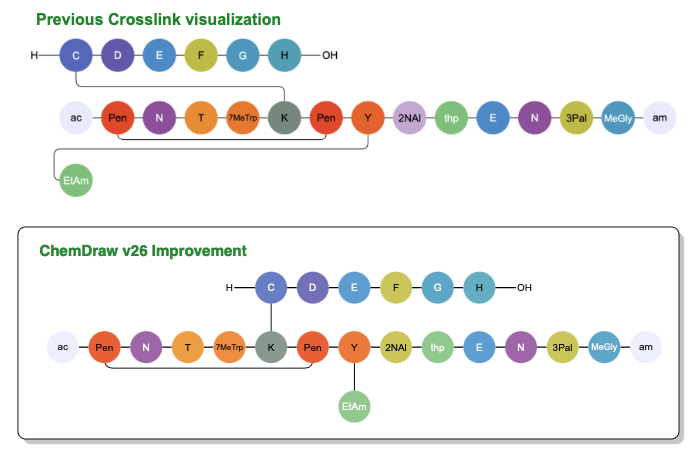
Visual clarity for crosslinking between sequences has been enhanced, with bonds now vertically aligned whenever possible to minimize unnecessary wrapping between sequences.

ChemDraw now allows users to draw biopolymers with multiple complementary RNA strands for a single sense strand. When a set of hydrogen-bonded RNA sequences is created, ChemDraw detects the strands, and appropriately places each complement beneath the sense strand according to hydrogen bond positions on clean up. The sense backbone is stretched as needed to minimize overlap, enabling side-by-side display of complements with proper alignment.

Image 3 from 26.0 ChemDraw Desktop May 2026.docx

Selecting a routed bond between sequences now highlights the entire bond rather than only the center section.

Python Support

ChemScript now supports Python version 3.14, giving developers greater flexibility for integration and automation.

What's New

We are delighted to release our new version of Signals, 26.5.

The following improvements are available for users, administrators and developers on the Signals platform. Certain features may only be available with appropriate licensing and/or with enablement by an administrator.

  • Fundamentals
    - Publish ontology fields to Data Factory
    - Bookmarks in Smartfolders
    - Caching of Stoich grid data while Chemical drawing is in Edit mode
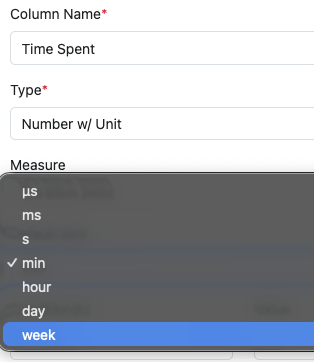
    - Addition of “Weeks” as an additional Unit in the Duration Measure
    - Bulk Register Materials from Samples Tables and Samples Summary Tables
    - Display warning message when cloning experiment based on a template user cannot access
  • Data Workflows & Analytics*
    - Additional Quality Control and Curve Fitting metrics
    - Publication of all Quality Control and Curve Fitting metrics
  • Synergy†
    - CRO users can now use CRO Advanced Search to reference items in internal fields
    - External actions on Work Orders
    - Sponsor Admin can bulk update CRO Departments for CRO users
    - Define default values, including Synergy Experiment Template, on Work Tasks Templates (beta)
  • Tables
    - Add a Container to an existing row in an Inventory enabled Admin Defined Table or Variation Table
    - Add a Container to an existing row in an Inventory enabled Hierarchical Table*
    - Line Charts on Admin Defined Tables*
    - Checkbox, Variable Measure and Variable Property can be used on the categorical axis of a Bar Chart on Admin Defined Tables*
  • BioDesign° 
    - Users can now register BioDesign Sequences in a Material Library and reference BioDesign Sequences
  • Inventory
    - Move containers out of grid locations during disposal directly from the container search table
    - Add container properties to the Reactants table
  • InventoryGo ‡
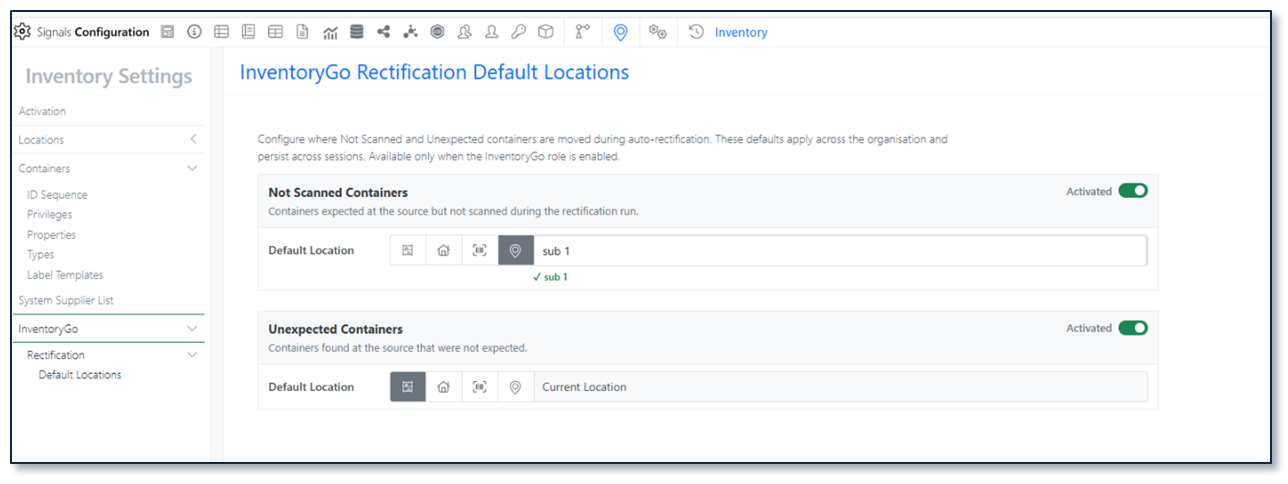
    - Enable Auto Complete Rectification in InventoryGo with configuration to move Not Scanned and Unexpected containers to an admin‑defined location
  • Materials
    - Additional calculated properties for protein complexes
    - UI update to material tables configuration (beta)
    - Mark fields as Read-Only in Materials
  • Administration
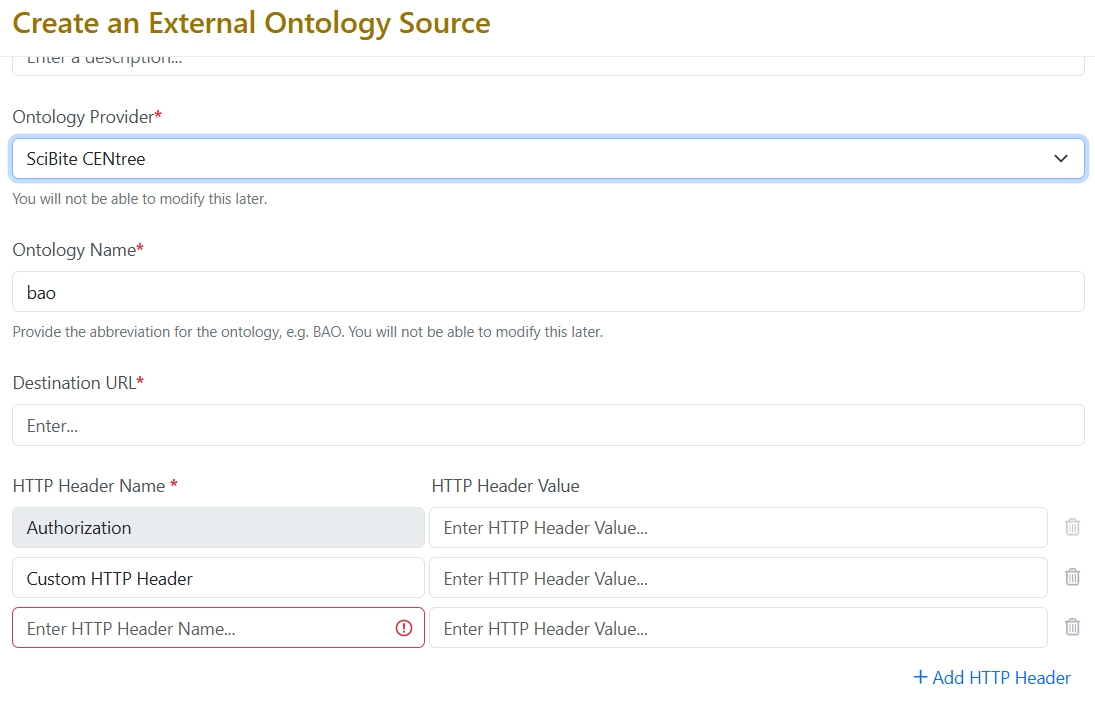
    - Use multiple headers with the SciBite CENtree External Ontology Source
    - Selective export for configuration migration (beta)
  • Integrations & Interfaces
    - Hide/Unhide columns API
    - Move Experiment to new Notebook API
    - Return from Archive API
    - Fetch Individual Material Libraries definitions API
    - Fetch all CRO users API
    - Additional CRO APIs for Chemical Drawings

* Requires Signals One license

† Requires Signals Synergy license

‡ Requires InventoryGo license

° Requires Signals BioDesign License

We also fixed several small bugs in this release. Details of the enhancements are described below.

The following OnDemand videos for Signals Synergy are now available:

  • Recording your Chemical Synthesis in Signals Synergy

Administrators should note that this release includes an upgrade to Spotfire® 14.6 LTS. Users will receive the updated version as part of the standard upgrade experience.

Developers should note the Materials API now includes the calculated property on a field definition only when its value is true. Previously it was inconsistently included (with value false) for admin-defined properties. Note that calculated is true only for certain system-default material properties, and not for admin-defined properties.

All CRO users in the assigned CRO Department can now Start a Work Order. This is a relaxed requirement, which previously required the assigned CRO user or CRO Department Manger to Start Work.

Administrators should note that we are planning to resolve an inconsistency in the way non global numbering currently works for Parallel Experiments, Requests, Inventa Analysis objects and In Vitro Analysis objects. These objects will now take the next number in sequence regardless of object type. The current behavior is that they take the next number in sequence for the given object type. This change will occur in a future release.

Data Factory Administrators should note that legacy Data Factory projects will be fully deprecated in a future release. A straightforward migration path is now available to support this transition. A specific deadline has not yet been scheduled.

Data Factory administrators should also note that the Advanced Security policies in Inventa apply an “AND” logic across all user groups, restricting access if any groups lack permissions. This behavior differs from the standard Signals security model and will be fixed to align with the standard in a future release.

Administrators are recommended to subscribe to the channels within our support news site found at https://support.revvitysignals.com/hc/en-us/categories/360004446171-Support-News which contains more information about releases and other pertinent product information.

This content is anticipated for release on our Production E3 environments, and for Private Cloud customers on our deferred release schedule, in November 2026.

Further Details

The following improvements are available for users, administrators and developers on the Signals platform. Certain features may only be available with appropriate licensing and/or with enablement by an administrator.

Fundamentals

Image 1 from What's New 26.5.docx

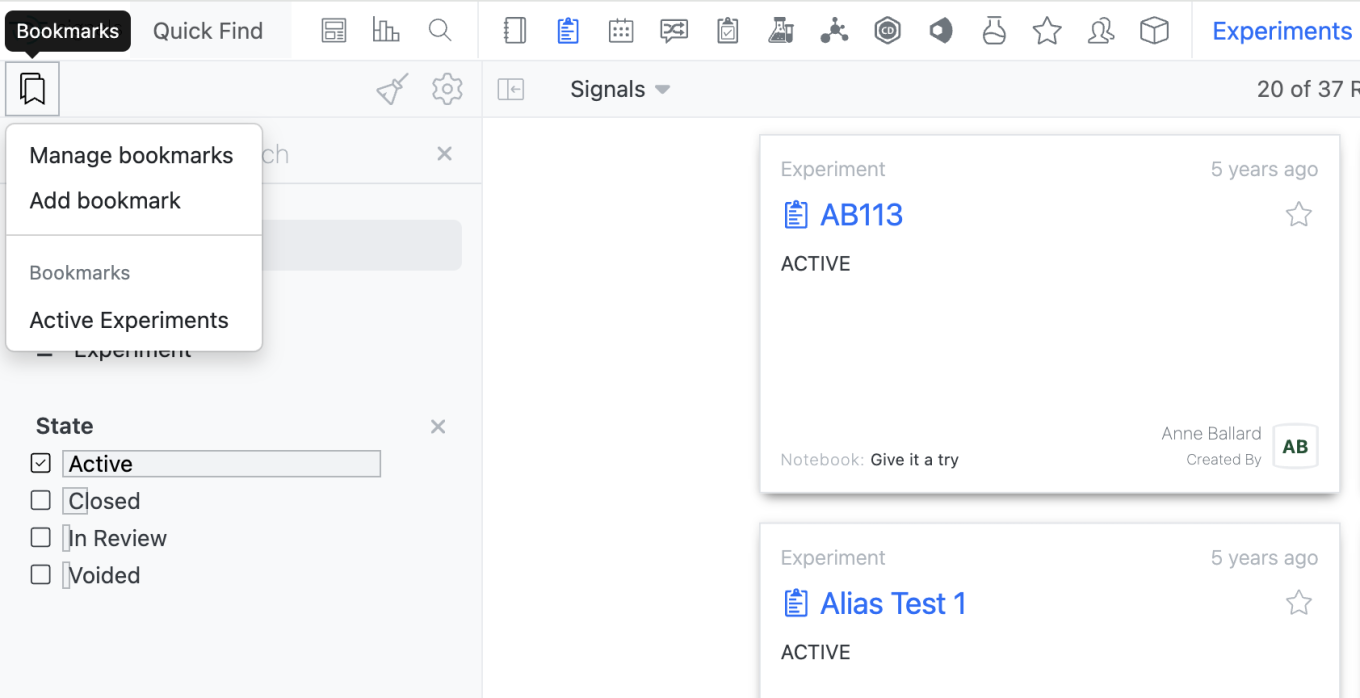
Users will now be able to save bookmarks in Smarfolders as they are able to do in Advanced Search. Is a Smartfolder, a user can add a Bookmark by selecting the Bookmark Icon in the left corner. Only bookmarks made within the given Smarfolder will be usable within that Smartfolder.

Image 2 from What's New 26.5.docx

All bookmarks can be utilized in Advanced Search.

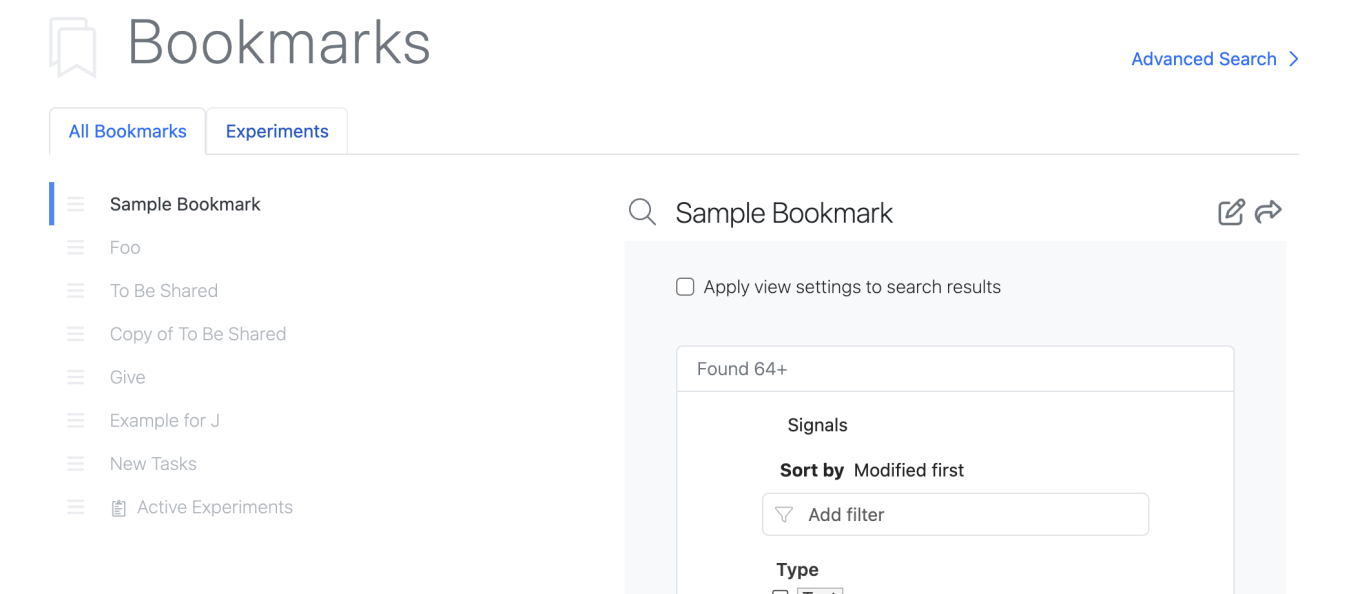
The Manage Bookmarks page also reflects the bookmarks available in the Smartfolders.

Image 3 from What's New 26.5.docx

Smartfolders with saved Bookmarks will appear at the top with a tab allowing the user to view bookmarks for that Smartfolder only. Additionally, Smartfolder specific bookmarks are identified with the entity icon in the All Bookmarks list.

In the Chemical Drawing, user entered data in the stoich grid will now be cached as the user is editing the chemical drawing so structures that leave the reaction perception do not lose user entered stoich data. Previously if a structure left the reaction perception or was reordered, user entered data would be cleared.

The Number with Unit Measure Duration now supports “week” as an additional Unit.

Image 4 from What's New 26.5.docx

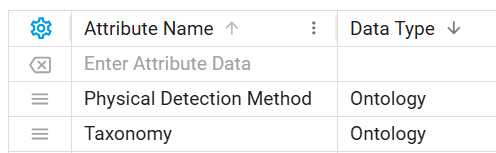
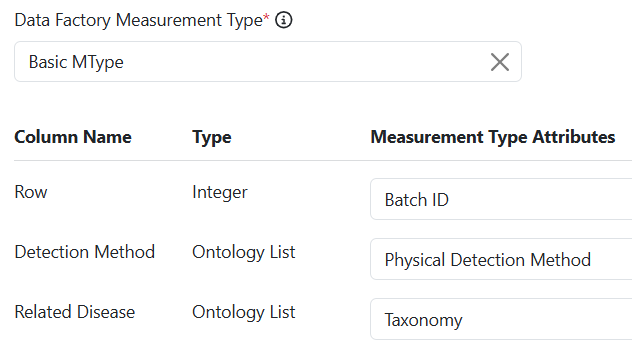
Ontology fields are now supported in Data Factory publication. Data Factory administrators can create ontology-type attributes and use them in publication maps for Signals objects (tables, experiments, materials, and more).

Image 5 from What's New 26.5.docx
Image 6 from What's New 26.5.docx

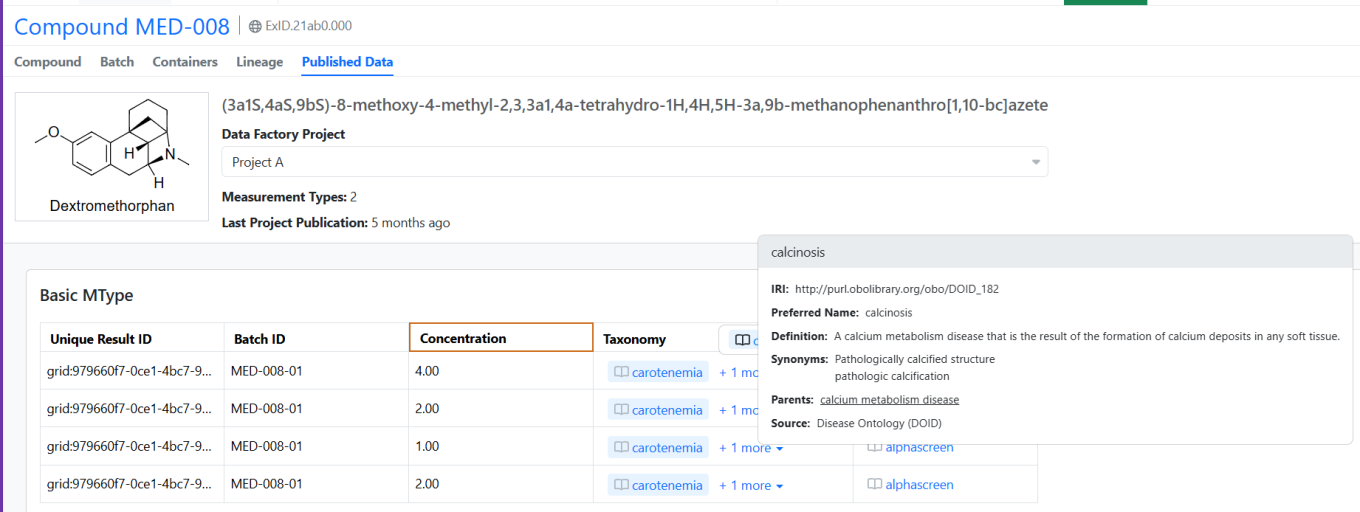
Published terms retain their ontology context in Signals, displaying an ontology indicator with interactive hover details for each term. In Spotfire applications, ontology terms are rendered as plain text.

Image 7 from What's New 26.5.docx

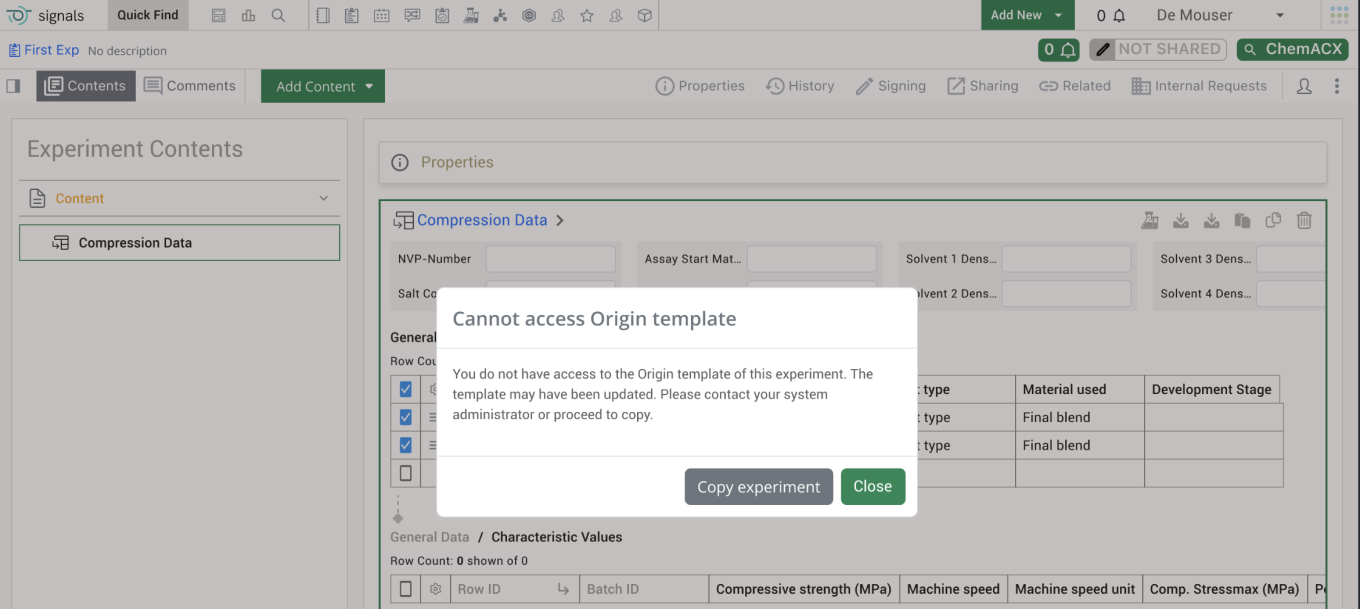
End users will see a warning message when they are cloning an experiment that is based on a template that the end user cannot access. The warning message will alert the end user that they do not have access to the origin template associated with the experiment and the template may have been updated. It also encourages end users to reach out to their administrator to update their access to the template.

Image 8 from What's New 26.5.docx
Image 9 from What's New 26.5.docx

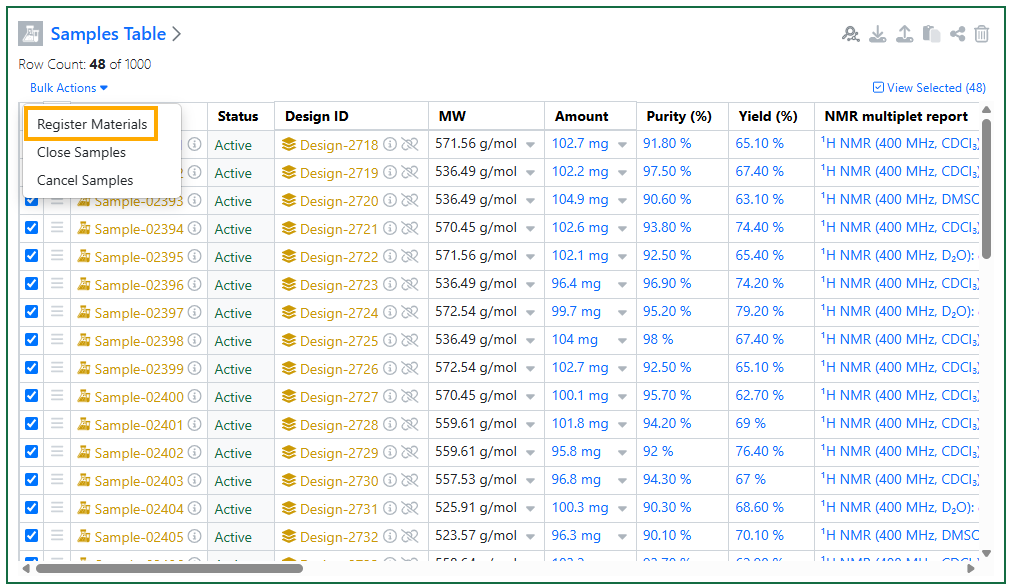
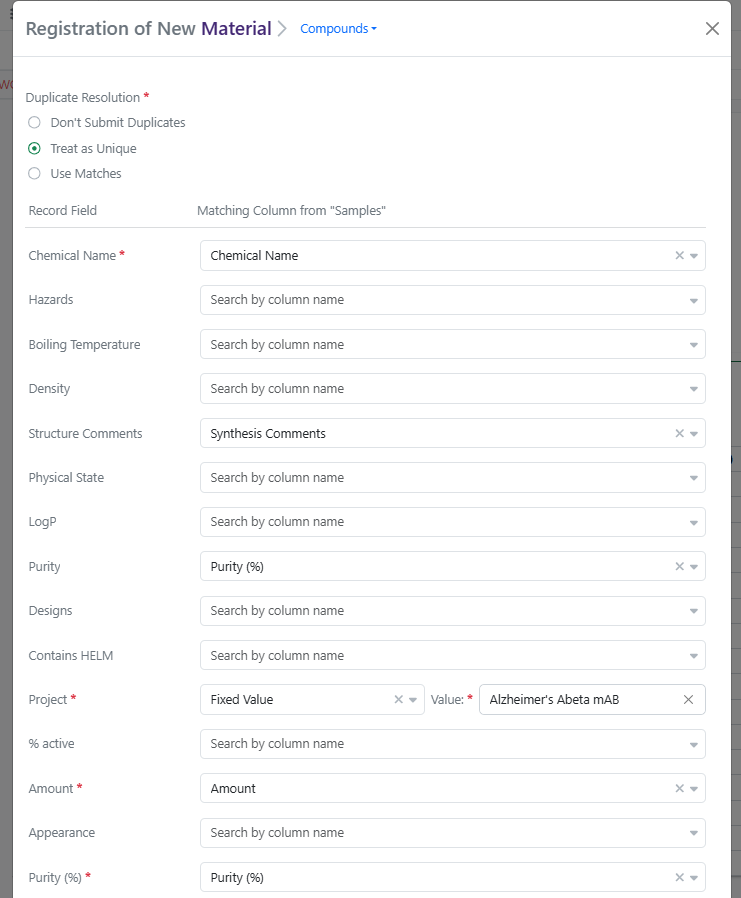
Finally, users can now bulk Register Materials from Samples Tables and from Samples Summary Tables. This feature applies to Experiments, Synergy Experiments, admin-defined custom Objects, and Parallel Experiments. When one or more Active Chemical Samples are selected in a Samples Table, the user can select Bulk Actions > Register Materials. Register Materials will open a modal where the user can select a Compounds or Normalized Compound library and then map Samples columns to Material Record Fields, with an option to apply Fixed Values to all Samples where applicable. (Note: Default mapping of Samples fields to Material fields can be configured by the administrator in Signals Configuration > Materials > Compounds (or other library) > Sample Mapping.) Clicking Register Compounds will start bulk registration, during which the Samples Table will be locked. Any errors with registration will be displayed on the table after registration completes. For tenants with Synergy, if a Sample is related to a Design ID, registration will capture the Originating Design on the Material and update the Design to Synthesis Complete.

Synergy

Image 10 from What's New 26.5.docx
Image 11 from What's New 26.5.docx
Image 12 from What's New 26.5.docx

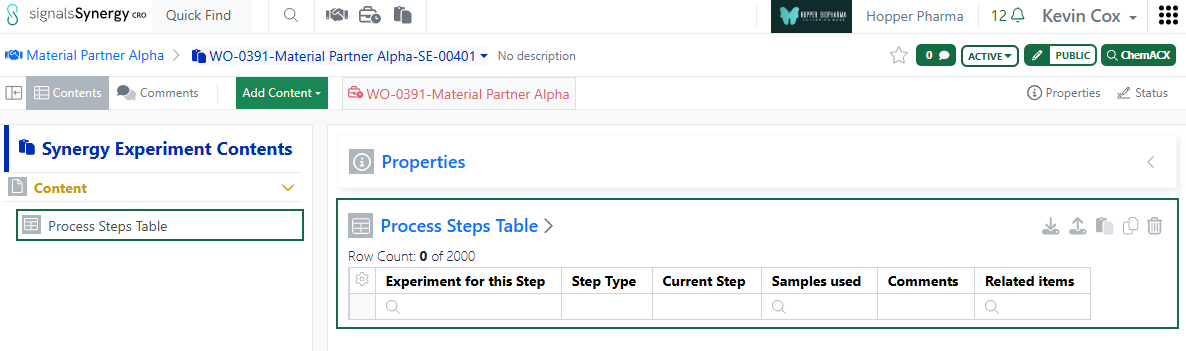
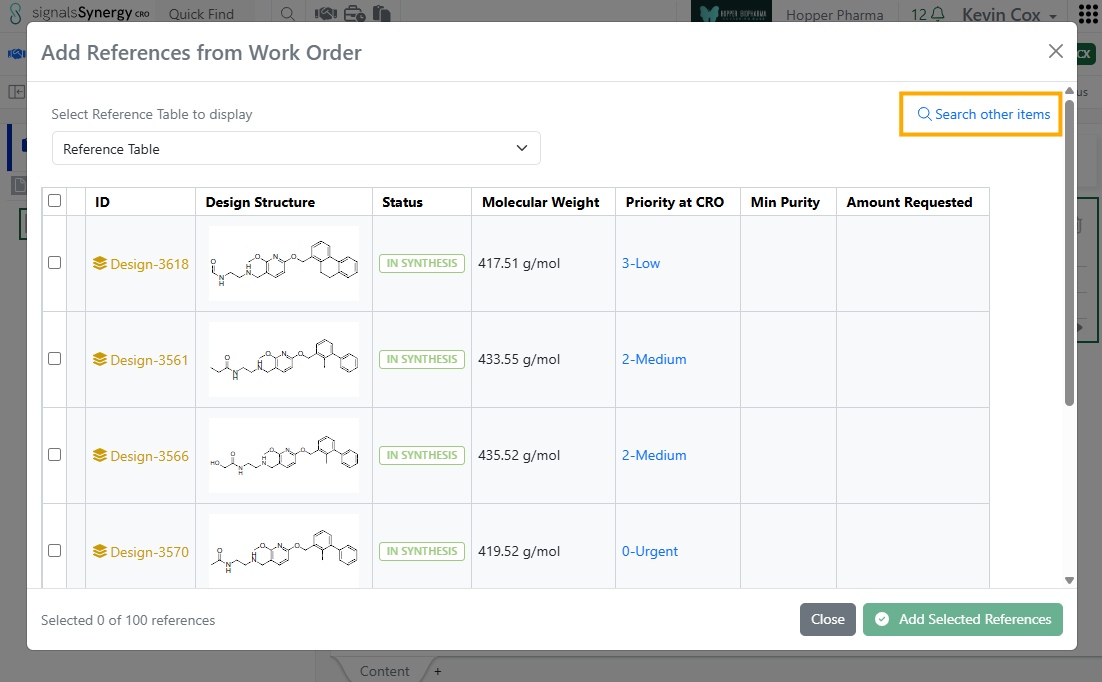
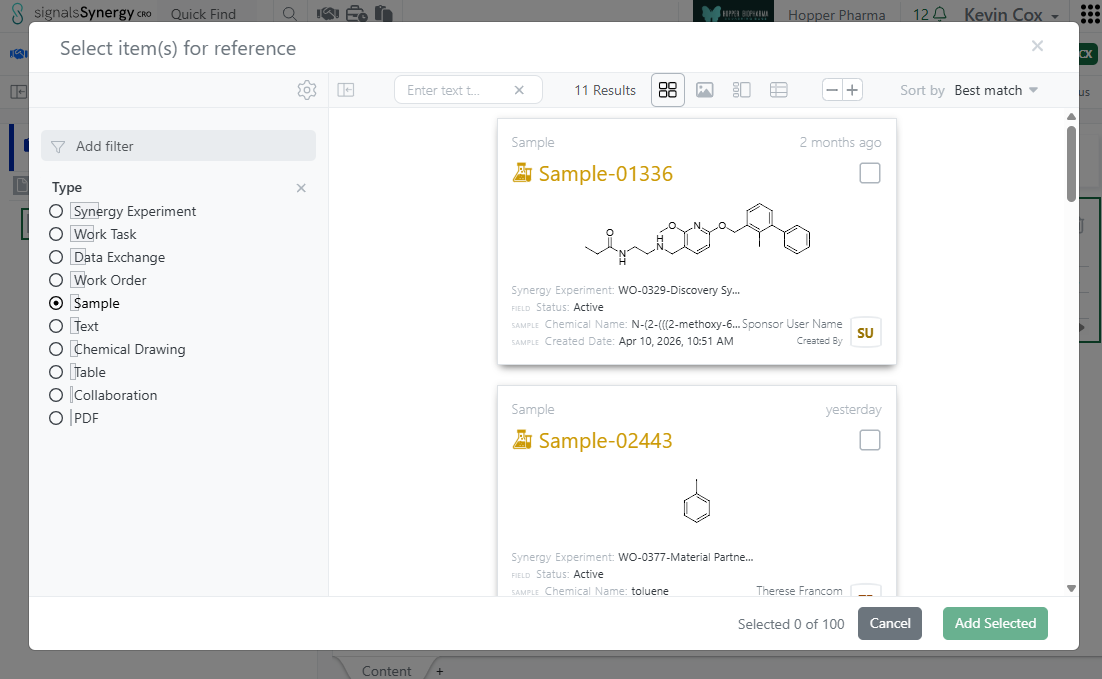
In this release, we expanded the functionality of internal references fields for CRO users. Previously, internal reference fields, such as those in Admin-Defined Tables, always directed the CRO user to Work Order Reference Tables. This allowed the CRO user to reference relevant Designs or Materials in their Synergy Experiments. In 26.5, internal references have been expanded to allow referencing from Work Order Reference Tables or using CRO Advanced Search (any entities they have access). When the CRO user first clicks on the magnifying glass of an internal reference field (such as in cell in a Table), the modal will allow the user to select references from the associated Work Order Reference Tables, assuming the query defined for the internal reference allows for Designs and/or Materials. To search outside the Reference Tables, the CRO user can click on the blue Search other items option, which opens CRO Advanced Search. From Advanced Search, CRO users can reference other items they have access to, such as related Synergy Experiments, Samples, or documents. This functionality applies to internal references in Synergy Experiment Properties, Stoichiometry Tables, Admin-Defined Tables, Samples Tables, Worksheets, and Text.

Image 13 from What's New 26.5.docx

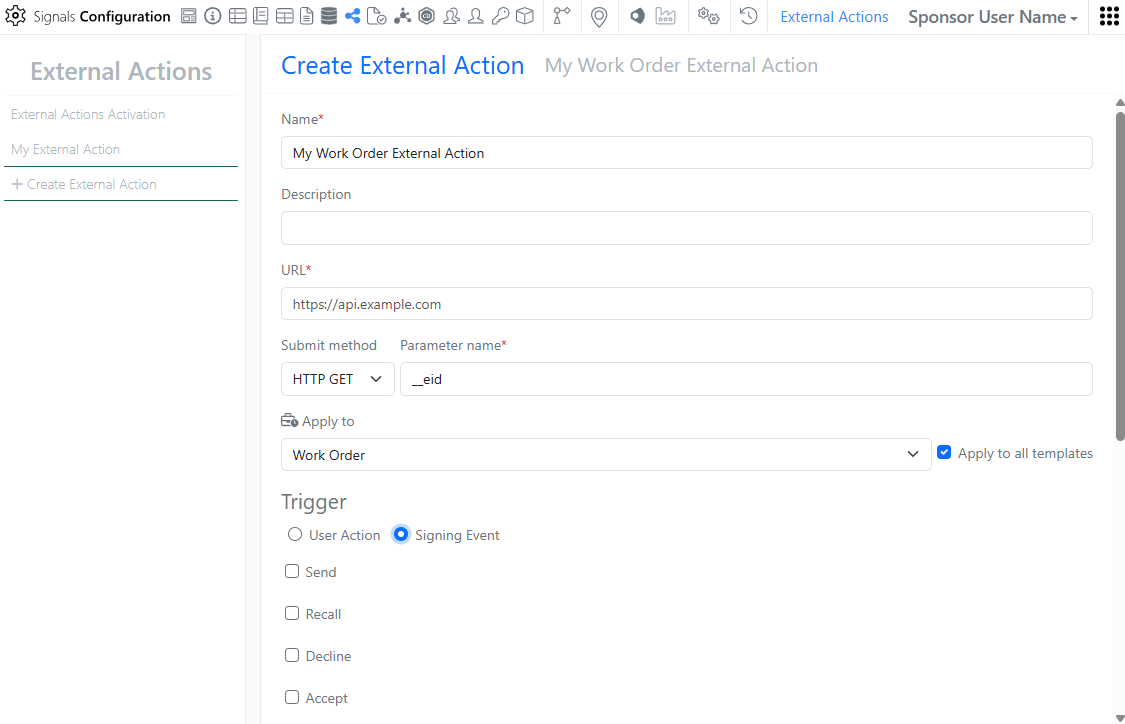
In Signals Configuration, External Actions can now be configured on Work Orders. External Actions can be user triggered or triggered at signing events such as Status changes like Send or Submit. As with other External Actions, the administrator can choose whether to display for the CRO user.

Image 14 from What's New 26.5.docx
Image 15 from What's New 26.5.docx
Image 16 from What's New 26.5.docx

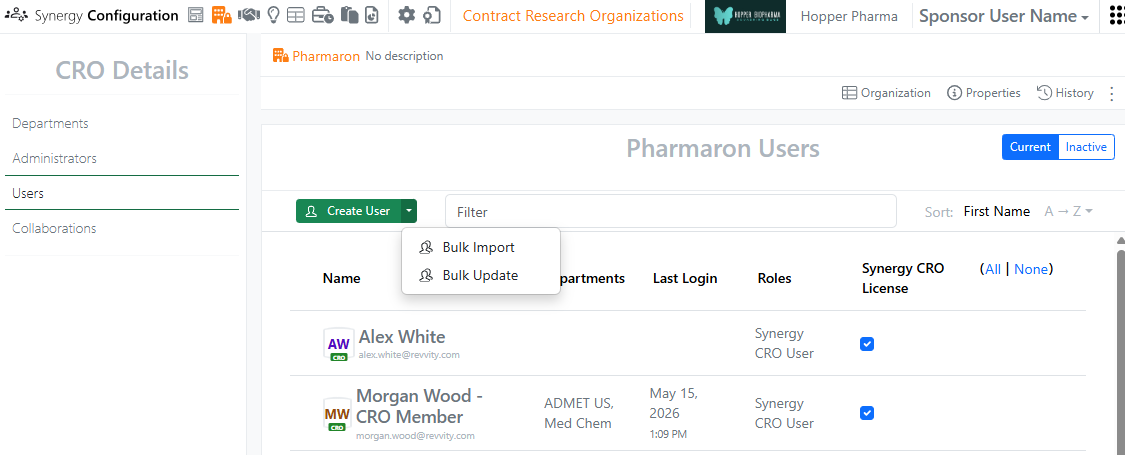
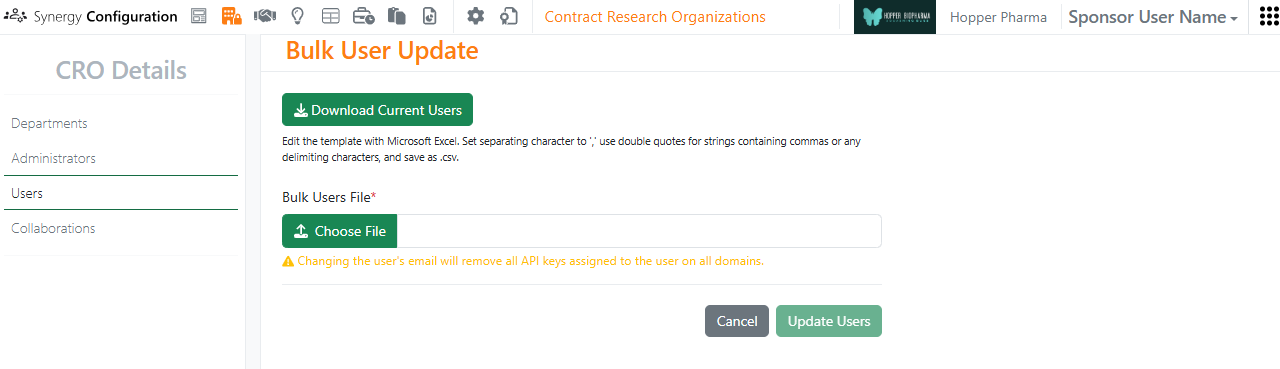
In Synergy Configuration > Contract Research Organizations > specific CRO > Users, Bulk Update CRO users now supports assignment to Departments, as well as setting a user as a Department Manager. A CRO user can be added or removed from Departments and promoted to or demoted from a Department Manager. To see an example of the format, use the Download Current Users button. In the CSV file, Departments are comma separated. For each Department listed, adding |Manager:true will promote the user to a Manager for that CRO Department. Removing |Manager:true will demote the user to only a Member of that CRO Department.

Data Workflows & Analytics

Image 17 from What's New 26.5.docx

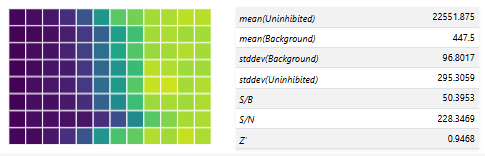
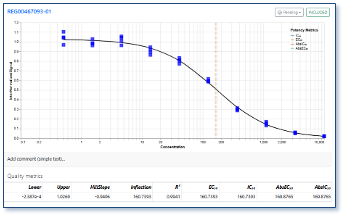
Additional Quality Control (QC) and Curve Fitting metrics will now be computed, displayed and available for publication:

- Signal-to-Background (S/B) ratio per plate

- Signal-to-Negative Control (S/N) ratio per plate

- Z` (Prime) Factor per plate

- Absolute EC/IC50 value from curve fit parameters for logistic regression curves

Users will now be able to select which QC and Curve Fitting metrics are published from all the available ones in a flexible manner.

Tables

Image 19 from What's New 26.5.docx

Admin Defined Tables, Variation Tables and Hierarchical Tables now allow Containers to be added to existing rows in Inventory linked tables. If the table uses the Inventory Columns that allow input of Containers, Assets or Batches via an Internal Data Source, the scientist can now add the Container in a subsequent action to adding an Asset or Batch. The scientist can either scan the barcode, or access a view of the appropriate Containers to choose from. Only Containers containing Batches of that Asset can be added.

Image 20 from What's New 26.5.docx
Image 21 from What's New 26.5.docx

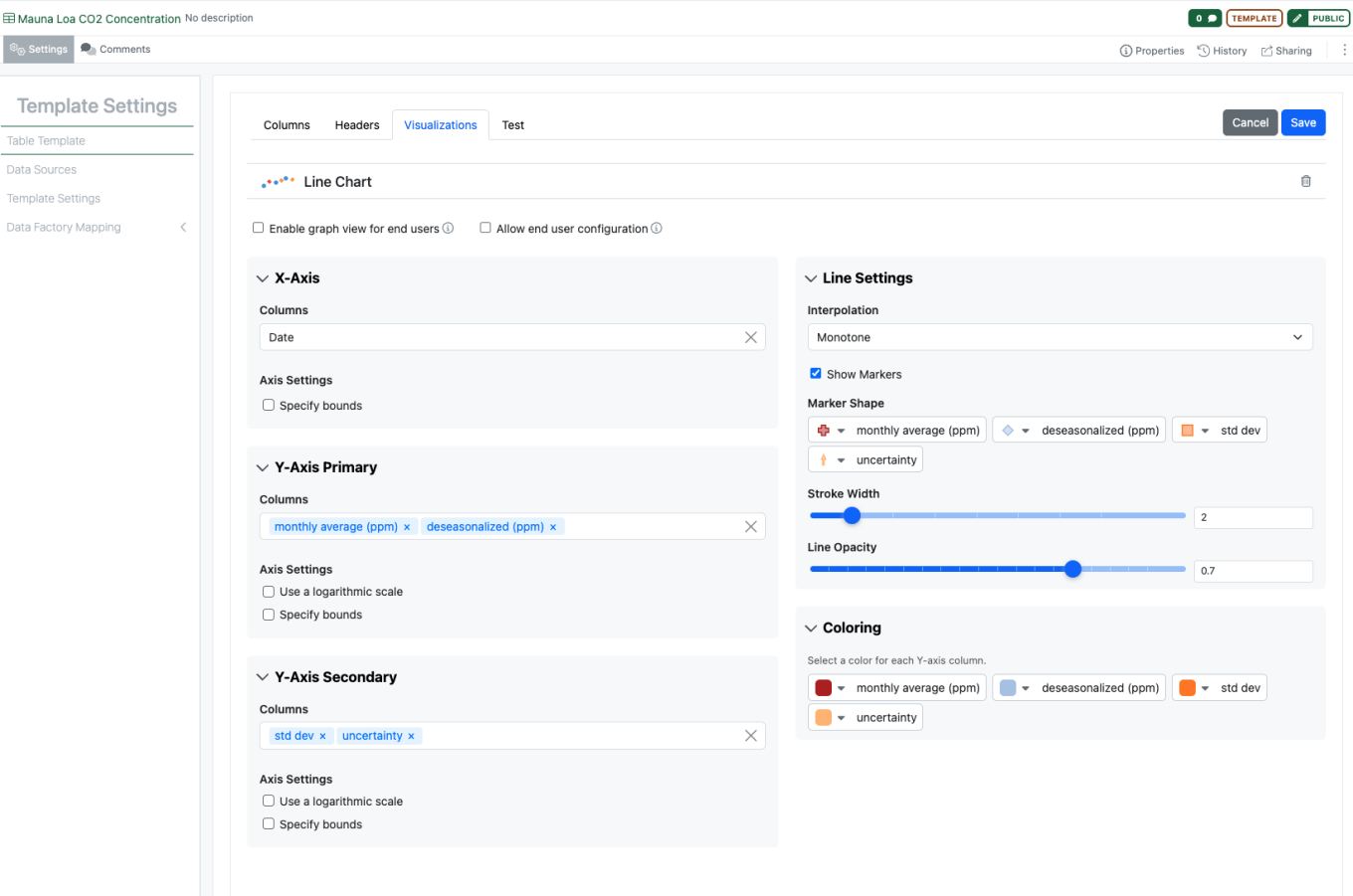
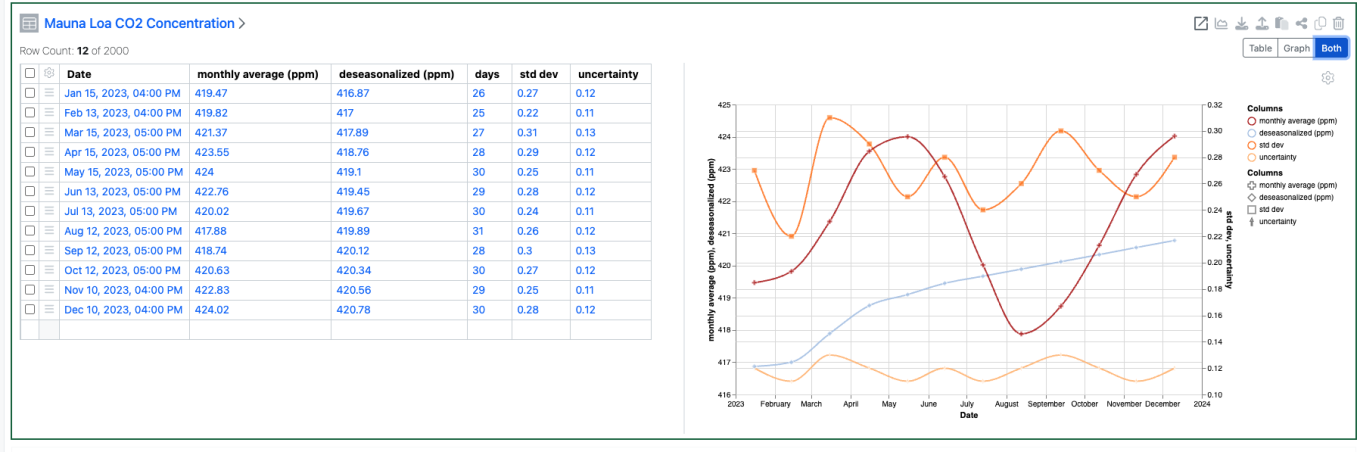
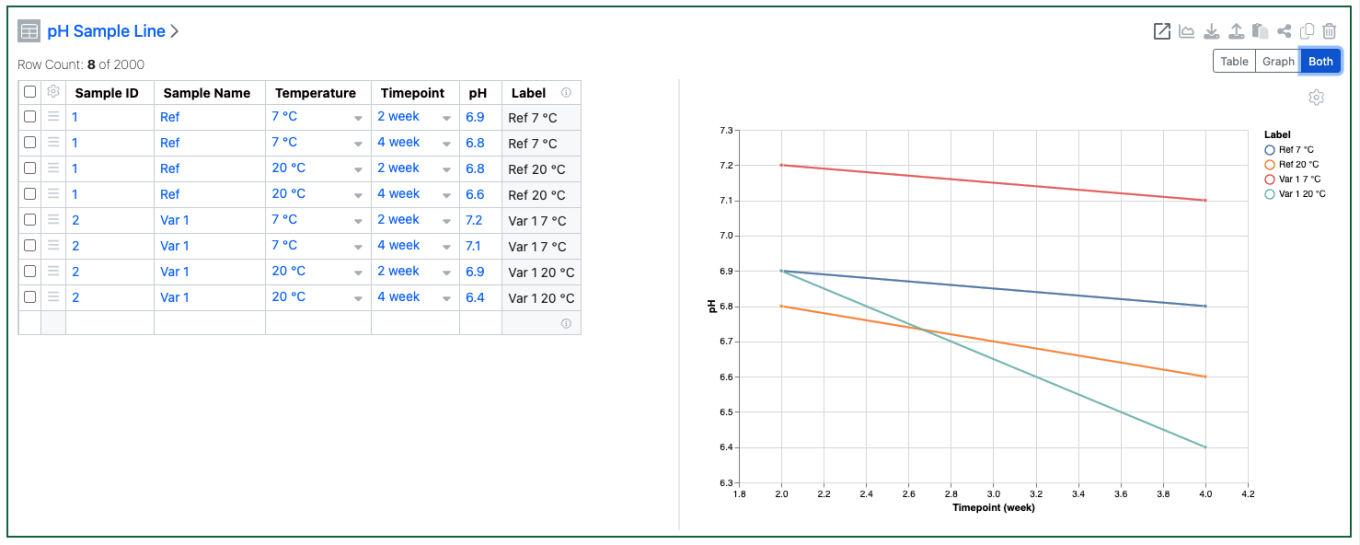
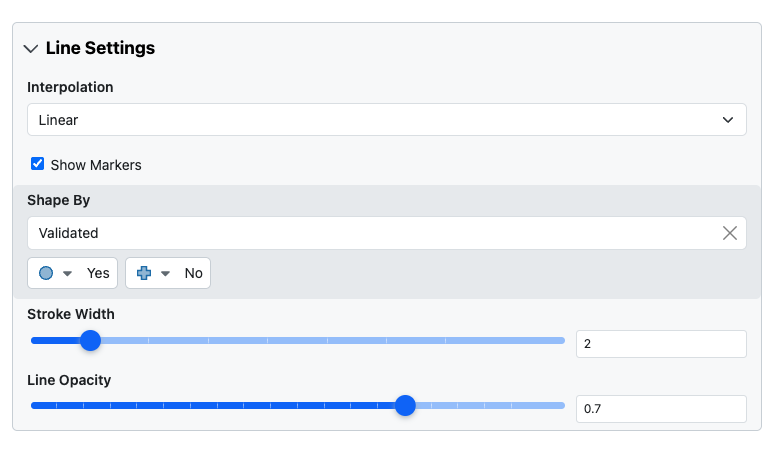
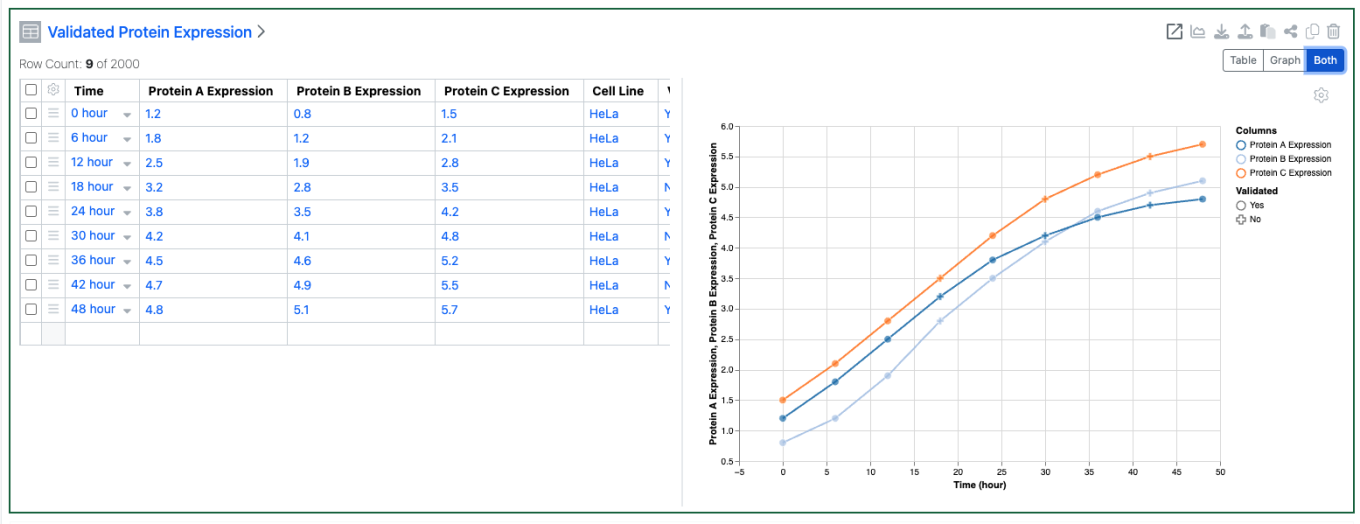
Configuration Administrators can now choose to define a Line Chart on Admin Defined Tables. Similar to the definition of Scatter Plots and Bar Charts, administrators can define the Line Chart on the Table template including setting properties for the X, Y and Secondary Y Axes. Admins can also define line properties such as color, marker, thickness, opacity and interpolation. The admin can also choose if the end user is able to adjust the settings for the chart.

Image 22 from What's New 26.5.docx

Configuration Admins can now also define that Checkbox, Variable Measure and Variable Properties can be used on the categorical axis of Bar Charts.

BioDesign

Image 23 from What's New 26.5.docx

Users with a BioDesign and Signals Notebook or Signals One license can now register BioDesign sequences directly to Signals Materials. The sequence type must match the corresponding Material type. Upon successful registration, links are automatically created between the BioDesign Sequence and the Material in both directions.

Inventory

Image 24 from What's New 26.5.docx

Administrators can now configure container-specific properties to display directly in the Reactants table. Container property columns are available under Container Record Field in the Reactants Table configuration within Chemistry Settings and appear as read-only fields, giving users immediate visibility into container details without leaving the experiment.

Image 25 from What's New 26.5.docx

When disposing multiple containers from the Container Search Table, users are now prompted to move grid-located containers to a non-grid location before disposal — consistent with the single-container disposal workflow. This eliminates the need to open and dispose containers one by one, saving time and freeing up grid space more efficiently.

InventoryGo

Image 26 from What's New 26.5.docx
Image 27 from What's New 26.5.docx

Rectification. Administrators can configure containers to be automatically moved to the currently scanned location or a predefined default location, reducing manual effort and speeding up the rectification workflow.

Materials

Image 28 from What's New 26.5.docx

Absorbance (280 nm, 0.1%) fully oxidized, absorbance (280 nm, 0.1%) fully reduced, aliphatic index, instability index, and total cysteine content (%) are now available as additional calculated properties for protein complexes in Custom and Protein library types and in the pre-configured Antibodies library.

Image 29 from What's New 26.5.docx

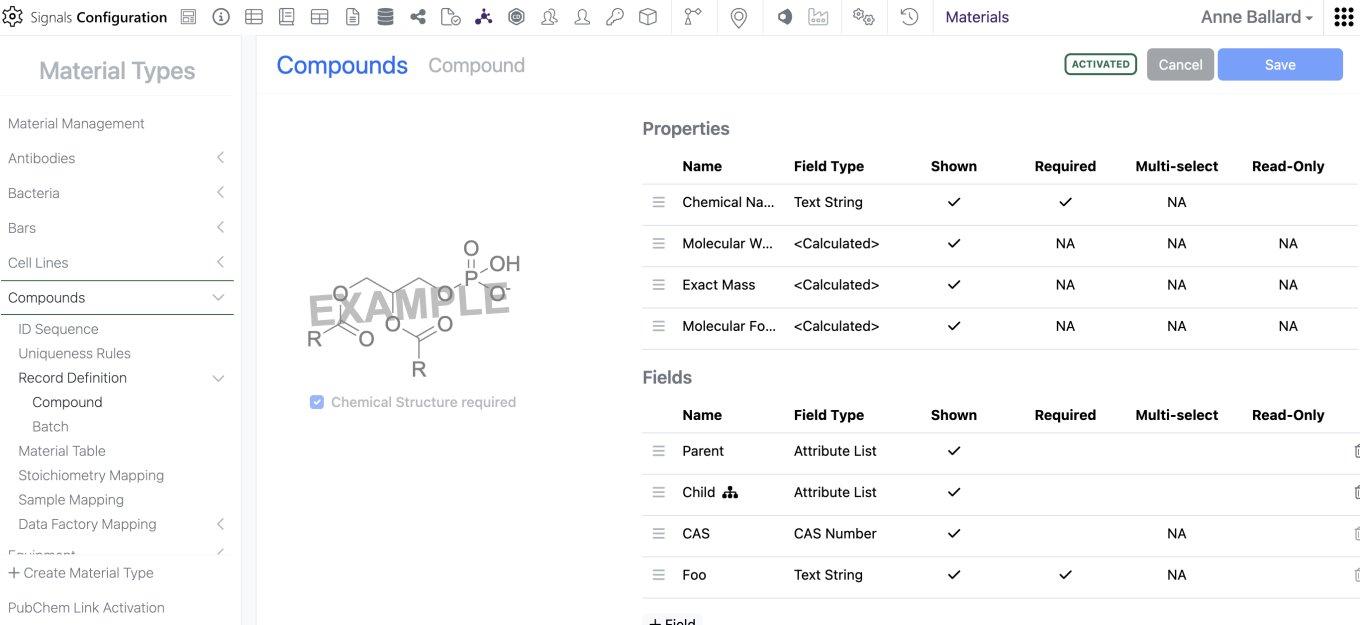
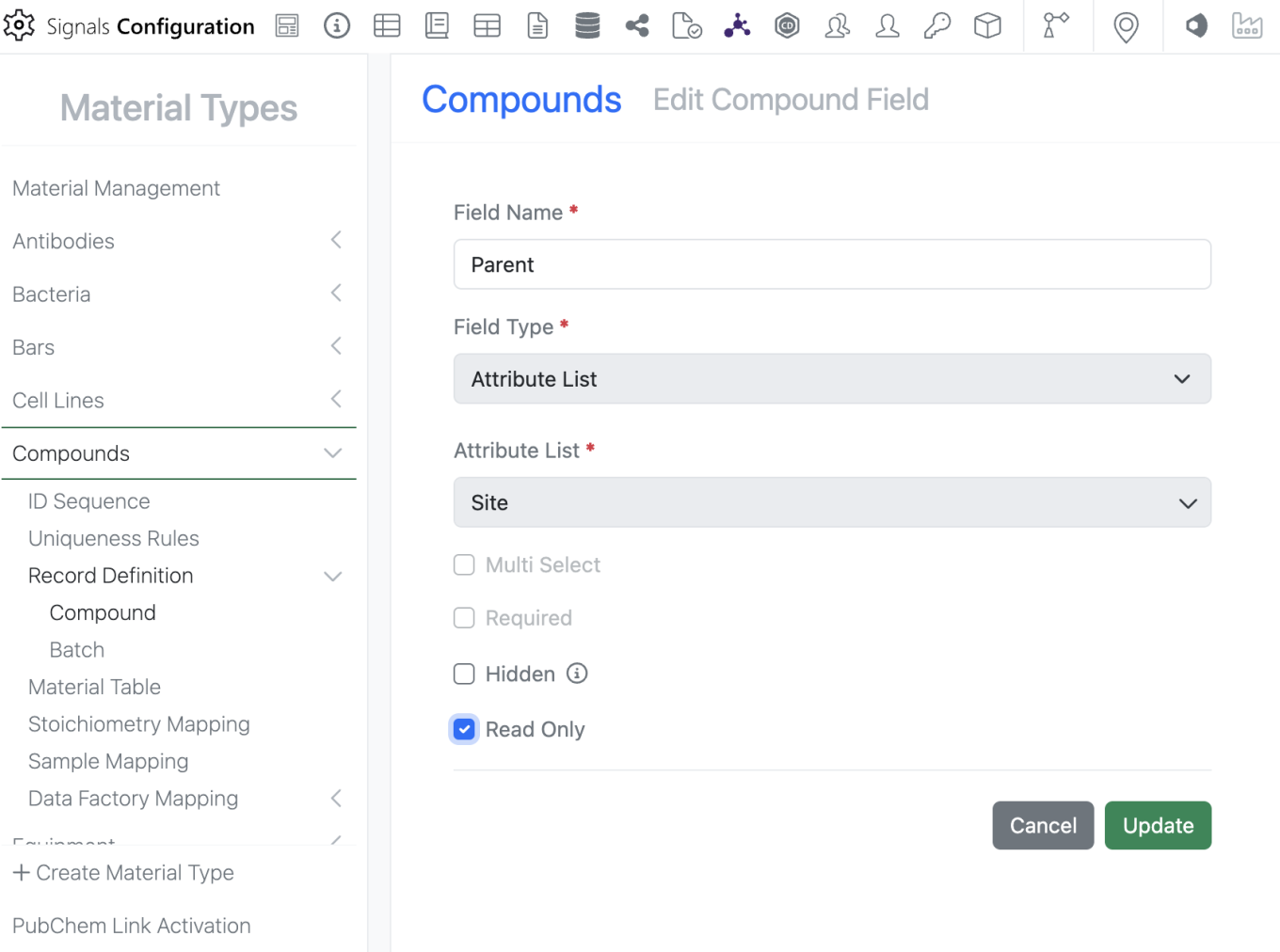
Admins can now mark Material properties “Read-Only” which prevents users from altering the data in the UI but does not limit update via the APIs. This does not alter which properties are available for update via the APIs.

Image 30 from What's New 26.5.docx

To mark a property as “Read-Only”, the admin can edit the property and select the new “Read-Only” option. Please note that a property can either be “Read-Only” OR “Required”, it cannot be marked as both.

Administration

Image 31 from What's New 26.5.docx

External Ontology Source for the provider SciBite CENtree now support up to twenty custom HTTP headers, enabling compatibility with more complex authentication schemes.

Integrations & Interfaces

Image 32 from What's New 26.5.docx

We have added API support for hiding and unhiding of table columns via API.

Image 33 from What's New 26.5.docx

We have added a new API to move Experiments to different parent Notebooks.

Image 34 from What's New 26.5.docx

We have added new APIs for returning closed entities from an archive state to Closed.

Image 35 from What's New 26.5.docx

We have enhanced existing APIs for fetching the Material Library definitions to allow for specifying the specific Material Library to fetch. This is an optional “name” parameter that when not included will return all libraries definitions.

Image 36 from What's New 26.5.docx
Image 37 from What's New 26.5.docx

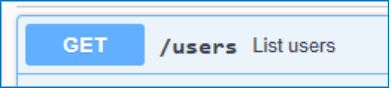
We have enhanced the User fetch API to allow for fetching all CRO users in a tenant. A new “userType” parameter has been added that defaults to “systemStd”. To fetch CRO users this is set to “cro”.

Image 38 from What's New 26.5.docx

We have enabled additional CRO APIs for interacting with Chemical Drawings. These are intended for use in Sponsor integrations via Bearer Token, CRO users cannot have API keys generated for them.

Beta Features

The following capabilities are in beta and are available for users, administrators and developers on the Signals platform upon request. Please contact your account representative or our support team if you would like access to the following features.

Synergy

Image 39 from What's New 26.5.docx

As part of the existing Synergy Work Tasks beta feature, Work Task Templates now support default values. On a Work Task Template, the administrator can specify the default Synergy Experiment Template to be used or default values for other admin-defined properties. When a Work Task is created from this template, the property will be pre-filled with this default value, but can be adjusted if needed. This ensures the Work Task properties are specified correctly for the CRO and reduces the number of clicks and required manual entry by the Sponsor.

Materials

Image 40 from What's New 26.5.docx

The user interface for Admin configuration for materials tables in Signals Configuration has been updated.

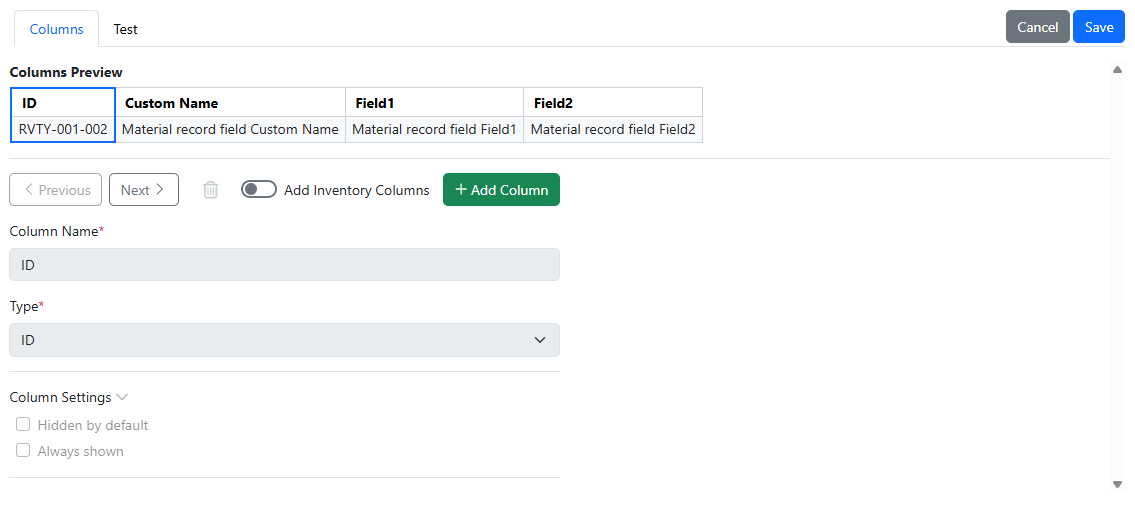
Administration

Image 41 from What's New 26.5.docx
Image 42 from What's New 26.5.docx
Image 43 from What's New 26.5.docx

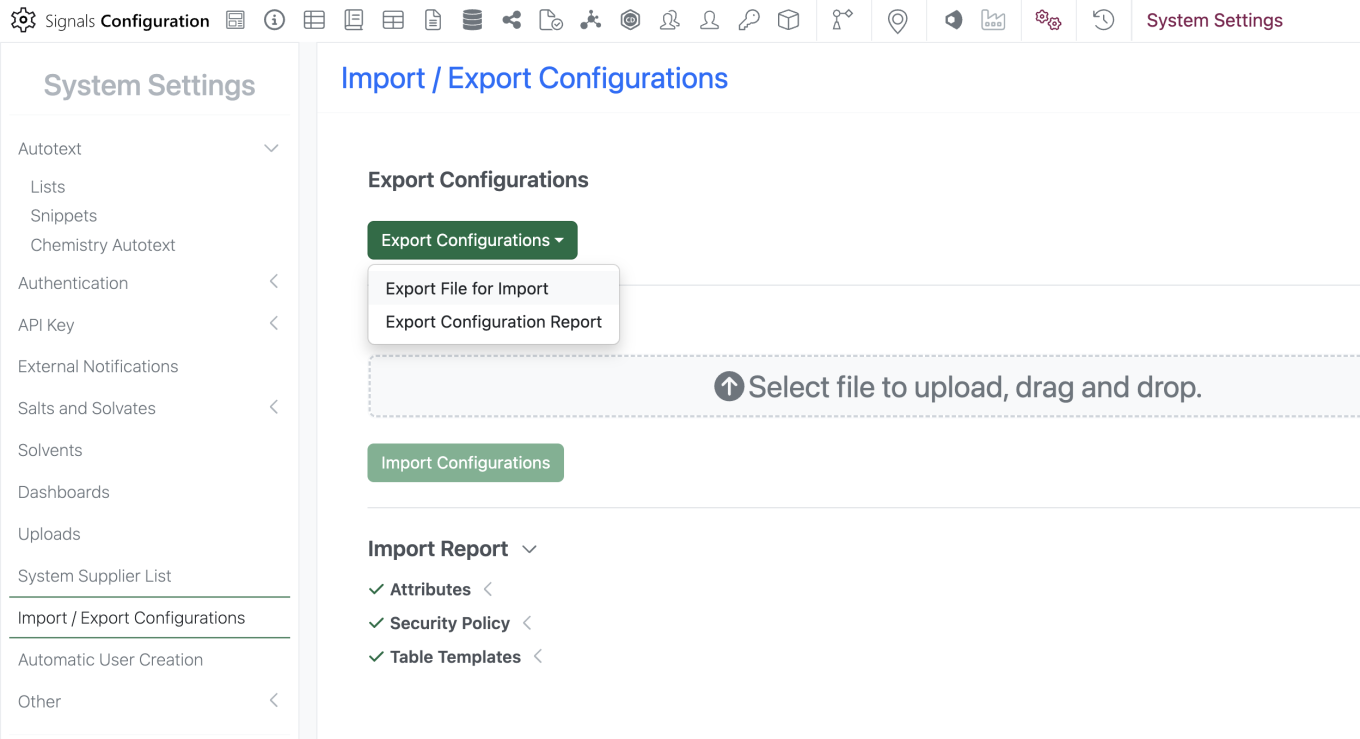
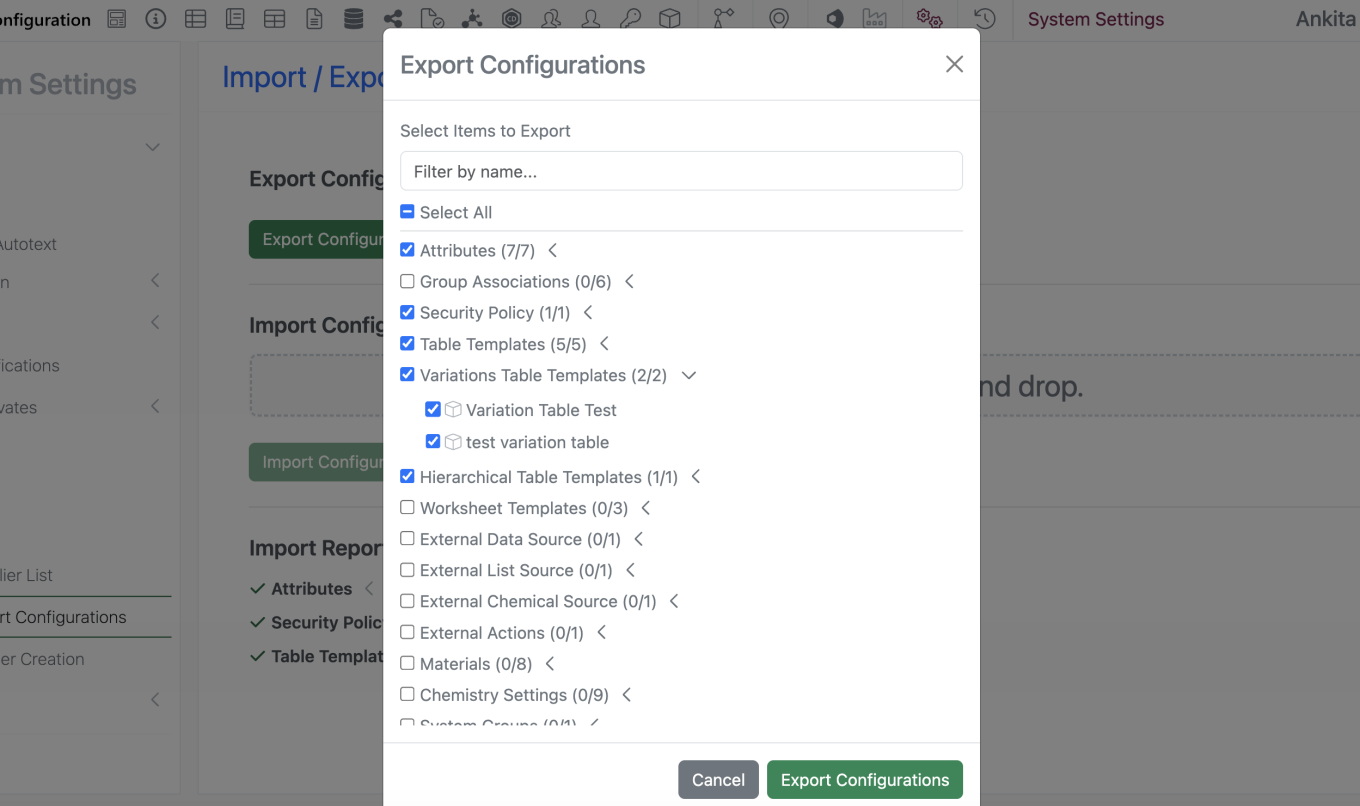
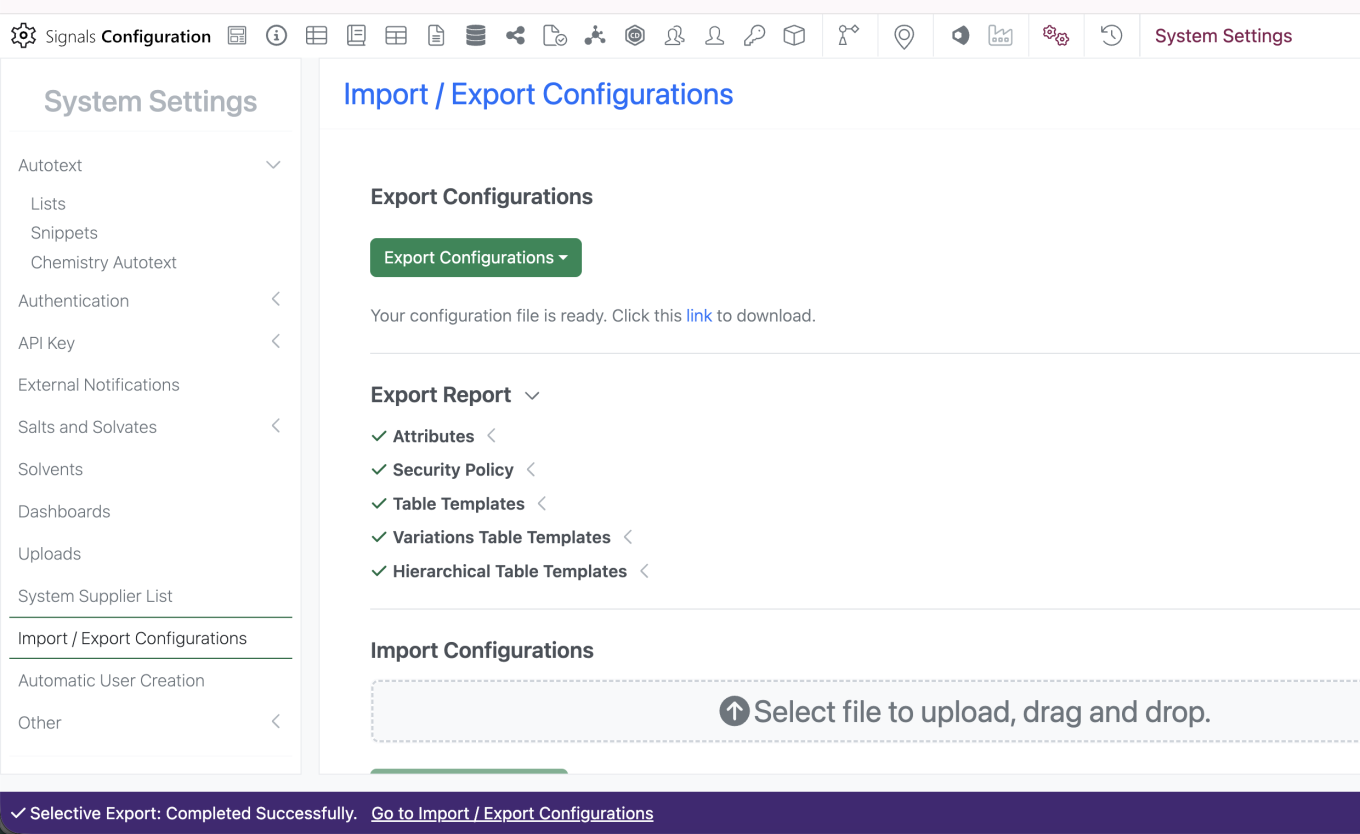
Selective export for configuration migration between tenants is now available. Admins can navigate to the “Import / Export Configurations” interface and select ‘Export Configurations’ > ‘Export File for Import’. Admin is prompted to enter password to navigate to the ‘Export Configurations’ modal. Admin is able to select specific objects to include in the export file and filter by name to narrow down the menu. Admin can select the link to Export the file.

What's New

We are delighted to release Signals BioDesign 26.5. This release introduces new integration with Signals Materials libraries and beta support for Gibson Assembly design. We have also fixed a number of smaller bugs to improve overall product quality.

The following generally available improvements are available to users, administrators, and developers on the Signals platform. Some features may require appropriate licensing and/or administrator enablement.

  • Signals Integration
    - Signals BioDesign is now integrated with Signals Materials libraries
  • Cloning 
    - Gibson Assembly combinatorial assembly (beta)

Administrators are recommended to subscribe to the channels within our support news site found at https://support.revvitysignals.com/hc/en-us/categories/360004446171-Support-News which contains more information about releases and other pertinent product information.

Further Details

This section provides additional detail about generally available improvements and beta capabilities included in Signals BioDesign 26.5. Some features may require appropriate licensing and/or administrator enablement.

Signals Integration

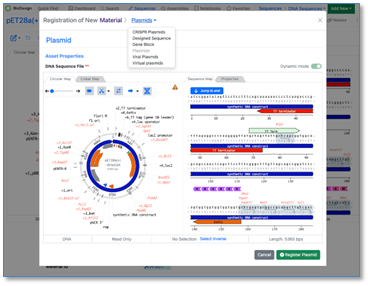
Users with a BioDesign and Signals Notebook or Signals One license can now register BioDesign sequences directly to Signals Materials. The sequence type must match the corresponding Material type. After successful registration, links are automatically created between the BioDesign sequence and the Material in both products.

Beta Features

The following beta capabilities are available to users, administrators, and developers on the Signals platform upon request. Please contact your account representative or the support team if you would like access to these features.

Cloning

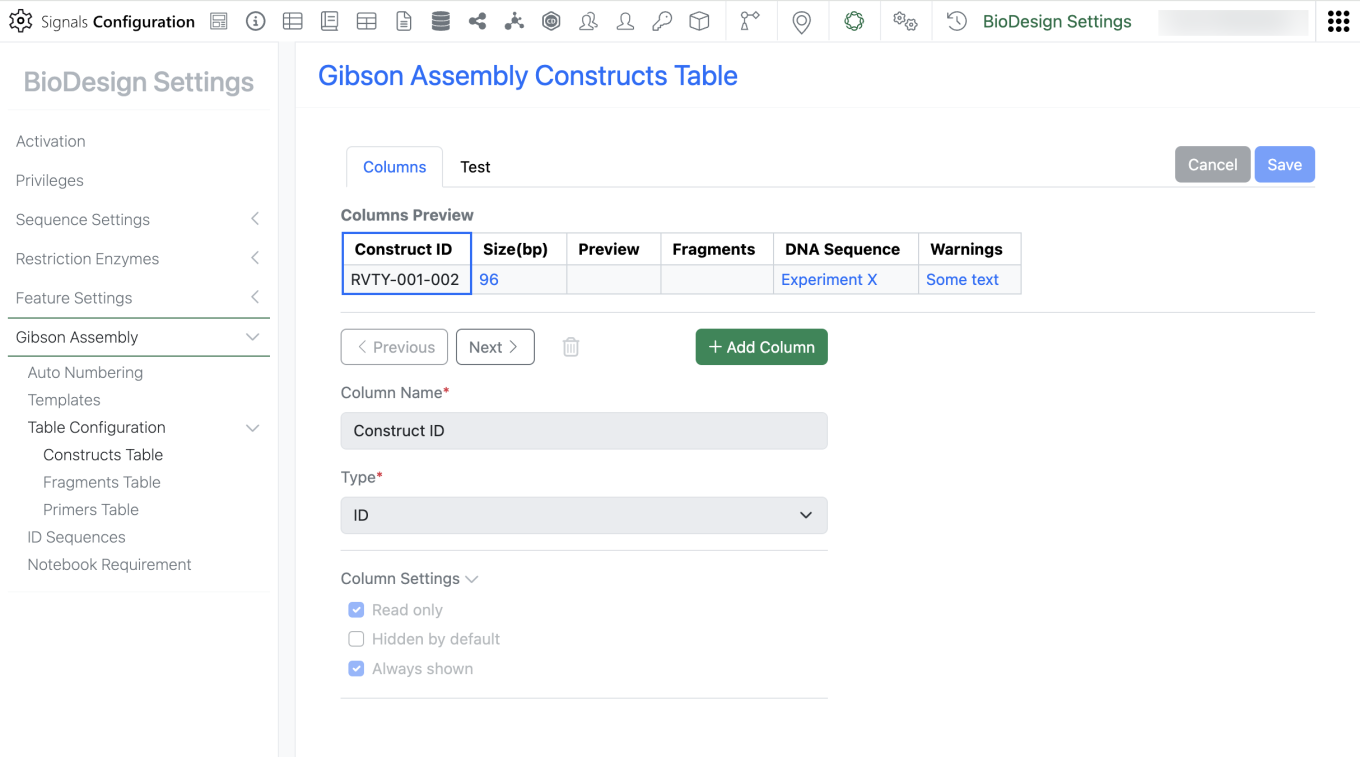
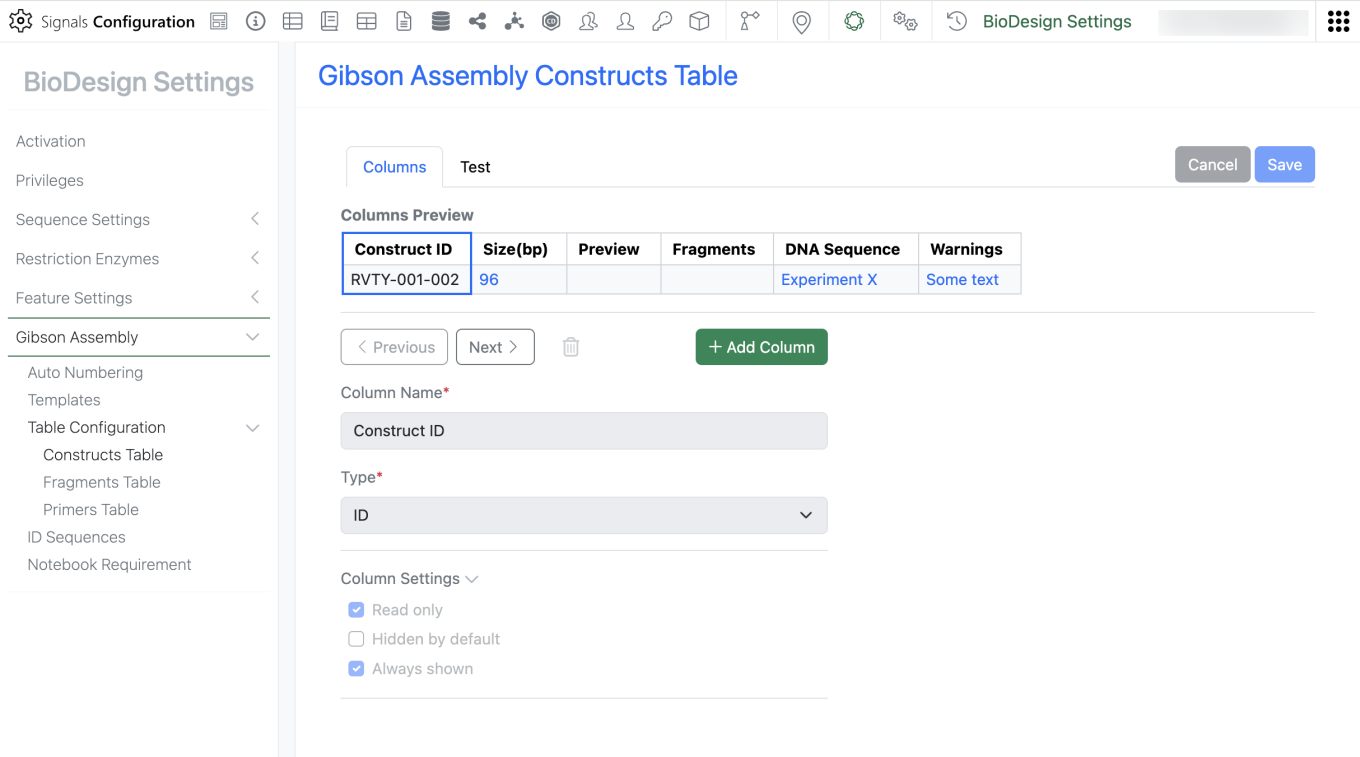
Administrators can now configure templates that allow users to design combinatorial assemblies using the Gibson Assembly cloning method. A dedicated settings section in Signals Configuration allows administrators to manage and customize Gibson Assembly configurations for their users.

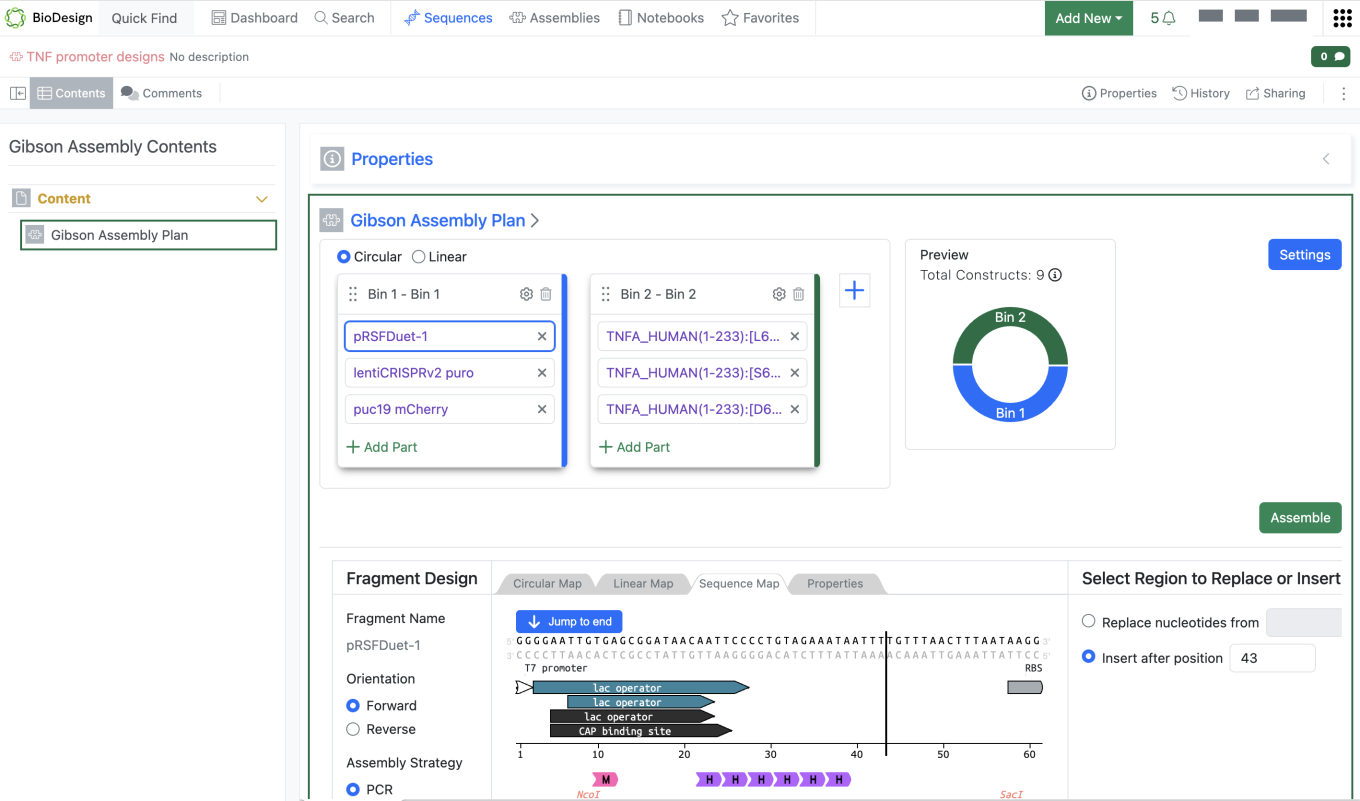
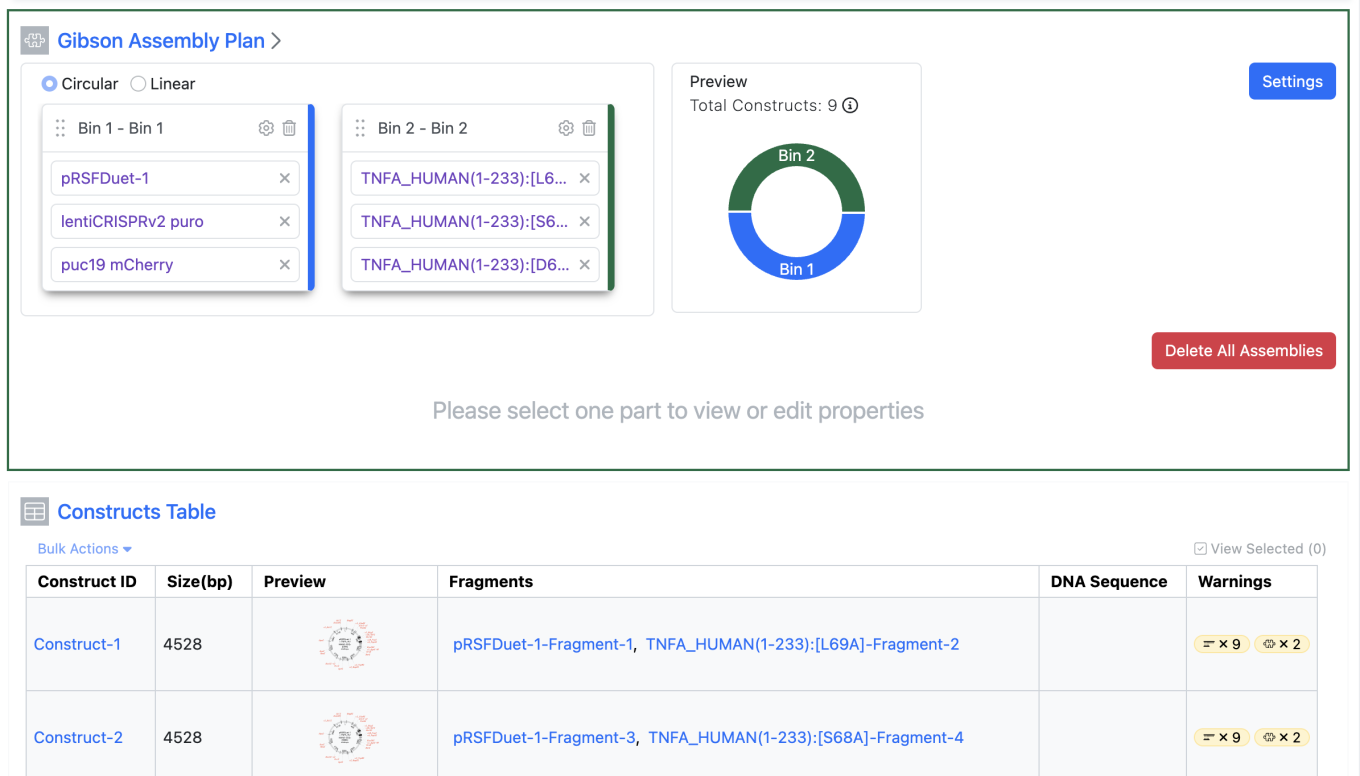
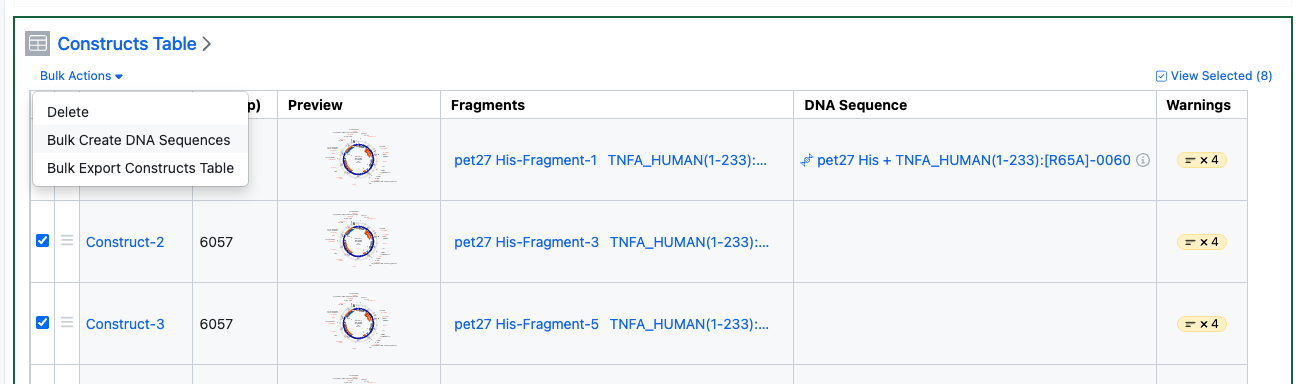
Users can design up to 1,000 molecular constructs using the Gibson Assembly method. They can start an assembly from the Sequences Folder or the new Assemblies folder, and assemblies can also be organized in Notebooks. After launching a Gibson Assembly, users add sequences to the Assembly planner, choose how each fragment should be assembled, adjust settings, and proceed with the assembly.

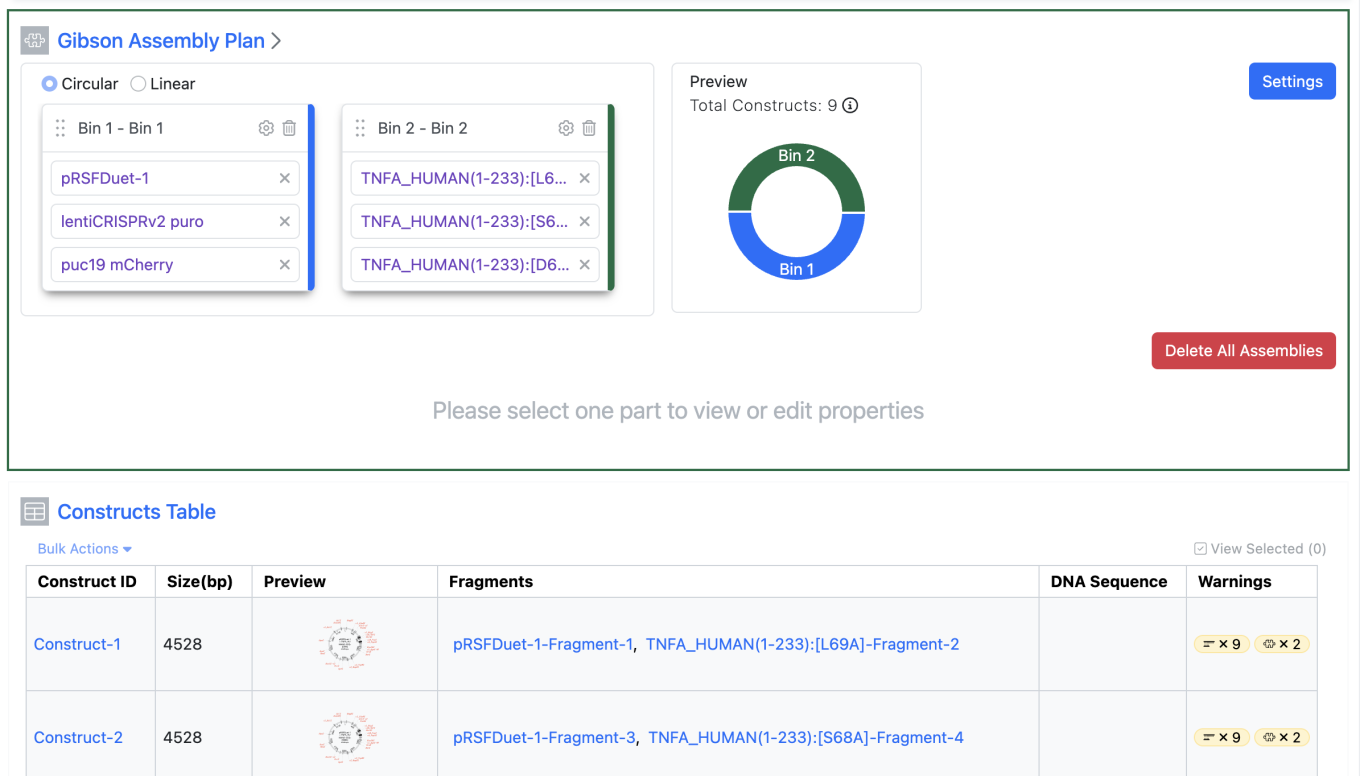
After the design is complete, the user can proceed with assembly. Because the assembly is combinatorial, every sequence in Bin 1 is combined with all sequences in subsequent bins. The planner previews the total number of constructs that will be generated by the plan. For longer-running processes, users can optionally receive in-app and email notifications. When the run is complete, the Gibson Assembly provides outputs for Constructs, Fragments, and Primers. Users can inspect any warnings or errors that occur during the assembly process.

To adjust settings and rerun the Gibson Assembly, use the Delete All Assemblies option after the run completes. This clears the generated assembly outputs so the user can revise the settings and run the assembly again.

What’s New

We are delighted to release our new version of Signals, 26.6.

The following improvements are available for users, administrators and developers on the Signals platform. Certain features may only be available with appropriate licensing and/or with enablement by an administrator.

  • Fundamentals
    - Audit trail displays highlighted granular changes for text elements is available to all systems
    - Audit trail displays highlighted granular changes for structured tables such as hierarchical tables, variations tables, materials tables, etc. (beta)
    - Audit trail displays highlighted granular changes for worksheets (beta)
  • AI
    - Semantic Search available to all systems*
  • Data Workflows & Analytics*
    - Administrative access to Signals Native Analytics is now available to all systems
    - Curve fitting extended to Logistic regression 3-4-5 Parameters models is available to all systems
    - Initial support for custom curve fit definitions and publication is available to all systems
  • SAR & Decisioning*
    - Receive an email notification when publication to Data Factory completes
    - Track Data Factory publications with an “In Progress” status after submission
    - View very small values in scientific notation in the Material Library’s Published Data section
    - Use Insights to query, generate, and analyze Measurement and SAR Tables directly in Signals (beta)*
  • Synergy†
    - Administrative control of CRO privileges per CRO Department
    - CRO privilege to enable Copy/Copy Partial of Synergy Experiments for CRO users
    - Search Bookmarks in Synergy Advanced Search and Smart Folders for Sponsor and CRO
    - File Upload in Synergy Experiments for CRO users
    - Work Order-specific naming of Synergy Experiment Drafts
    - Sponsor can Recall Work Orders in Accepted by CRO status
    - Date Sent, Date Started, and Date Completed data on Work Tasks (beta)
    - Configuration Transfer support for Work Tasks (beta)
  • Chemistry
    - HELM string in the Products table and Sample
    - Compact display option for Chemical Check Warning watermark
  • Tables
    - Fill values in a column in an Admin Defined Table or Variation Table
    - Fill values in a column in a Hierarchical Table*
    - Disallow copy of values in a column when copying a row in an Admin Defined Table
    - Disallow copy of values in a column when copying a row in a Hierarchical Table*
    - Box Plots on Admin Defined Tables*
    - Bucketed numerical column can be used for Categorical axis on a Bar Chart*
    - Bar and Segment totals can be displayed in a Bar Chart*
    - A Second categorical column can be displayed on a Bar Chart*
    - Define segment ordering for stacked Bar Charts*
    - Multiple lines per column in a Line Chart*
    - Numerical properties displayed as aggregate on Y axes in a Line Chart*
  • Plates
    - Increase of csv upload limit from 2000 to 50000
  • Inventory
    - Bulk Update Home Locations for Containers
    - Autofill for Inventory Decrement in Stoichiometry Table
    - "Modified Date" and "Location Type" Column Added to Container Search Table and included in exported data
    - New 54 × 25 mm (QR Code) Label Template with 5 Slots
  • InventoryGo ‡
    - Grid location support for Rectification workflow
    - Activate/Deactivate default location for Auto Complete Rectification
    - Optimized Adjustment Status Control
  • Materials
    - UI update to material tables configuration available to all systems
  • Tasks and Requests
    - Increase in Task creation limit from 2000 to 4000
  • Administration
    - Audit trail displays highlighted granular changes for admin-defined tables is available to all systems
    - A matching Configuration Report (PDF) generates based on selective configuration export (beta)
  • Integrations & APIs
    - API Key Limit from 25 to 100
    - API to export Monomer Library to JSON
    - API to bulk export Containers
    - Enhanced bulk Material Export to allow specifying materials
    - APIs to fetch Report and Results tables from Data Exchange
    - Fetch Synergy Data Exchange Report and Results Tables API
    - Department assignment support via Bulk CRO User Update API

* Requires Signals One license

† Requires Signals Synergy license

‡ Requires InventoryGo license

The following OnDemand videos for Signals Synergy are now available:

  • Assays in Signals Synergy

Administrators should note that we have resolved an inconsistency in the way non global numbering currently works for Parallel Experiments, Requests, Inventa Analysis objects and In Vitro Analysis objects. These objects will now take the next number in sequence regardless of object type. The current behavior is that they take the next number in sequence for the given object type.

Data Factory Administrators should note that legacy Data Factory projects will be fully deprecated in a future release. A straightforward migration path will be provided in an upcoming release to support this transition.

Data Factory administrators should also note that the Advanced Security policies in Inventa apply an “AND” logic across all user groups, restricting access if any groups lack permissions. This behavior differs from the standard Signals security model and will be fixed to align with the standard in a future release.

Data Factory administrators should note there have been performance improvements for Bulk Delete and row-based publications.

Administrators are recommended to subscribe to the channels within our support news site found at https://support.revvitysignals.com/hc/en-us/categories/360004446171-Support-News which contains more information about releases and other pertinent product information.

This content is anticipated for release on our Production E3 environments, and for Private Cloud customers on our deferred release schedule, in November 2026.

Further Details

The following improvements are available for users, administrators and developers on the Signals platform. Certain features may only be available with appropriate licensing and/or with enablement by an administrator.

Fundamentals

Image 1 from What's New 26.6.docx

Display of granular audit trail changes within text elements are now available to all systems.

AI

Image 2 from What's New 26.6.docx

Semantic Search is now available to all systems

Data Workflows & Analytics

Image 3 from What's New 26.6.docx

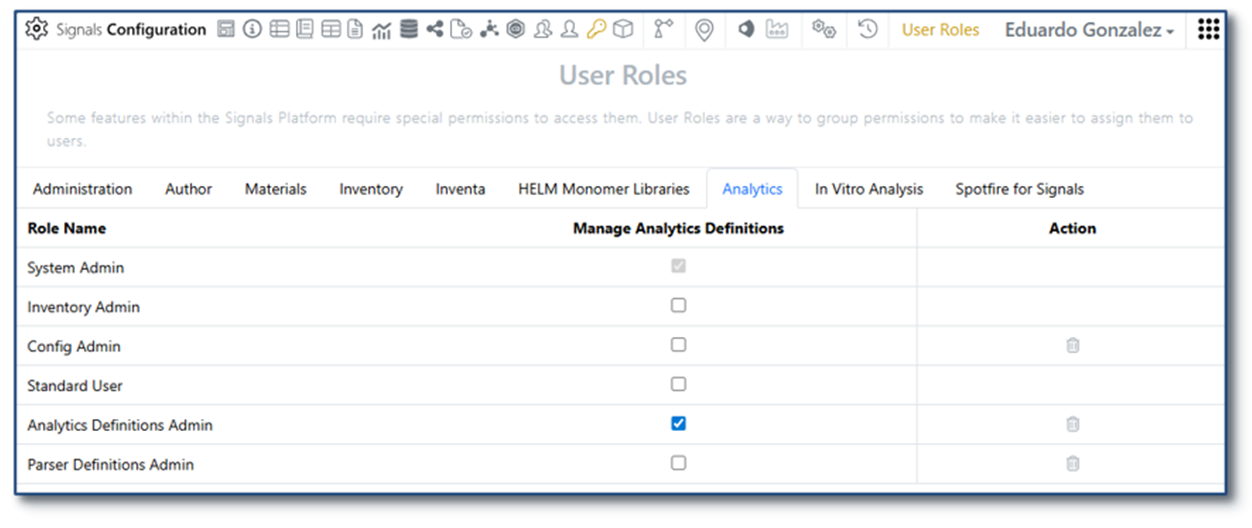
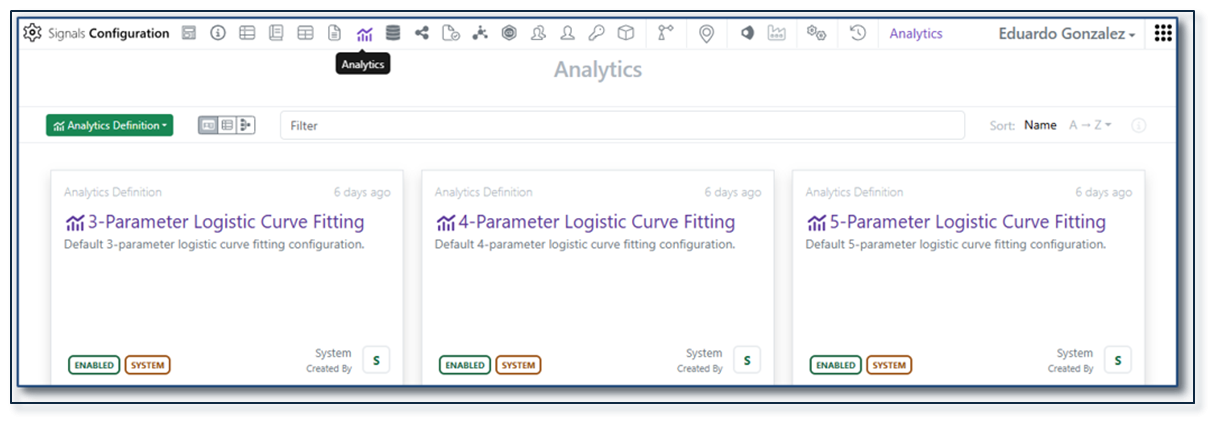
Administrative access to Signals Native Analytics is now available to all systems.

Image 4 from What's New 26.6.docx

Analytics definitions for 3-4-5 Parameter logistic curve fittings are now available to all systems.

Image 5 from What's New 26.6.docx

Custom curve fit definitions and publication is now available to all systems.

SAR & Decisioning

Image 6 from What's New 26.6.docx
Image 7 from What's New 26.6.docx

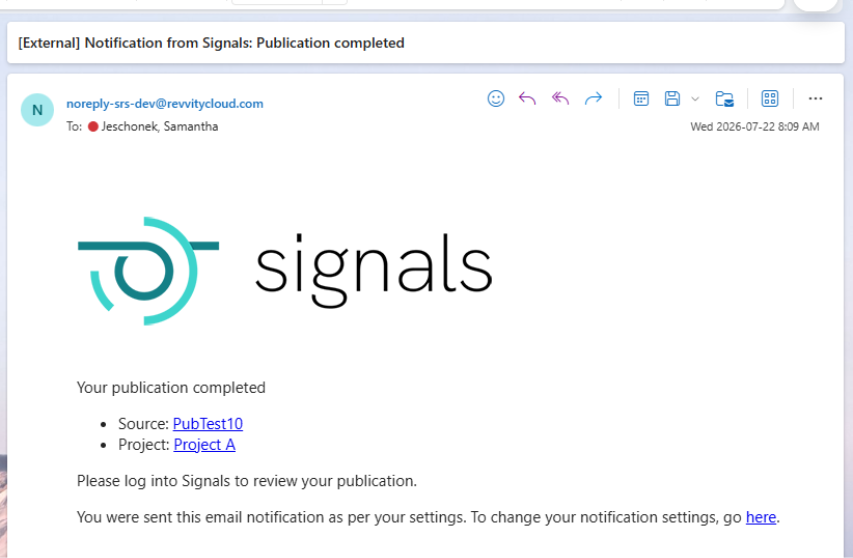
Users can now opt in to receive an email notification when a Data Factory publication or bulk delete action completes. The notification includes the target Project and, when available, the publication source. Multiple publication sources are supported including: Tables (e.g. ADTs), the Inventa Dashboard, and the Publish Results to Data Factory Spotfire app.

Image 8 from What's New 26.6.docx

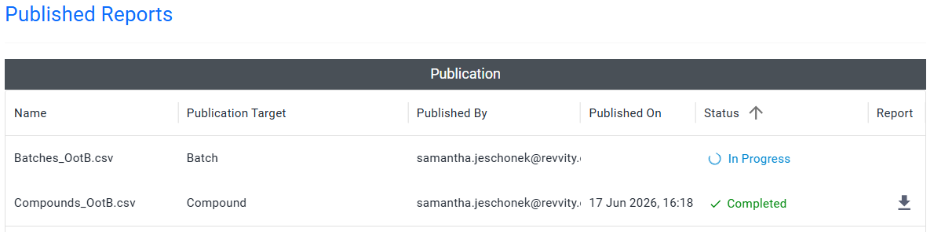
The Publication Report for Data Factory projects now displays an “In Progress” status after a publication is submitted, confirming that the request was received. The status updates when the publication completes.

Image 9 from What's New 26.6.docx

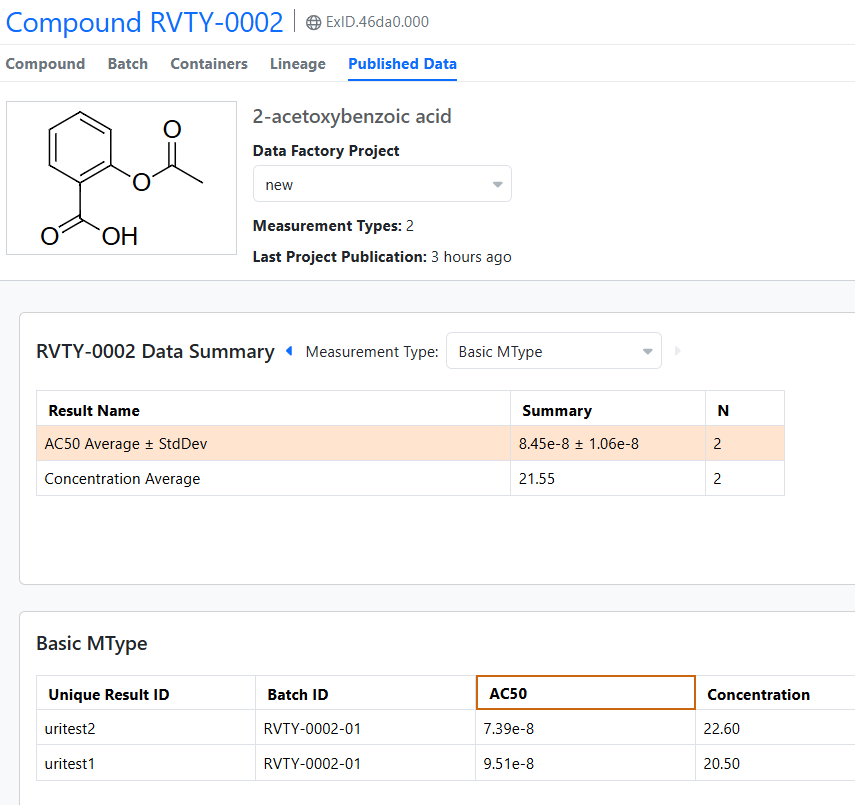
The Material Library’s Published Data view now displays very small values in scientific notation in both Summarized and Measurement views.

Synergy

Image 10 from What's New 26.6.docx

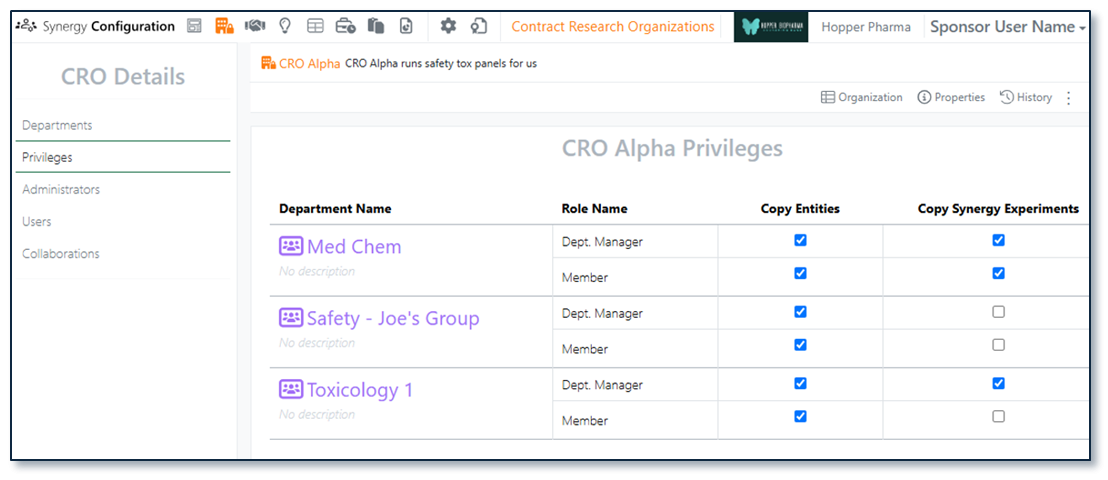
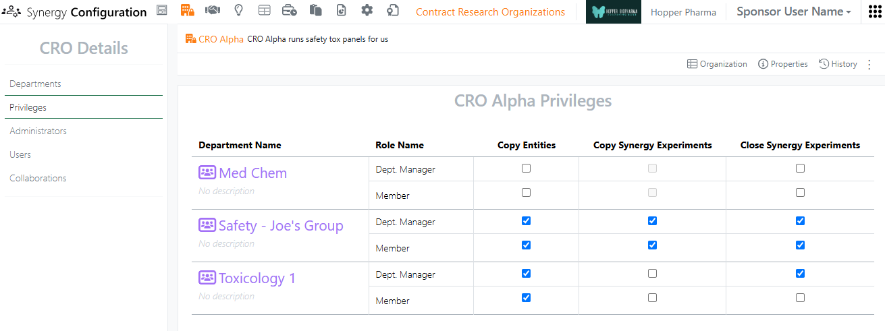
In Synergy, most CRO privileges are managed by CRO roles (CRO Department Manager vs Department Member), Collaboration access, and Work Order assignment. This keeps CRO onboarding and offboarding simple and CRO behavior predictable. However, some privileges require Sponsor administrative control. A Sponsor Administrator with the privilege to Manage CROs and access to CROs (System Administrators, Synergy Administrators and Synergy CRO Managers) can now manage CRO privileges in Synergy Configuration > Contract Research Organizations on a per CRO and per CRO department basis.

Image 11 from What's New 26.6.docx

There are two administrator-controlled CRO privileges, Copy Entities and Copy Synergy Experiments. Copy Entities allows a CRO user to copy individual elements within Synergy Experiments, such as a Chemical Drawing, Text, or Table. Copy Synergy Experiments requires Copy Entities and allows a CRO user to Copy/Copy Partial a Synergy Experiment.

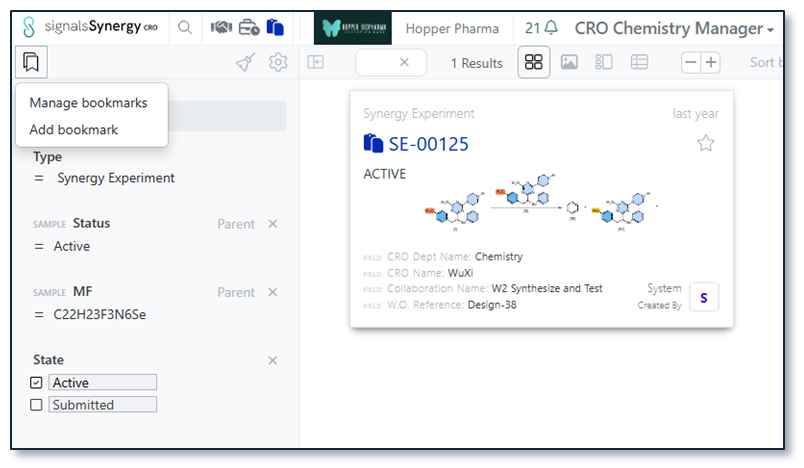
Search bookmarks allow the user to reuse common filters with a single click. In 26.5, we introduced search bookmarks in Smart Folders. In 26.6, we have extended search bookmarks to Synergy Smart Folders and Advanced Search for both the Sponsor and CRO. In a Smartfolder, a user can add a bookmark by selecting the bookmark Icon in the left corner. A specific Smartfolder will only show the bookmarks made with that Smarfolder, but all bookmarks are available in Advanced Search.

Image 12 from What's New 26.6.docx

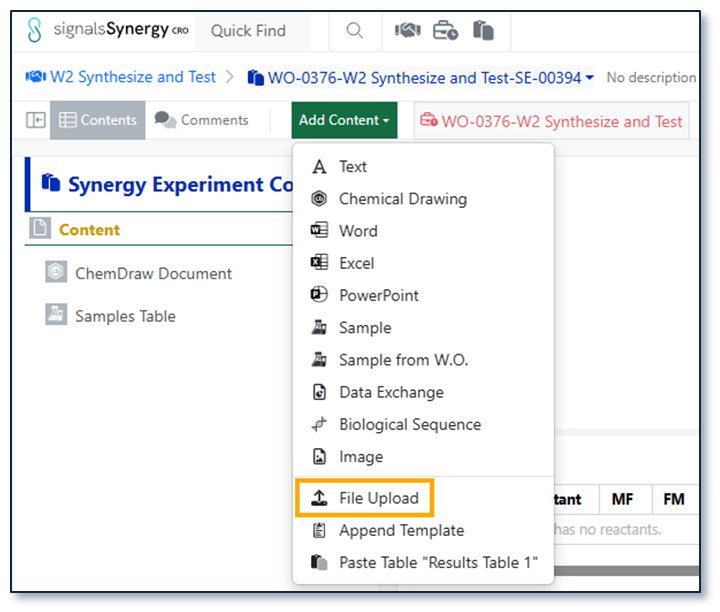
In Synergy Experiments, CRO users can drag and drop files files, such as PDFs, images, or documents. Now, CRO users have the option to File Upload under Add Content, allowing the CRO user to load multiple files at once.

Image 13 from What's New 26.6.docx

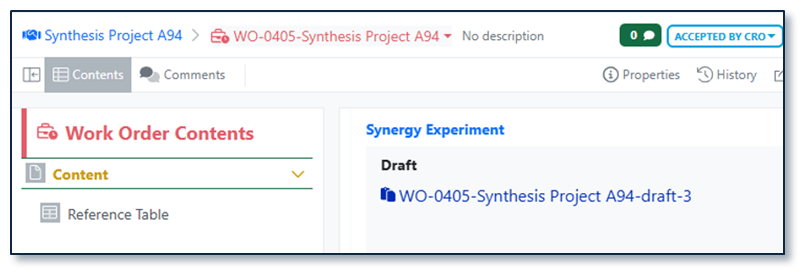
When a Sponsor drafts a Synergy Experiment, the name is always appended with -draft. To provide additional differentiation for Draft Synergy Experiments and ensure Drafts do not consume a number in the Synergy Experiment auto-numbering sequences, Draft Synergy Experiments will be auto-named {Work Order name}-draft. If a Draft is deleted and replaced, subsequent drafts will be appended with a number independent of auto-numbering sequences (e.g., {Work Order name}-draft-1).

Image 14 from What's New 26.6.docx

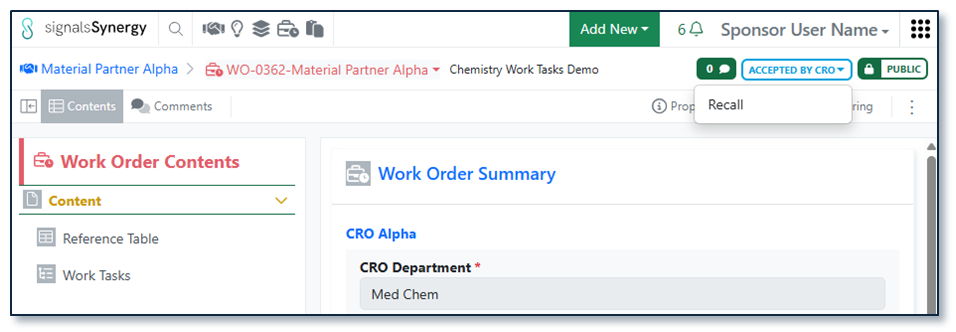
Finally, the Sponsor users can now Recall Work Orders in the status Accepted by CRO. Recalling a Work Order requires Full Control (e.g., authorship or via shared access) to the Work Order. As with Recall on To Do Work Orders, recalling a Work Order removes it from the CRO and returns it to the editable Draft status for the Sponsor.

Chemistry

Image 15 from What's New 26.6.docx

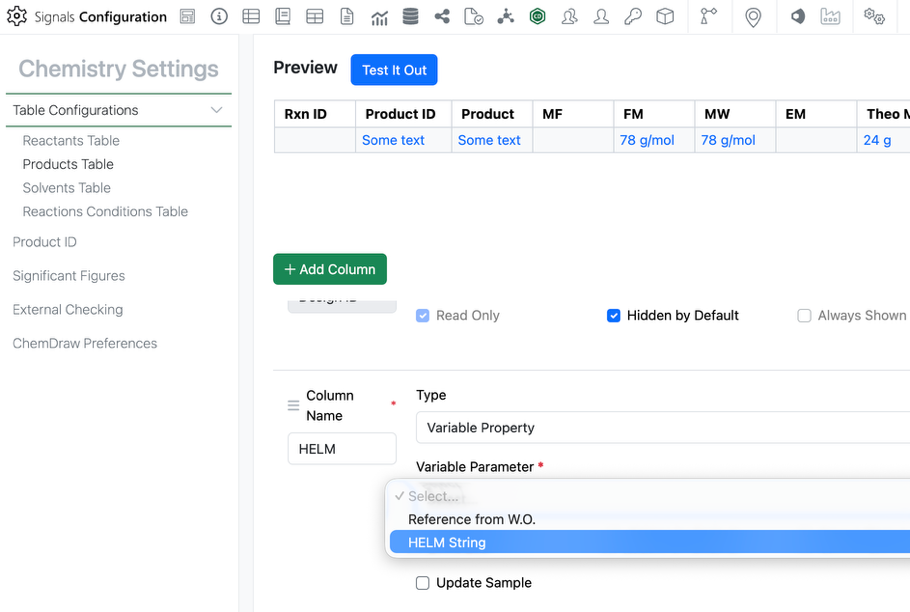
Admins can now add the HELM string as a chemically aware column in the stoich grid. The admin can add a new variable property to the Reactants and/or Products table of the stoich grid. Under variable property is the new HELM String option. This property can only be used once in the table.

This HELM String property will update as the HELM structure is updated.
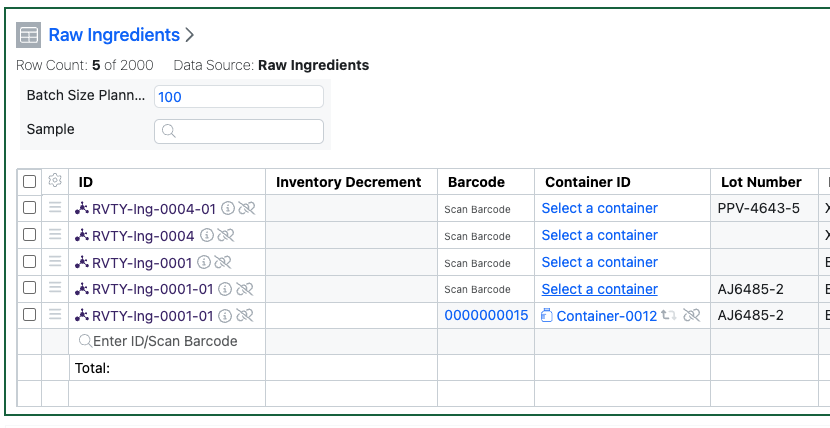
Image 16 from What's New 26.6.docx

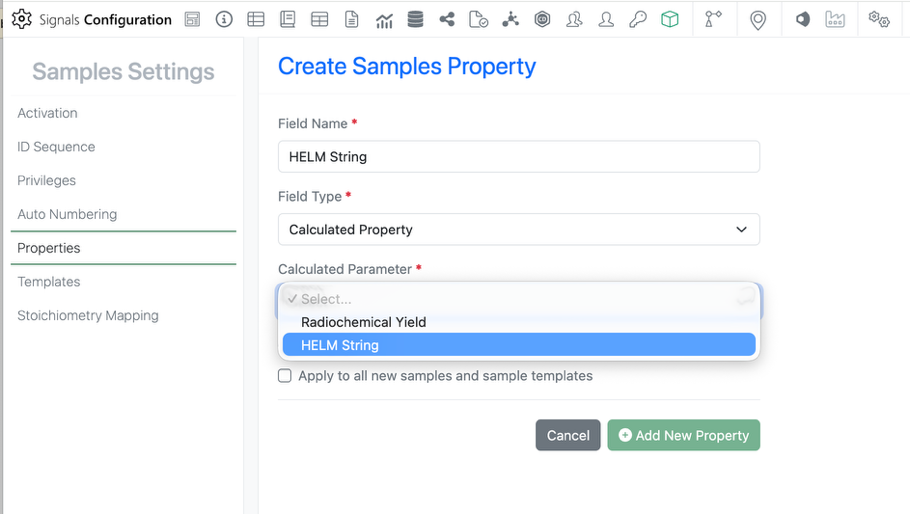
The HELM property is also available in the Sample. Admins can add the property by selecting the field type Calculated Property > HELM String. As with the Stoich property, this option can only be used once.

Image 17 from What's New 26.6.docx

The HELM String property will also be available in the Chemistry autotext as is currently possible with all other stoich properties.

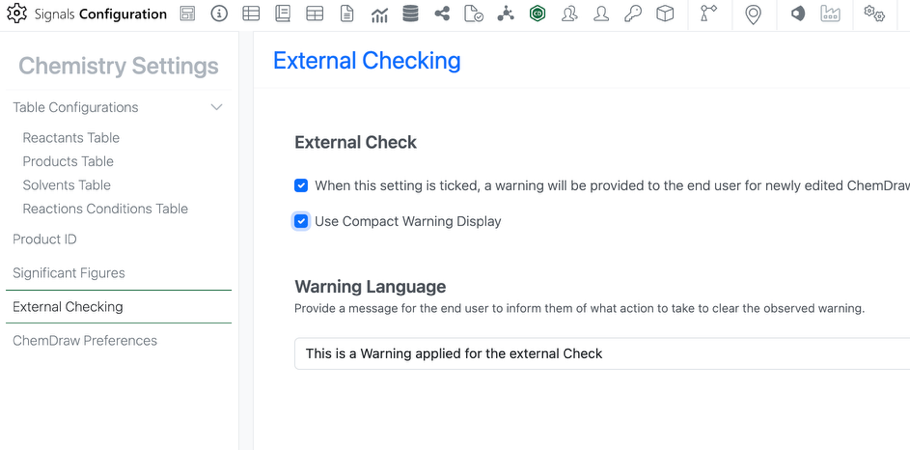
Admins can now utilize a compact view of the chemical check warning. This is especially useful for users working with larger molecule and HELM representations. The compact view can be enabled in the External Checking section of the Chemistry Settings. This is a tenant-wide setting.

Image 18 from What's New 26.6.docx

The compact warning display is smaller and placed near the top of the canvas to be less obstructive of the chemistry.

Tables

Image 19 from What's New 26.6.docx

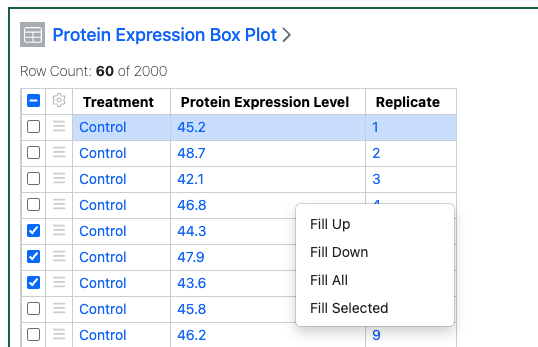
Admin Defined Tables, Variation Tables and Hierarchical Tables now allow users to right-click and fill a given cell value into other rows. The user can select if they Fill Up (all rows above), Fill Down (all rows below) or Fill All. If the user has selected rows they can also fill the selected rows only.

Image 20 from What's New 26.6.docx

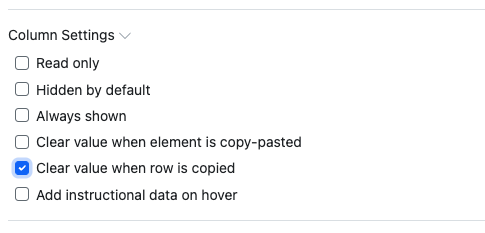
Configuration Administrators can also set that the values in certain columns in Admin Defined Tables and Hierarchical Tables are not copied if a user copies a row.

Image 21 from What's New 26.6.docx

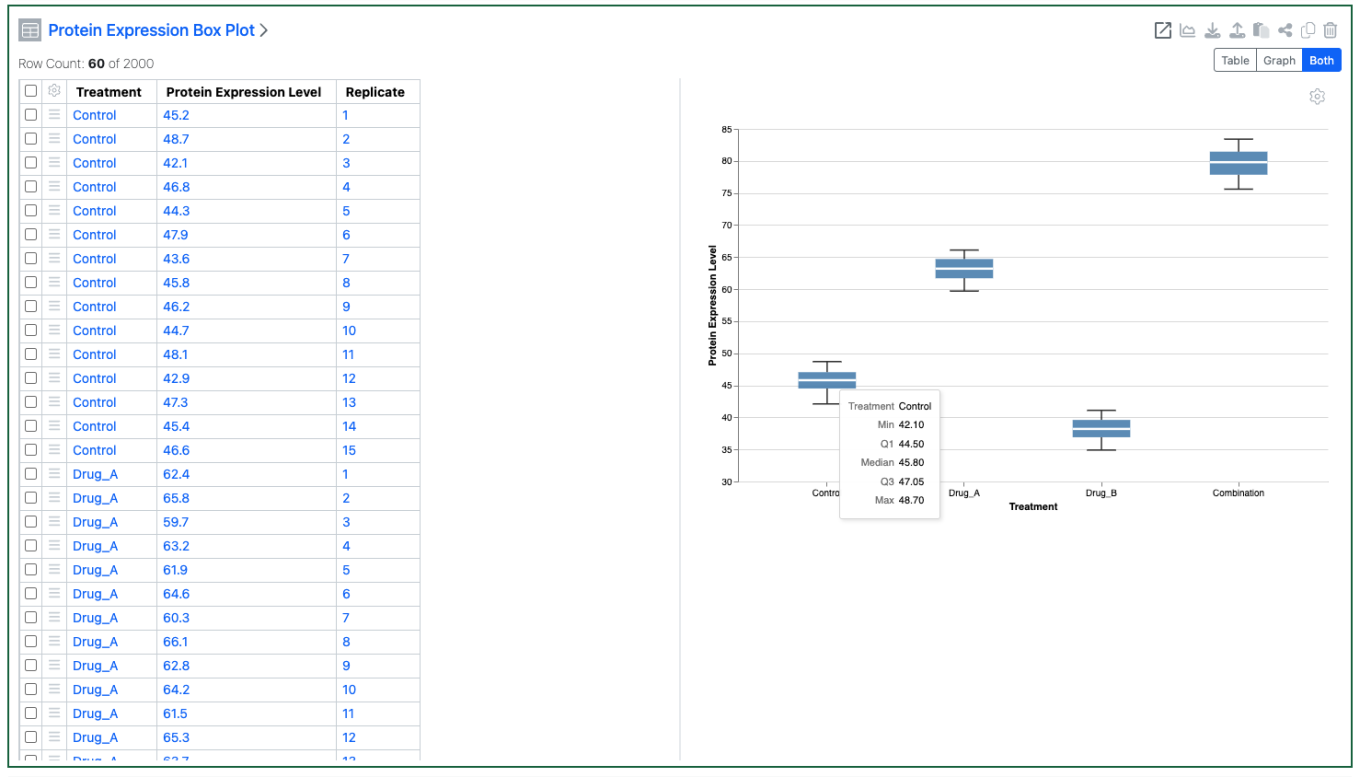
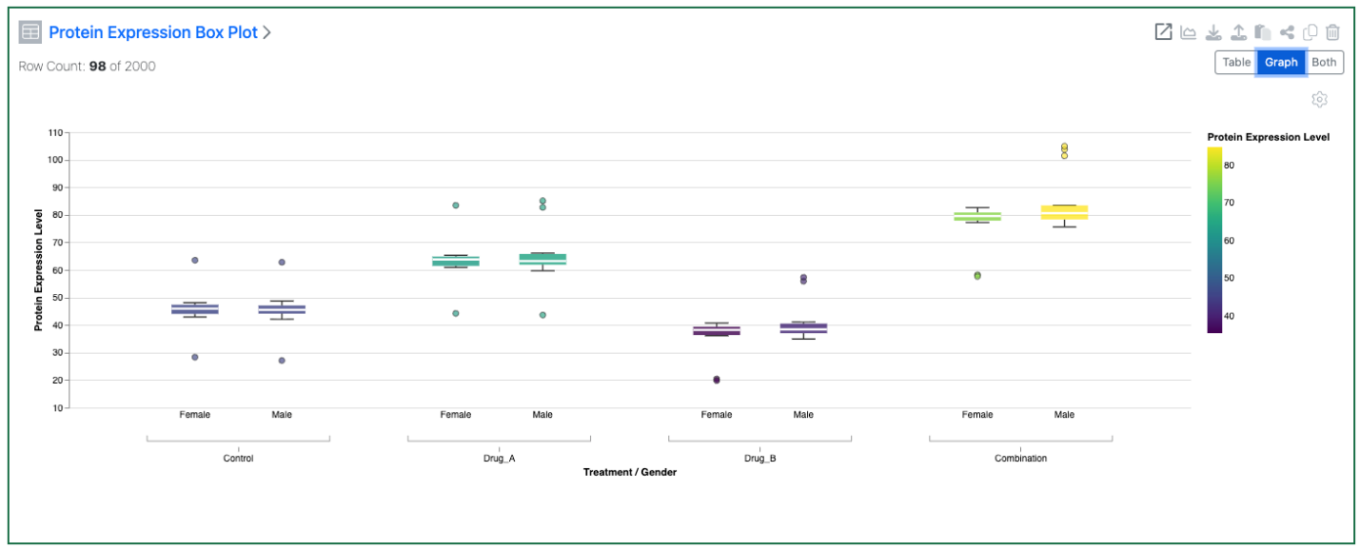
Configuration Administrators can now choose to define a Box Plots on Admin Defined Tables. Similar to the definition of other chart types, administrators can define the Box Plot on the Table template including setting properties for the Categorical and Numeric axes. The admin can also choose if the end user is able to adjust the settings for the chart.

Image 22 from What's New 26.6.docx

Configuration Admins can now also define numerical values on the categorical axis of barcharts. Admins define a number of buckets for the numerical values to be segmented into. Admins can also define that bar and/or segment values are displayed on the chart.

Image 23 from What's New 26.6.docx

A second categorical property can also be used to display on the categorical axis to allow a side by side vs a stacked bar chart.

Image 24 from What's New 26.6.docx

The Configuration Admin can also define either an ordering for the segments in a stacked barchart, either by name or by value.

Image 25 from What's New 26.6.docx

Setting a Color By allows plotting of a single column of data in a Line Chart as multiple lines.

Image 26 from What's New 26.6.docx

An aggregate method can also be defined for the Numerical properties plotted on Y and Secondary Y axes of a Line Chart.

Plates

The csv upload maximum has been increased from 2000 rows to 50000 rows to better accommodate multiple large plates. Larger files may take some time to upload.

Inventory

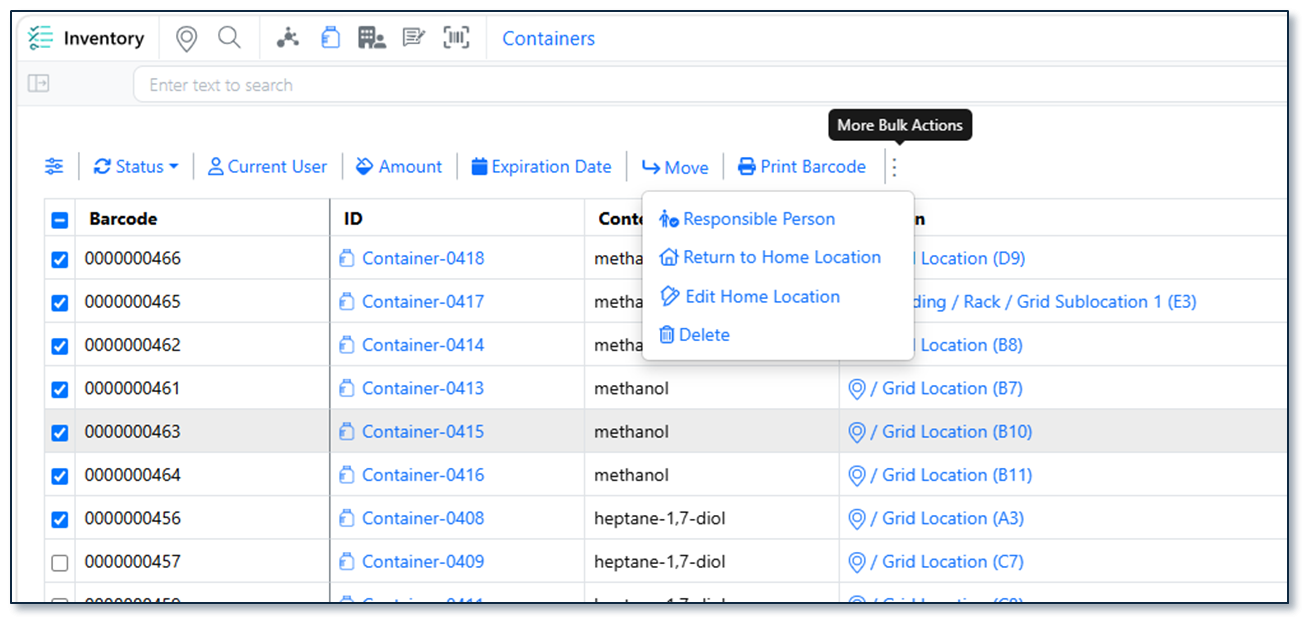
Image 27 from What's New 26.6.docx

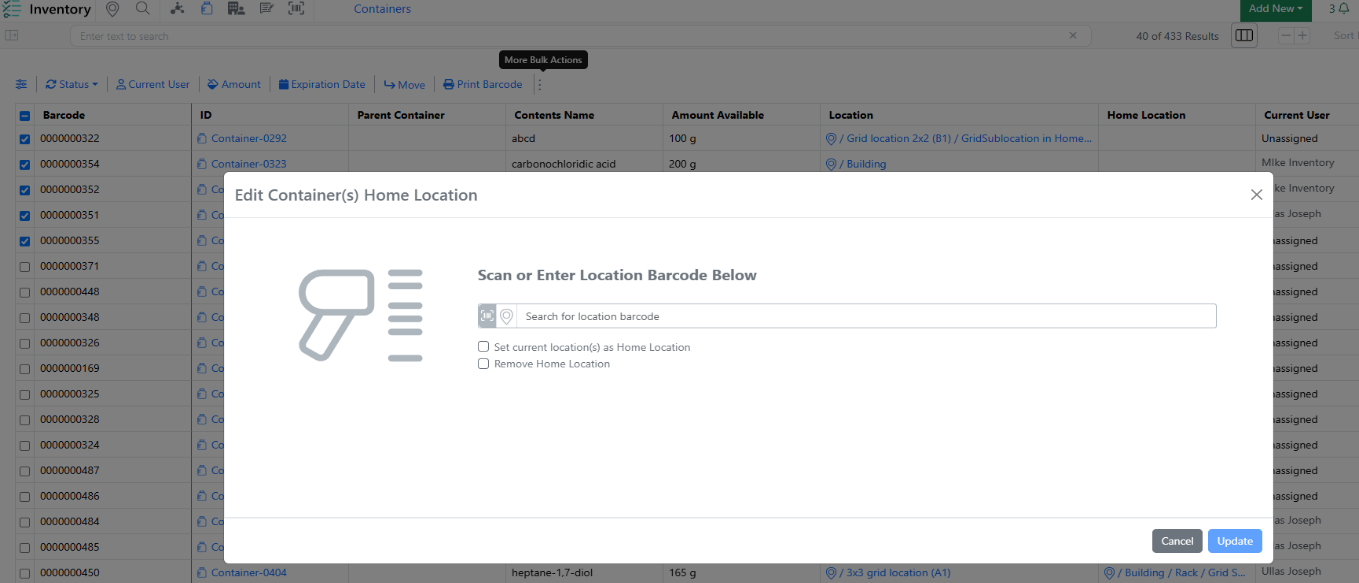
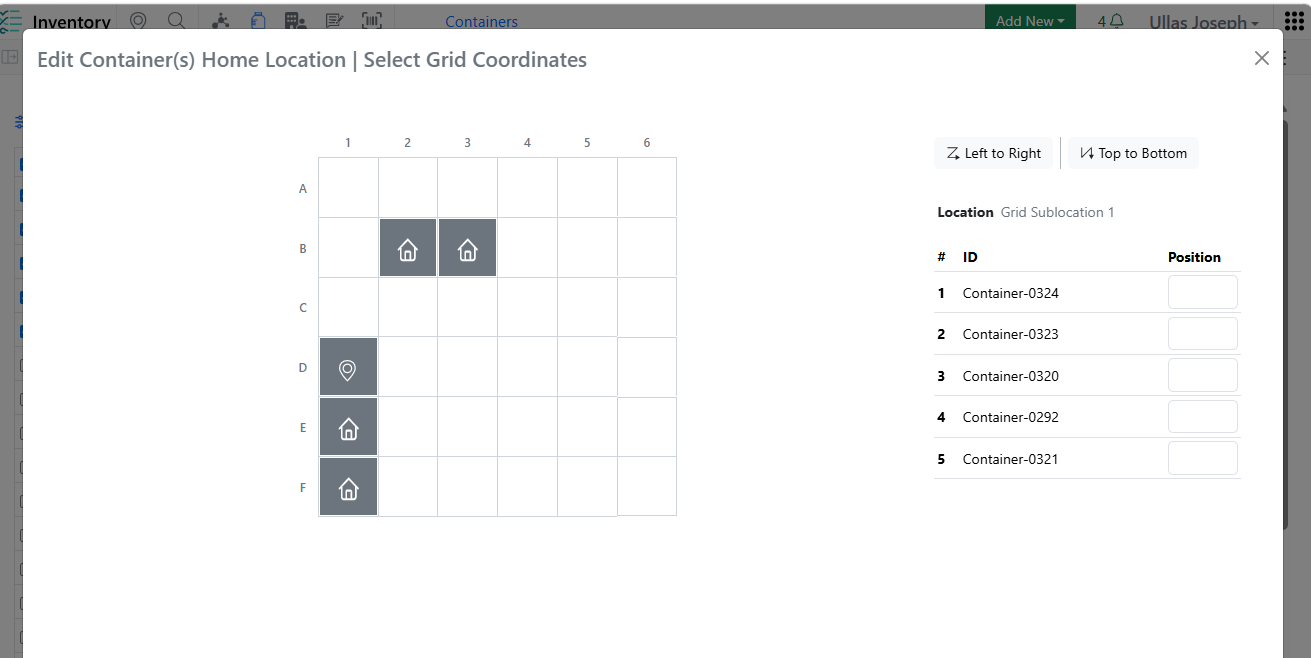
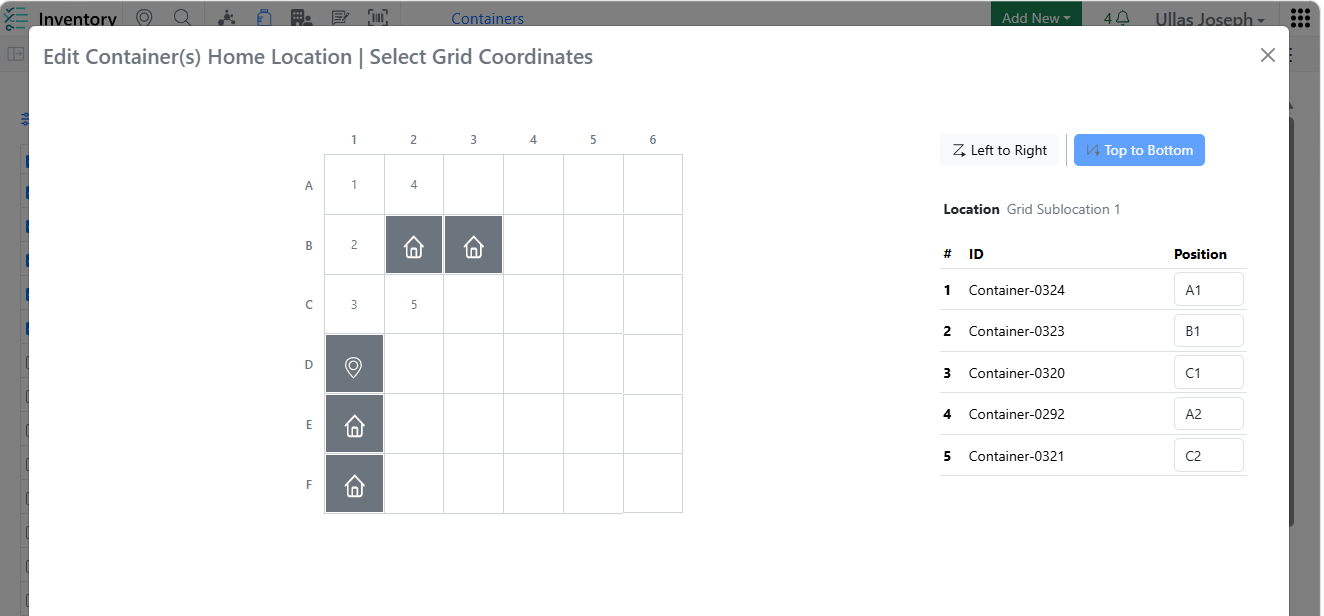
Users can now update the home location for multiple containers at once from the Container Search Table. After selecting containers and choosing Edit Home Location, users can either set the current location as the home location or assign a specific grid or non-grid location using barcode scanning or location search. The operation supports partial success handling, provides a downloadable CSV report containing the Container ID, previous home location, and new home location, and records all changes in the audit trail.

Image 28 from What's New 26.6.docx

The Reactants grid now includes a user-triggered Autofill feature for the Inventory Decrement column. Users can bulk-populate all rows via a header-level Autofill button or update individual rows using a row-level option. The system automatically maps the correct source value based on container unit: Sample Mass for mass-based containers and Volume for volume-based containers. Manually entered values are never overwritten, and containers in Disposed, Final Disposed, or Trashed status are excluded. Clear success/error feedback is provided, with row-specific error icons on hover for troubleshooting.

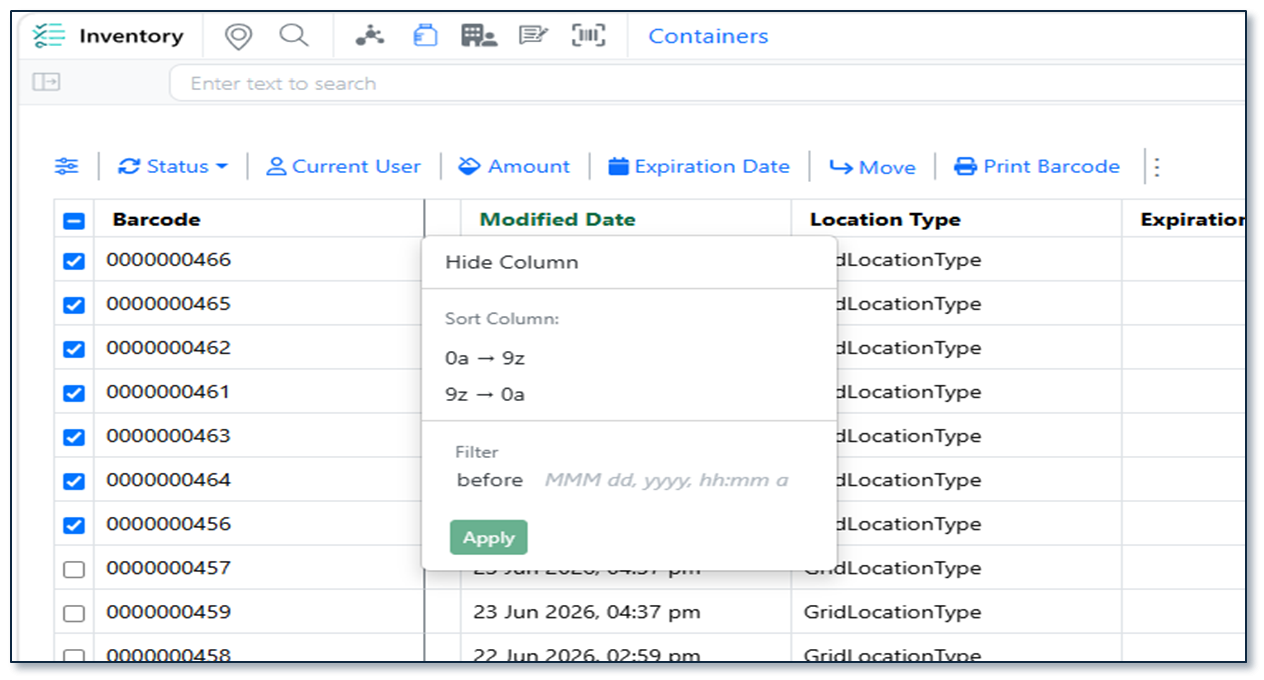
Image 29 from What's New 26.6.docx

The Container Search Table now includes additional reporting and filtering capabilities with support for both Modified Date and Location Type columns. Users can view, show/hide, filter, sort, and export these fields to quickly identify recently updated containers or locate containers stored in specific location types (such as refrigerators or acid cabinets). Both columns support header-level filtering, are included in CSV/Excel exports (and SDF exports for Modified Date), and enable more efficient reporting, auditing, and offline analysis.

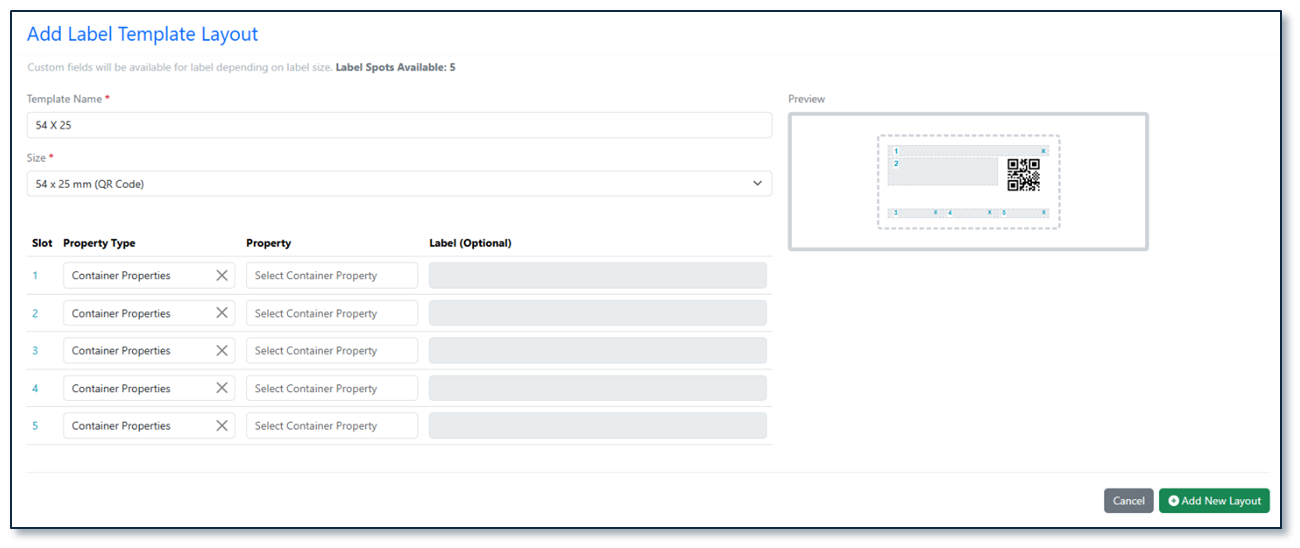
Image 30 from What's New 26.6.docx

A new label template sized 54 × 25 mm is now available for container barcode printing. The label features a QR code along with 5 configurable slots that Admins can map to any container or material property via SN Config. Long location paths are intelligently truncated — displaying from the closest location upward and trimming the beginning if the path exceeds the available space.

InventoryGo

Image 31 from What's New 26.6.docx

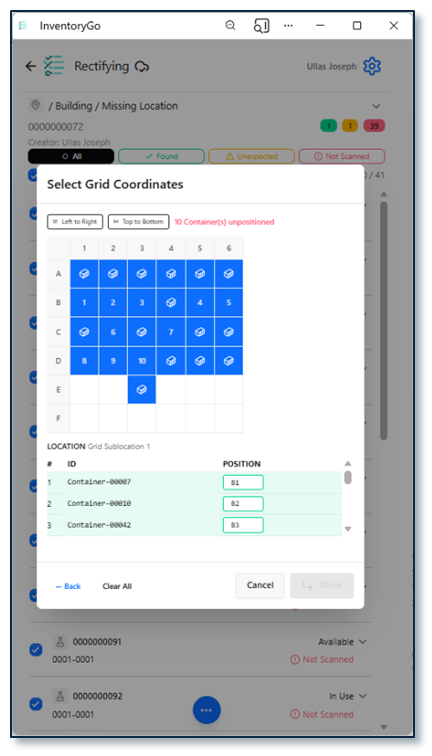
Users can now rectify inventory discrepancies involving containers stored in grid locations. The Rectification workflow has been enhanced to support grid-based storage, allowing users to accurately select and update container locations within specific grid cells during reconciliation activities. This improvement streamlines inventory correction processes, improves location accuracy, and ensures grid location assignments are maintained consistently throughout the rectification workflow.

Image 32 from What's New 26.6.docx

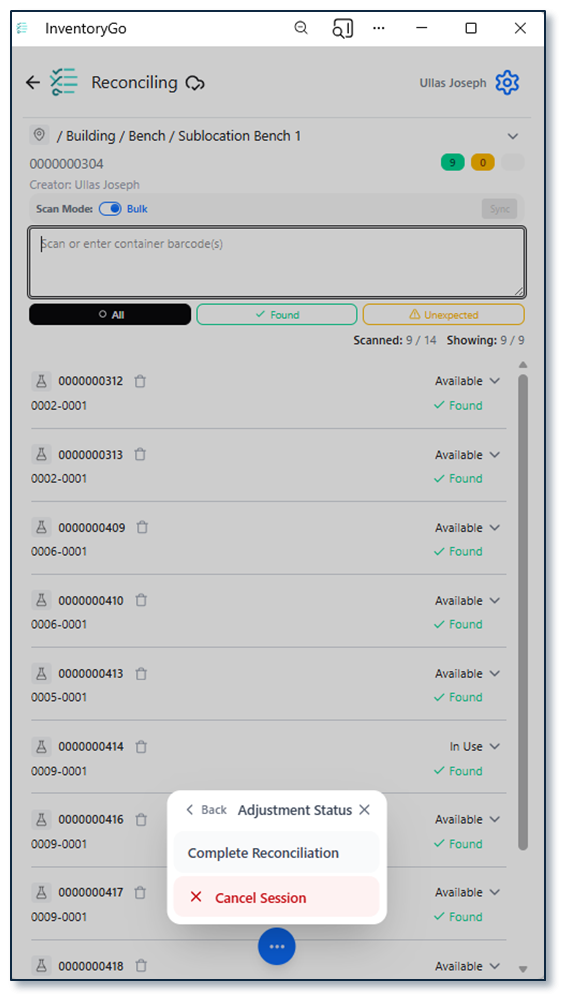
The Adjustment Status control in InventoryGo has been redesigned to improve usability on smaller mobile screens. The previous button bar has been replaced with a compact ellipsis menu, reducing screen clutter and allowing more container information to be displayed without scrolling. Users can still access all adjustment actions while benefiting from a cleaner, more space-efficient interface.

Image 33 from What's New 26.6.docx

Users can now control whether a location is used as the default location for Auto Complete Rectification by activating or deactivating the setting directly on the location record. This enhancement provides greater flexibility when managing reconciliation workflows, ensuring that only appropriate locations are automatically selected during rectification. By allowing administrators to enable or disable this behavior as needed, organizations can better align auto-completion processes with their inventory management practices and location usage policies.

Materials

Image 34 from What's New 26.6.docx

The user interface for Admin configuration for materials tables in Signals Configuration has been updated and is now available to all systems.

Tasks and Requests

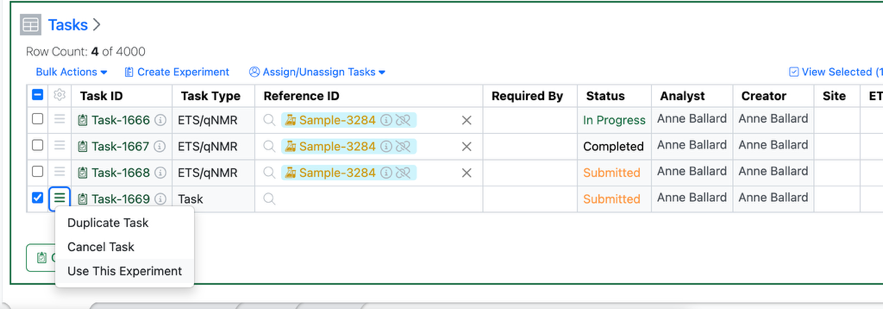
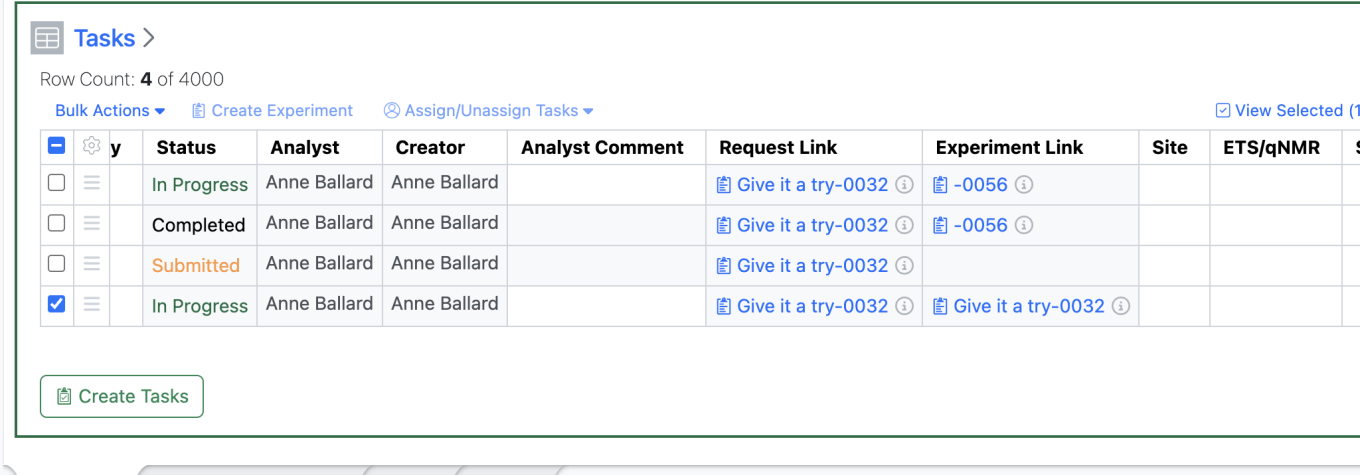
The maximum number of tasks has been increased from 2000 to 4000 to better accommodate workflows that require multiple tasks per sample.

Administration

Image 35 from What's New 26.6.docx

Display of granular audit trail changes within text elements are now available to all systems.

Integrations & APIs

Image 36 from What's New 26.6.docx

We have increased the API key limit from 25 to 100.

Image 37 from What's New 26.6.docx

We have added API support for exporting individual monomer libraries to JSON.

Image 38 from What's New 26.6.docx

We have added a new set of asynchronous APIs to bulk export containers as either a csv or sdf file, defaulting to csv. This follows our standard pattern for asynchronous APIs of start job, check status, and download the content. You may optionally specify a list of container barcodes to export; if not provided, it will export all containers, up to 600,000. Optionally, you may also include filters to only return containers which match the filters. 'Container Type', 'Status', 'Location', 'Content Entity Type' and 'Material Library' are currently supported filters. Lastly, you must include the set of fields, with a minimum of one, to include in the export. Barcodes, fields, and filters are all specified in the request body to initiate the export job. See the Swagger page for full details and examples.

Image 39 from What's New 26.6.docx
Image 40 from What's New 26.6.docx

We have enhanced existing APIs for bulk exporting material libraries. You may now specify a list of materials, by ID, to export in the request body. If not provided, the entire library will be exported.

Image 41 from What's New 26.6.docx

We have added a new set of APIs for our Synergy product to fetch the list of Data Exchange files, the data exchange report file, and the Data Exchange results table file by table name.

Image 42 from What's New 26.6.docx

We have enhanced the bulk update for CRO users to include updating Departments when including them in a column in the bulk update csv.

Beta Features

The following capabilities are in beta and are available for users, administrators and developers on the Signals platform upon request. Please contact your account representative or our support team if you would like access to the following features.

Fundamentals

Image 43 from What's New 26.6.docx
Image 44 from What's New 26.6.docx
Image 45 from What's New 26.6.docx

Audit trail displays highlighted granular changes for structured tables and worksheets. The structured tables included are the following: variation tables, hierarchical tables, samples tables, materials tables, task tables, work tasks, design tables, synergy experiment tables, & sample tables. When users compare an audit record with a previous version, there is a "view granular changes" toggle. Selecting this toggle will show users a clear visual summary: gray highlighting shows text that was edited or removed, green highlighting shows newly added, and dashed boarder green highlighting indicates updated text (beta).

SAR & Decisioning

Image 46 from What's New 26.6.docx
Image 47 from What's New 26.6.docx
Image 48 from What's New 26.6.docx

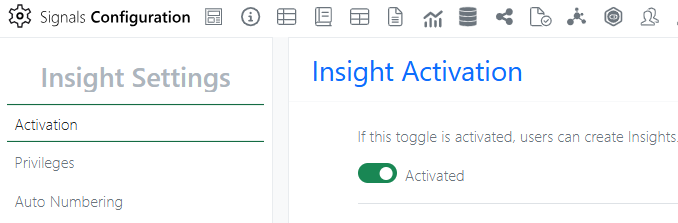
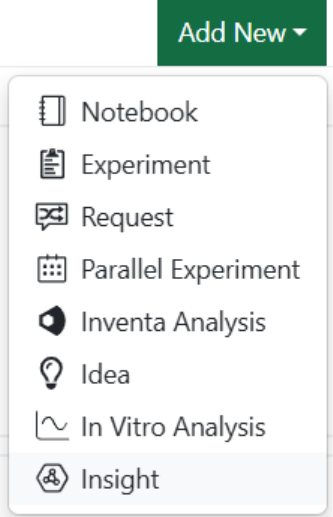
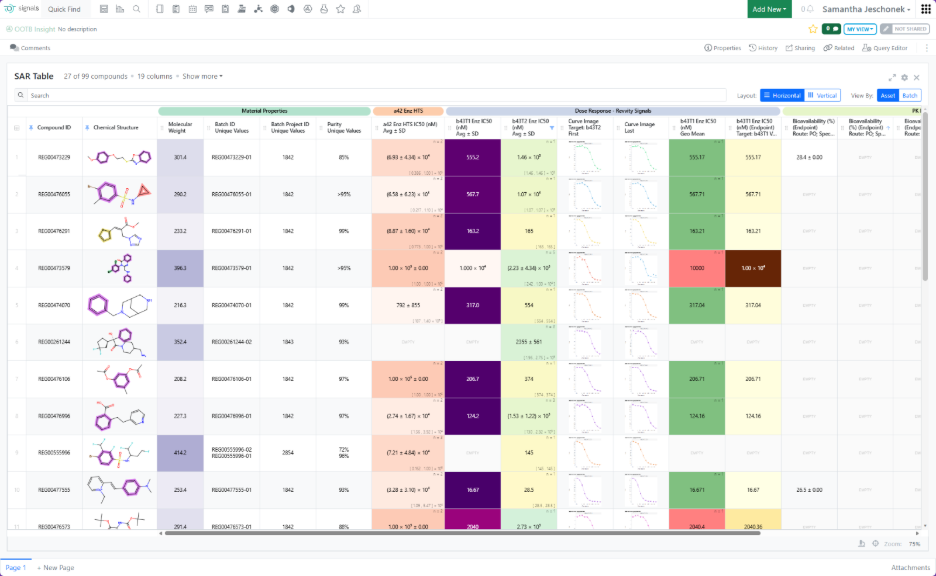
Insights is a new Signals object (beta) that lets users query Data Factory and generate summary or SAR tables directly in Signals. After an Administrator enables the feature, users can create Insights from the Add New menu or the dedicated Smart Folder.

Image 49 from What's New 26.6.docx

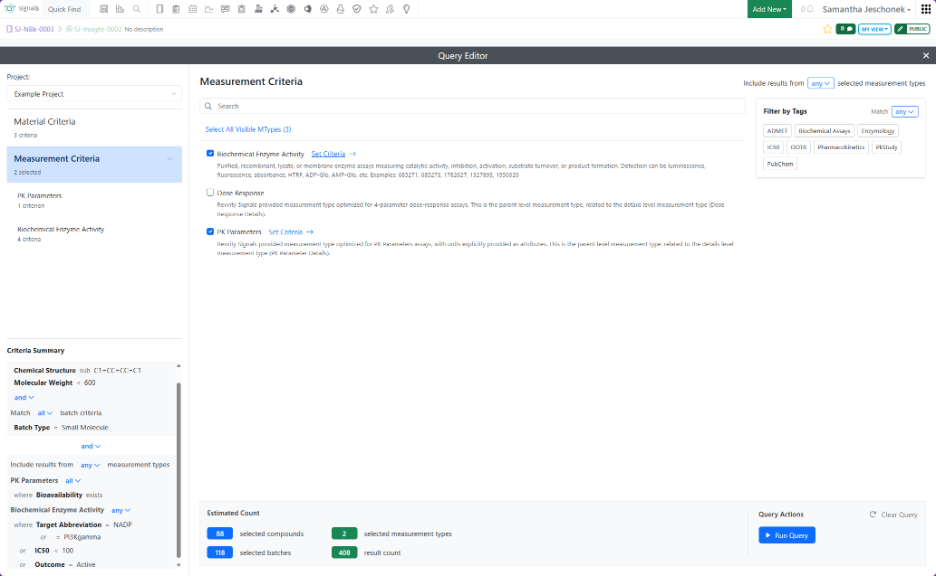
When creating an Insight, users define a Data Factory query by specifying criteria for materials, measurements, or both.

Image 50 from What's New 26.6.docx
Image 51 from What's New 26.6.docx
Image 52 from What's New 26.6.docx

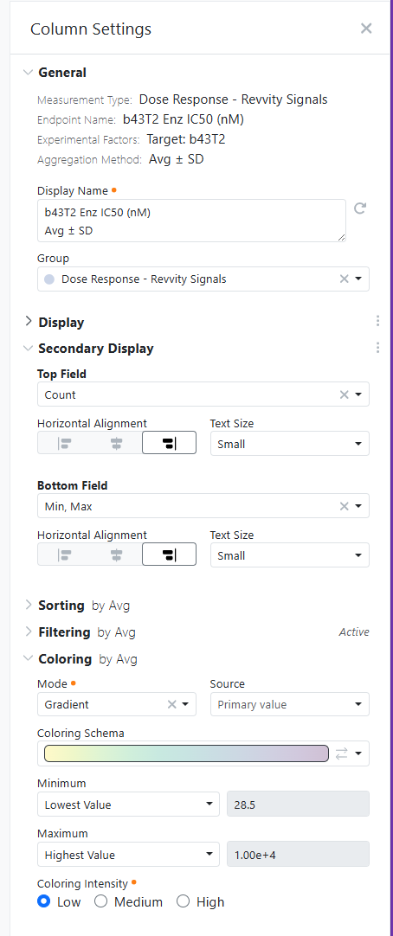
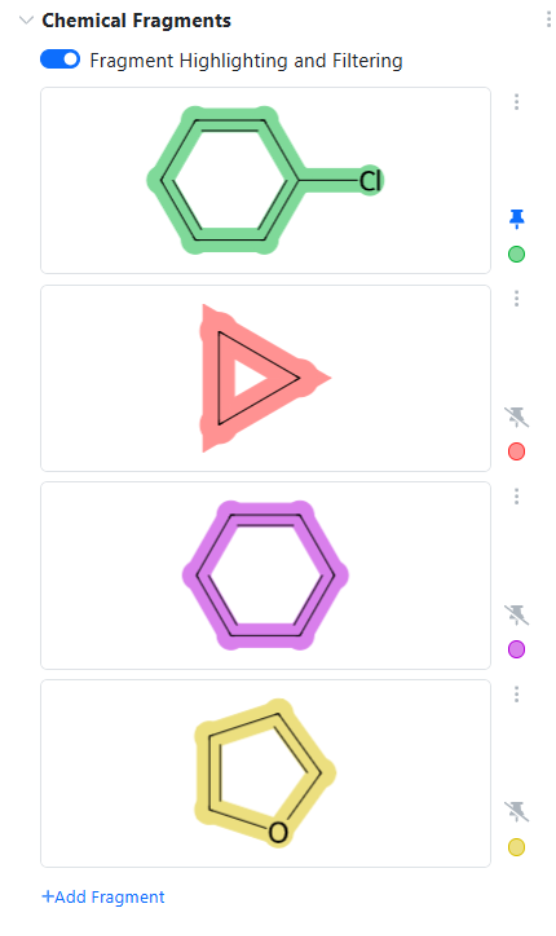
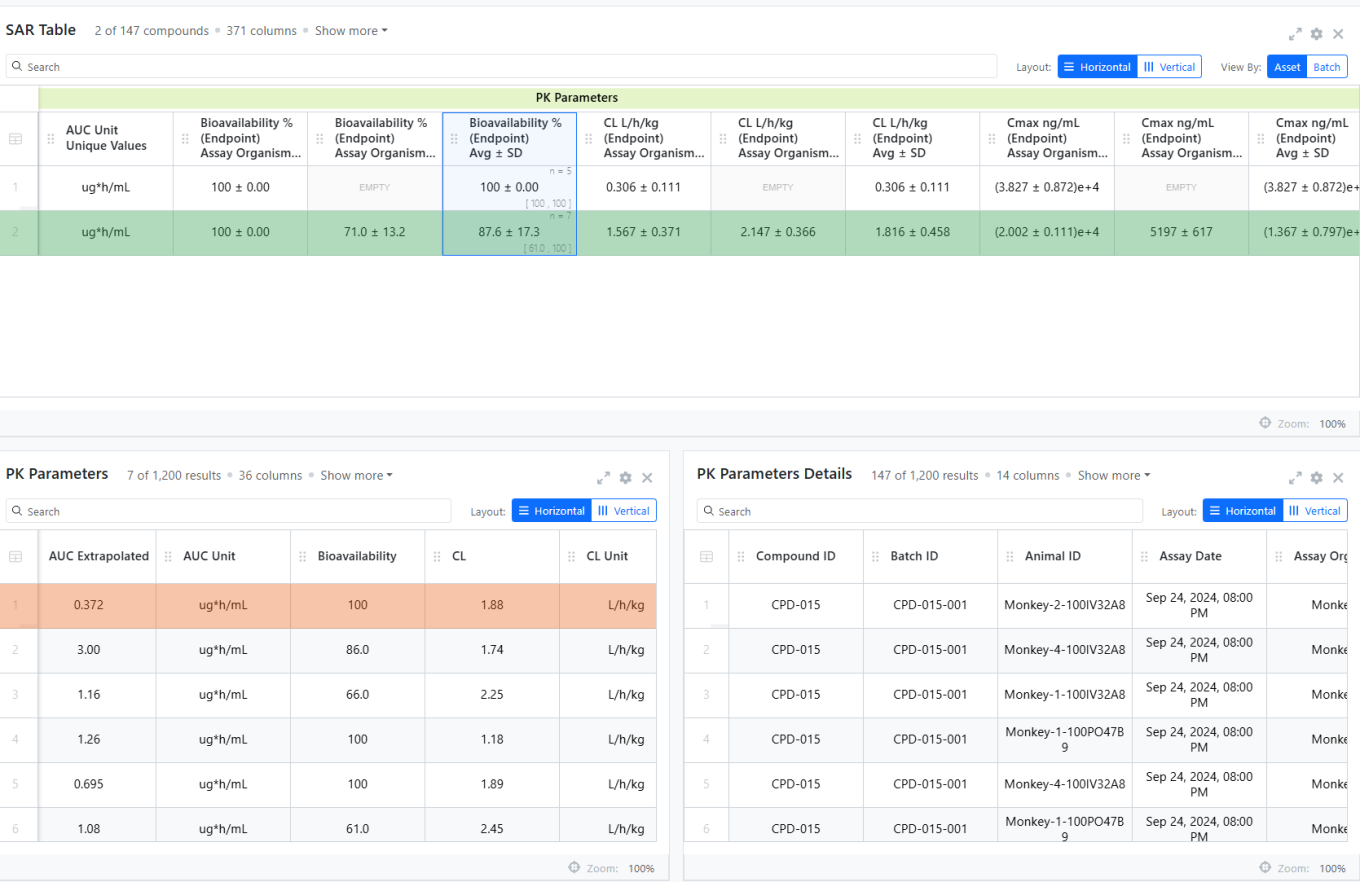
Running the query automatically generates an aggregated summary table, or SAR table, based on the selected criteria. Users can configure the table by renaming columns, controlling numeric display, adding secondary values within cells such as count, applying color options, filtering, and sorting. Some field types, including Chemical Structures, include additional formatting capabilities, such as chemical fragment highlighting. Column settings are available by right clicking the column header.

Image 53 from What's New 26.6.docx

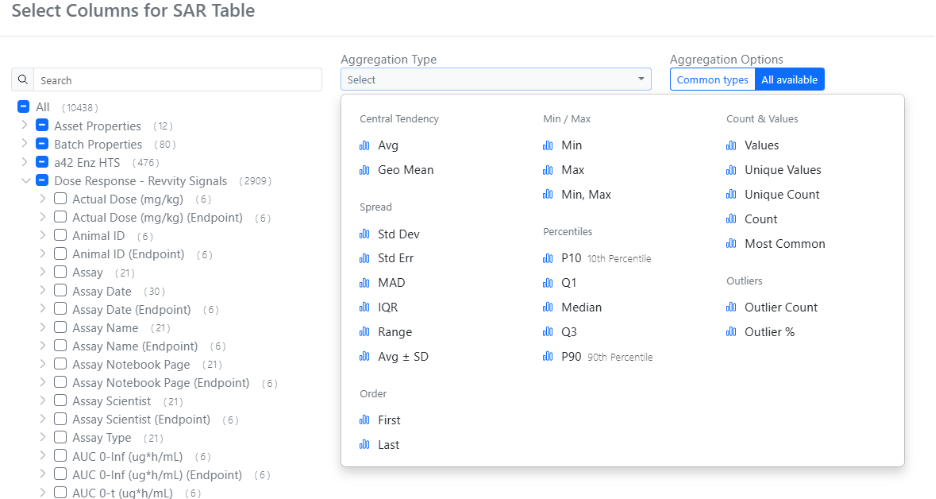
After a query completes, Insights returns a broad set of columns. Users can choose which columns to display from the Column Selector under Show more > More Options, using search and aggregation-type filters to find the most relevant columns.

Image 54 from What's New 26.6.docx

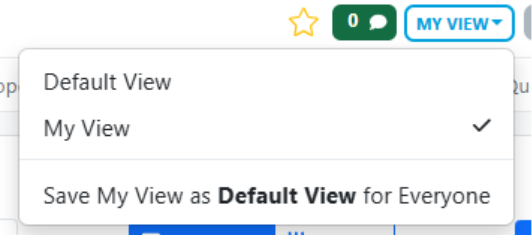
Configuration changes are automatically saved to each user’s personal view and persist locally in the browser. Users with Write access to the Insight can save their personal view (“My View”) as the Default view for all users, supporting a consistent shared layout while preserving individual flexibility.

Image 55 from What's New 26.6.docx
Image 56 from What's New 26.6.docx

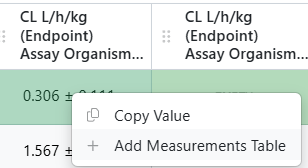
From a summary or SAR table, users can right-click any cell to add the corresponding Measurement table containing the individual rows behind the aggregated result. If the measurement type has an associated Details measurement type, it is retrieved automatically. An Insight can include multiple Measurement tables for different measurement types.

Synergy

Image 57 from What's New 26.6.docx

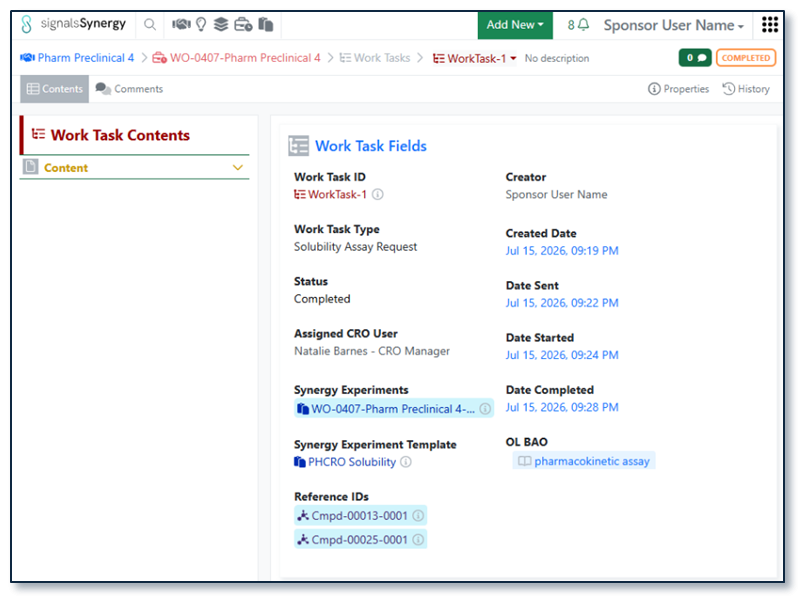
As part of the existing Synergy Work Tasks beta feature, Work Tasks have several new properties. Sponsors often want to track how long it takes a CRO or CRO Department to perform certain tasks. Thus, Work Tasks now track the date/time the Work Task was sent (Date Sent), started by the CRO (Date Started), and completed by the CRO (Date Completed). These properties are visible on the Work Task, via search, and via API.

Finally, Work Tasks properties and templates are now supported in Configuration Transfer.

Administration

Image 58 from What's New 26.6.docx

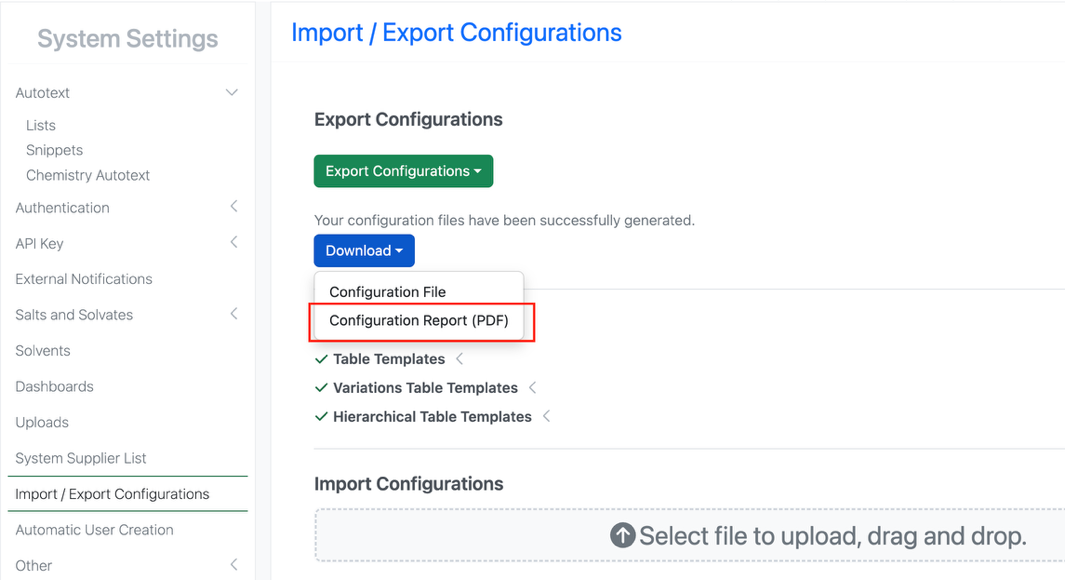
A matching Configuration Report (PDF) generates based on the selective configuration export. When users select specific objects to export during configuration migration, a matching Configuration PDF Report will generate in an export modal based on the object selections made (beta).

Revvity Signals™ One, including Signals Notebook, Update

What’s New

We are delighted to release our new version of Signals, 26.7.

The following improvements are available for users, administrators and developers on the Signals platform. Certain features may only be available with appropriate licensing and/or with enablement by an administrator.

  • Fundamentals
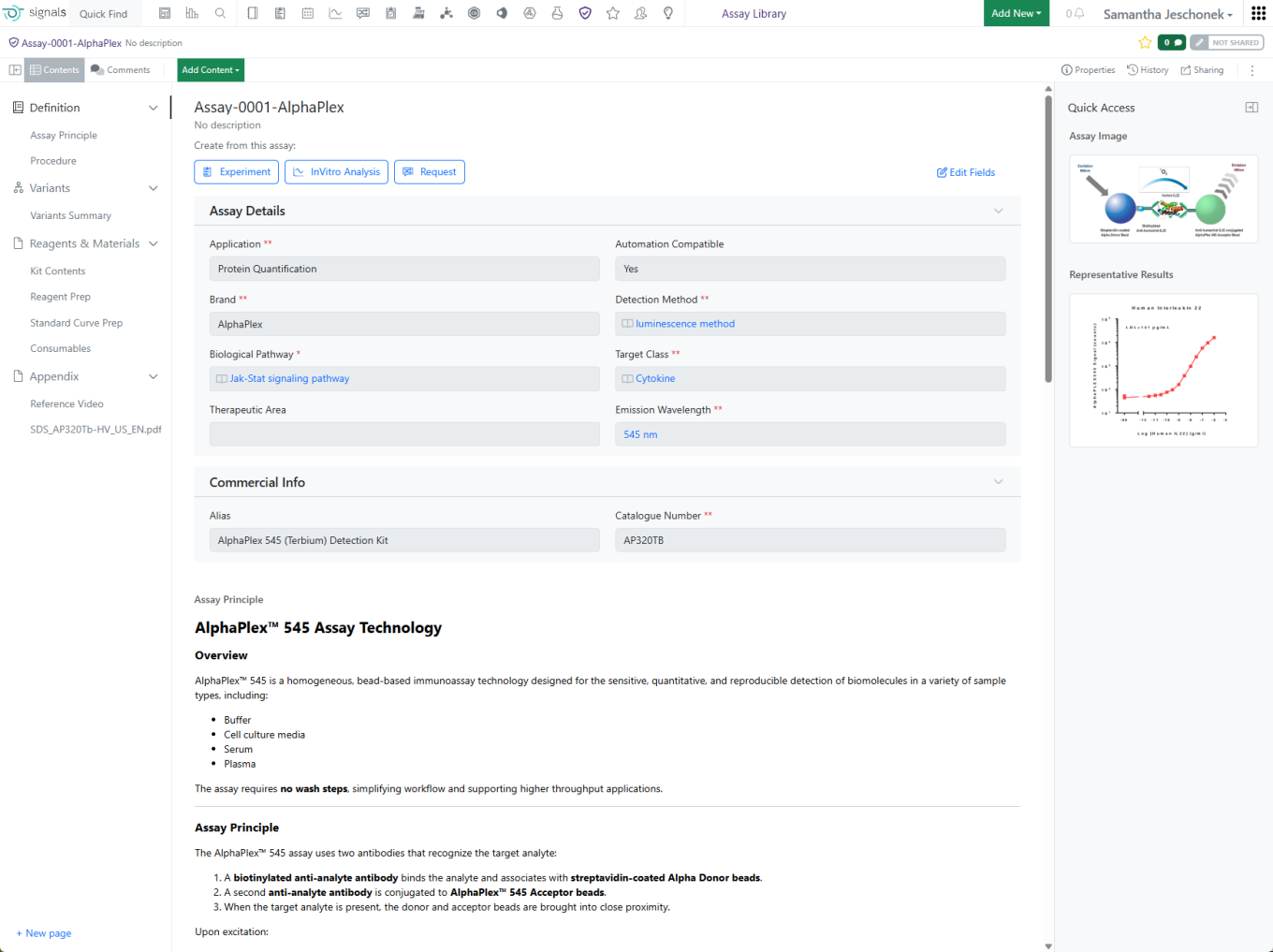
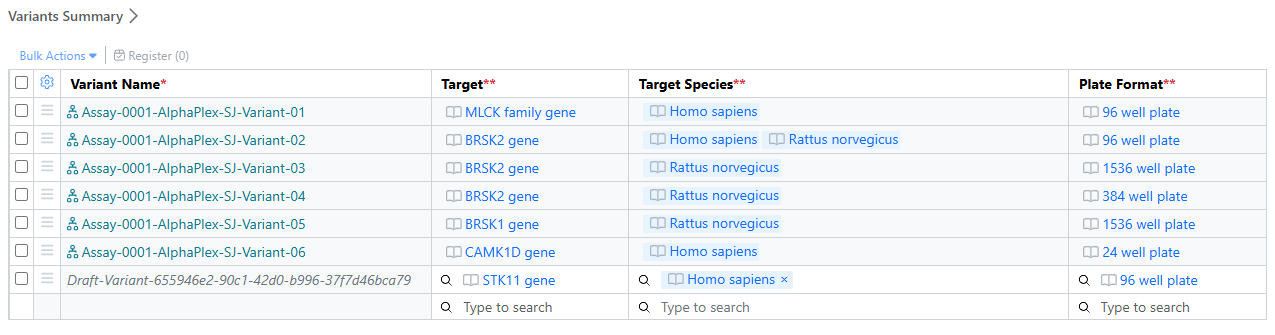
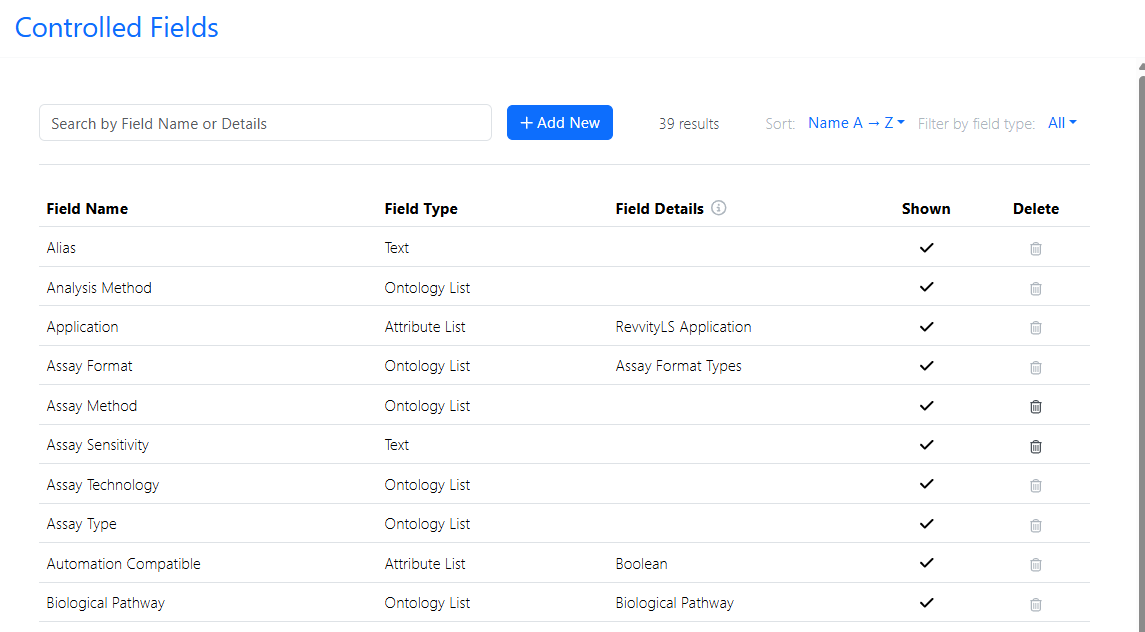
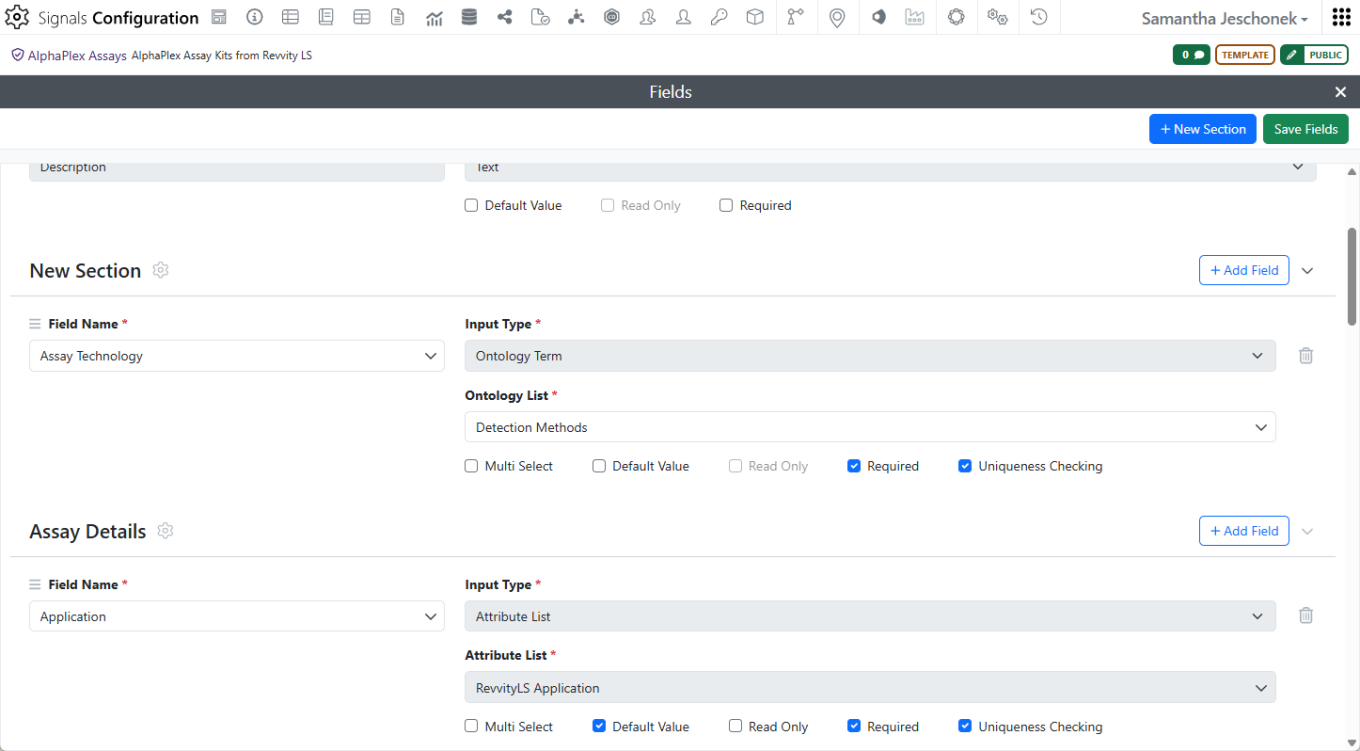
    - Register Assays and their Variants in the new Assay Library (beta)*
    - Audit trail displays highlighted granular changes for layout changes
    - Performance improvements to Parallel Experiments External Enumeration
  • AI*
    - Prompt-to-Filter is available to all systems
    - AI Explorer (Beta)
  • Data Workflows & Analytics*
    - Additional set of plate, batch and curve-based metrics
  • SAR & Decisioning*
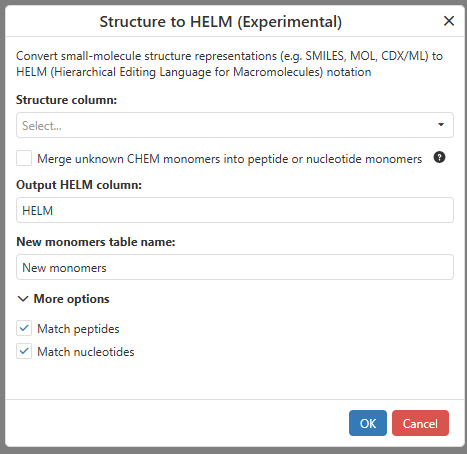
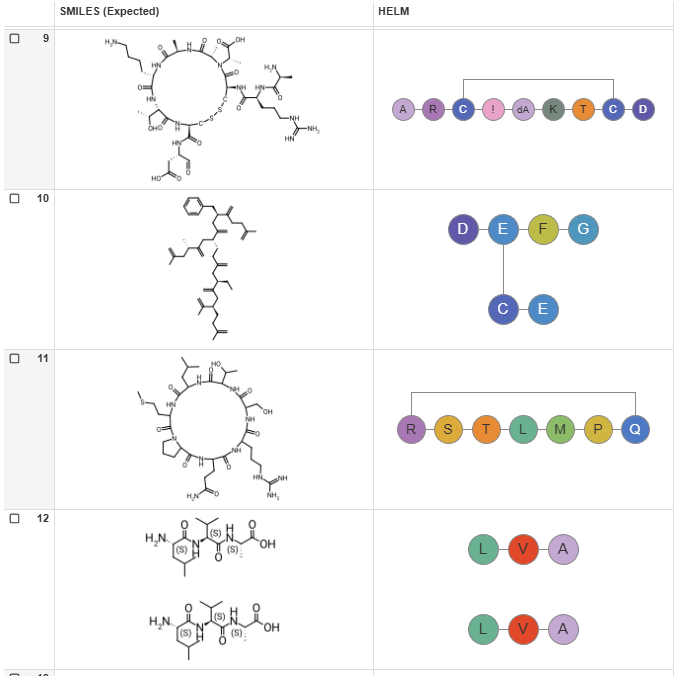
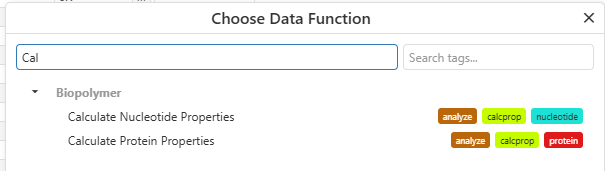
    - Use new ChemCharts data functions to convert structures to HELM, and to calculate nucleotide and protein properties
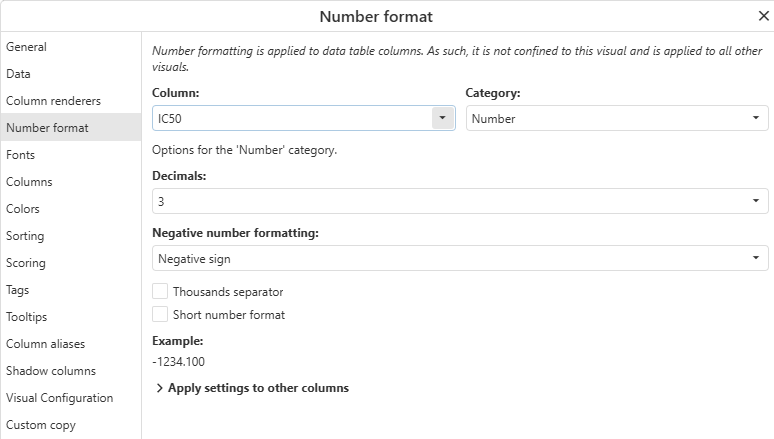
    - Define number formatting directly within ChemCharts visualizations
  • Synergy†
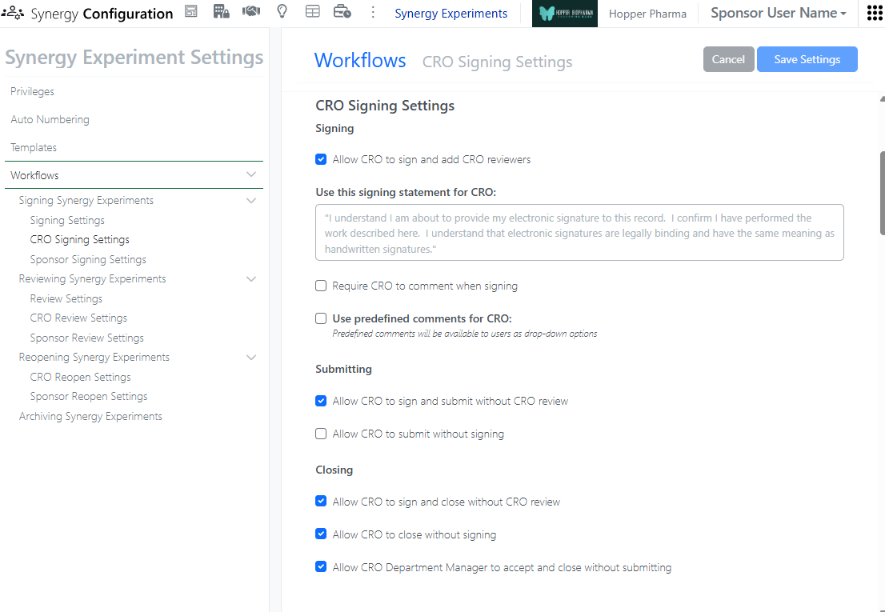
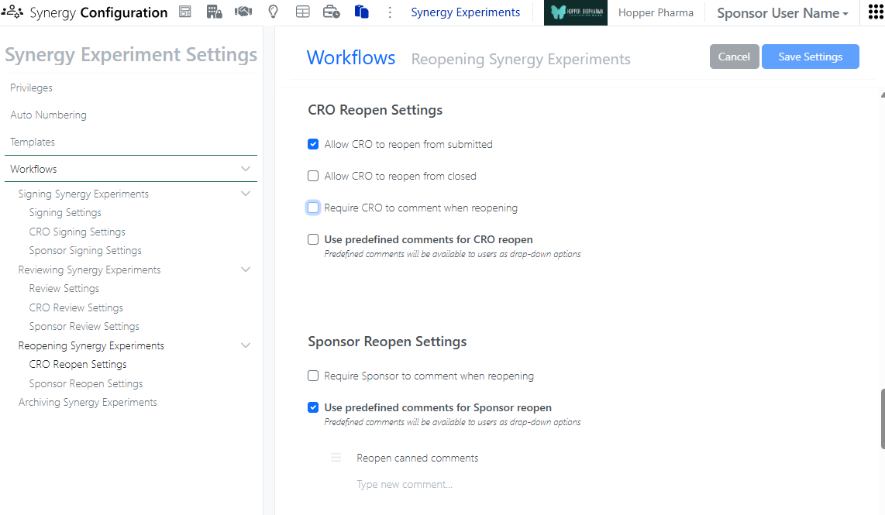
    - Workflow and privilege options to allow CRO users to Close and/or Reopen their Synergy Experiments
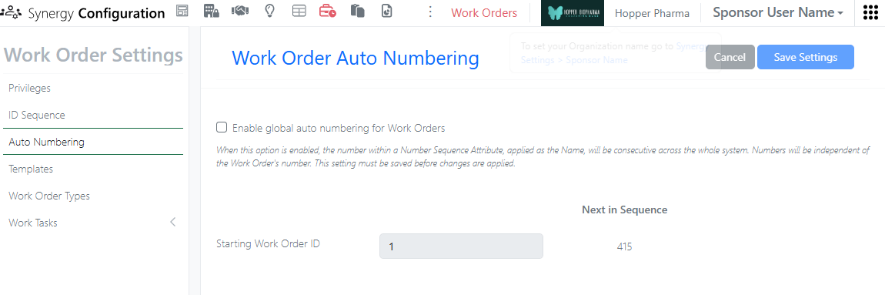
    - Global auto-numbering controls for Work Orders
    - Work Tasks in Work Orders is available to all systems
    - Define default values, including Synergy Experiment Template, on Work Tasks Templates is available to all systems
    - Notification to Sponsor administrators when a CRO admin adds or deactivates a CRO user
    - Notification to CRO user when a Work Order is recalled
    - Publish Data Exchange Results Tables from Synergy Experiments (beta)
  • Chemistry
    - Copy individual structures from Reactants or Products tables
    - Naming of mixtures now reflects component ratios
  • Tables
    - Bucketed numerical column can be used for Categorical axis on a Box Plot*
    - Color Box Plots by aggregated numerical values*
    - Define if outliers are displayed in a Box Plot*
    - Hover over segments in Box Plots to see associated rows*
    - Add a second property to the Categorical axis of Box Plots*
    - Display secondary data of a Box Plot in a table*
    - Define a categorical column for markers in a Line Chart*
    - Trellis Charts*
  • Inventory
    - View Container Location Details in Stoichiometry and Materials tables
    - Bulk Edit Home Locations with Blank Home Location Support
    - Home Location Assignment Enhancements in Create/Edit Grid Location and Bulk Edit workflows with visual indicators and validation to ensure Home Location uniqueness
    - Improved Auto Fill Grids logic to automatically select occupied grid cells and skip only cells that are already assigned as Home Locations
    - Added row-level warning indicators in Inventory Decrement Auto Fill to clearly identify containers that are ineligible for inventory decrement
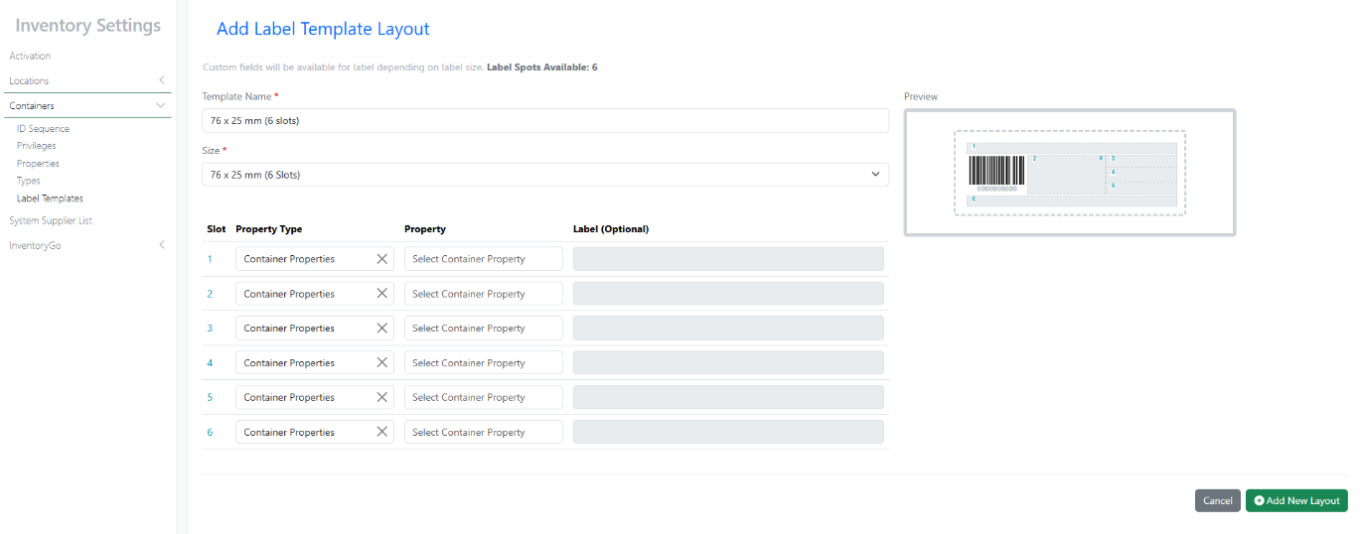
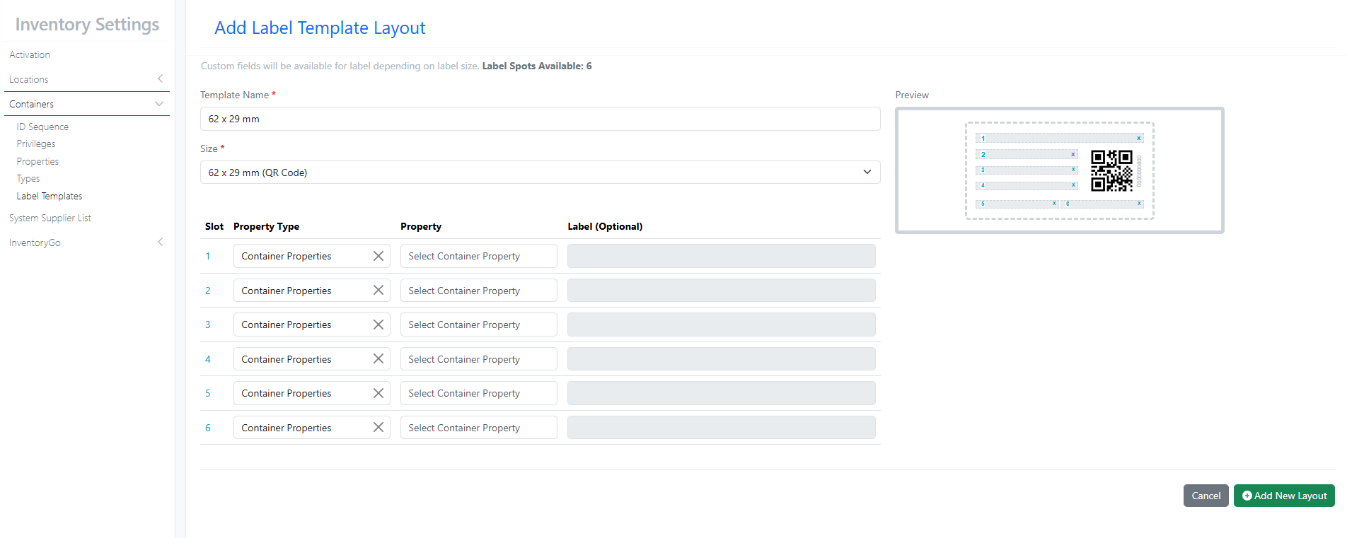
    - New Label Templates (76×25 mm (6 slots) & 62×29 mm QR)
  • InventoryGo ‡
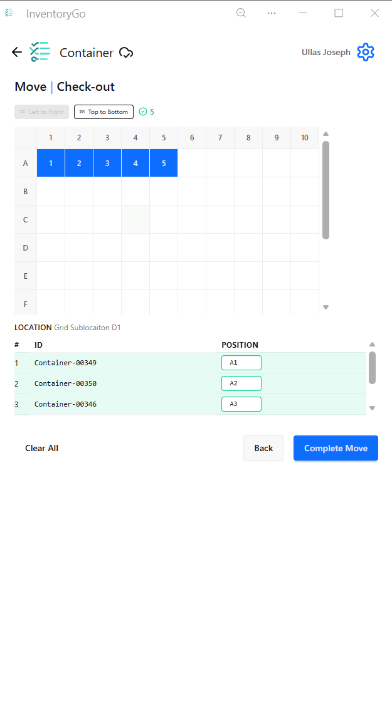
    - Grid Position Selection During Check In/Out
    - Material ID & Expiration Date in Reconciliation Reports
    - Confirmation Prompts for Delete in Reconciliation Actions and Consume workflow
    - Reconciliation Details in Inventory Application for both Locations and Container
  • Tasks and Requests
    - Complete Task within same experiment
  • Administration
    - Access Data Factory audit events from the Signals audit log*
    - Selective export for configuration migration is available to all systems
    - A matching Configuration Report (PDF) generates based on selective configuration export is available to all systems
  • Integrations & APIs
    - Revoke Bearer tokens AP
    - Expanded Chemical Structures output for Material Fetch API
    - RDF Files support for External Enumerator API 
    - Fetch Parser Definitions API
  • Xynthetica* 
    - ChemCharts access for RDKit, Percepta, and Tunelab models (beta)

* Requires Signals One license

† Requires Signals Synergy license

‡ Requires InventoryGo license

We also fixed several small bugs in this release. Details of the enhancements are described below.

The following OnDemand videos for Signals Synergy are now available

  • Configuring Initial & Ongoing Signals Synergy Needs
  • Understanding Fundamental Concepts for Signals Synergy

Data Factory Administrators should complete migration of legacy data factory projects before 27.4; after this, legacy projects will become read-only and no longer support data publication.

Data Factory administrators should also note that the Advanced Security policies in Inventa apply an “AND” logic across all user groups, restricting access if any groups lack permissions. This behavior differs from the standard Signals security model and will be fixed to align with the standard in a future release.

Developers should note that starting in the upcoming 26.8 release, fetching structure data will no longer provide the InChI property for new chemicalDrawing records. Instead, a new property, SMILES, will be provided. Please update any downstream integrations to prepare for using the SMILES field instead of InChI.

Administrators are recommended to subscribe to the channels within our support news site found at https://support.revvitysignals.com/hc/en-us/categories/360004446171-Support-News which contains more information about releases and other pertinent product information.

This content is anticipated for release on our Production E3 environments, and for Private Cloud customers on our deferred release schedule, in March 2027.

Further Details

The following improvements are available for users, administrators and developers on the Signals platform. Certain features may only be available with appropriate licensing and/or with enablement by an administrator.

Fundamentals

Image 1 from What's New 26.7_finalupdatedv2.docx
Image 2 from What's New 26.7_finalupdatedv2.docx

Performance improvements to the External Enumerator were completed. Performance for large enumerations was drastically improved.

Audit trail displays highlighted granular changes for layout changes. This feature applies to adding, deleting, moving, or renaming a page/element within experiment-like objects, tasks, requests, samples, synergy, work orders/tasks, etc.

AI

Image 3 from What's New 26.7_finalupdatedv2.docx

Prompt-to-Filter is available to all systems.

Data Workflows & Analytics

Image 4 from What's New 26.7_finalupdatedv2.docx

Additional QA/QC Metrics are now available at the level of plate wells (batches) as well as curve fits and can be visualized using the detailed views or the table view of the curve fits.

These new metrics include for each curve a Qualified Reported IC50, based on the maximum and minimum Percentage of positive Control (POC) and the respective dose associated, which can be published and used for decision making.

SAR & Decisioning

Image 5 from What's New 26.7_finalupdatedv2.docx
Image 6 from What's New 26.7_finalupdatedv2.docx

ChemChart’s Structure to HELM data function allows users to convert molecular structures from common chemical formats into HELM notation.

Image 7 from What's New 26.7_finalupdatedv2.docx

Users can now calculate nucleotide and protein properties directly within ChemCharts. Supported calculations include sequence composition, molecular weight, isoelectric point, aromaticity, extinction coefficients, and other commonly used nucleotide and protein metrics.

Image 8 from What's New 26.7_finalupdatedv2.docx

Users can now configure numeric column formatting directly from ChemCharts including decimal precision, scientific notation, and other details. Formatting settings can also be applied to multiple numeric columns at once for consistent data presentation across visualizations.

Synergy

Image 9 from What's New 26.7_finalupdatedv2.docx
Image 10 from What's New 26.7_finalupdatedv2.docx
Image 11 from What's New 26.7_finalupdatedv2.docx

Release 26.6 introduced the concept of CRO privileges in Synergy Configuration. This release introduces a new CRO privilege for Close Synergy Experiments. By default, the Sponsor user is responsible for closing Synergy Experiments after they are submitted by the CRO. However, there are cases where the CRO closing their own Synergy Experiments may be more efficient without compromising necessary oversight. Now, the Close Synergy Experiments privilege is granted to CRO users on a per CRO Department basis, either to all members of the Department or only CRO Department Managers.

In order to allow privileged CRO users to Close their own Synergy Experiments, the Synergy Experiment Workflows (under Synergy Configuration > Synergy Experiments > Workflows) must also be configured to (i) Allow CRO to sign and close without CRO review, (ii) Allow CRO to close without signing, or (iii) Allow CRO Department Manager to accept and close without submitting. If Allow CRO to sign and close without CRO review is enabled, privileged CRO users will be able to transition a Synergy Experiment from Active to Closed using a Sign and Close option. If Allow CRO to close without signing is enabled, privileged CRO users will be able to transition a Synergy Experiment from Active to Closed using a Close option (no signing required). If Allow CRO Department Manager to accept and close without submitting is enabled, privileged CRO Department Manager will be able to transition a Synergy Experiment from In CRO Review to Closed using an Accept and Close option, when they are assigned as a Reviewer. If all the options are enabled, all options will be available to the CRO users.

Image 12 from What's New 26.7_finalupdatedv2.docx

In addition, Synergy Experiment Workflows now provides options to allow CRO users to Reopen their experiments.

Image 13 from What's New 26.7_finalupdatedv2.docx

In Synergy Configuration, a Sponsor administrator with the privilege to Administer Synergy can now turn Work Order global auto numbering on or off. By default, Work Order global auto numbering is enabled; each new Work Order will take the next number in sequence, regardless of the Work Order ID sequence and regardless of the location. This is the recommended setting to ensure that Work Order naming is always unique. When Work Order global auto numbering is turned off, a new Work Order will take the next number in sequence in a given Collaboration. This allows sequential numbering of Work Orders within each Collaboration, but does not ensure unique Work Order naming. If global auto numbering is turned off, we recommend including the Collaboration Name in the Work Order ID sequence for clarity.

Image 14 from What's New 26.7_finalupdatedv2.docx

Work Tasks, which can be added to Work Orders, are now available to all systems. Work Tasks create a series of trackable, assignable, and templateable sub-tasks for a Work Order. Work Tasks can be configured in Synergy Configuration > Work Orders > Work Tasks.

Image 15 from What's New 26.7_finalupdatedv2.docx

Work Tasks can be associated with specific References (Reference IDs), specified Synergy Experiment Templates, and assigned to different CRO users. Note: When specifying a Synergy Experiment Template for a Work Task, Work Tasks can be added to Work Orders using Add Content or directly from a set of selected References in the Reference Table (new this release). For additional details about Work Tasks, please review What’s new content from 26.5 ad 26.6 or refer to the Help Center.

Two new notifications have been added related to Synergy. First, System and Synergy Administrators can now receive a notification when a CRO Administrator adds, removes (deactivates), or bulk uploads CRO users to their CRO. This allows the Sponsor to manage any required IdP changes (As a reminder, a CRO Administrator is a CRO user granted the Role CRO Admin. The CRO Administrator role is completely optional, but allows the Sponsor to delegate the responsibility of CRO user management to a trusted person(s) at the CRO). Second, CRO users can now receive a notification when a Work Order is recalled by the Sponsor. For both Sponsor and CRO users, notifications are configured under the User Name menu.

Chemistry

Image 16 from What's New 26.7_finalupdatedv2.docx

Chemists can copy or download individual chemical structures in CDXML or other chemical formats directly from the Reactants or Products tables. This is also available in content that is not editable such as Closed experiments.

Image 17 from What's New 26.7_finalupdatedv2.docx

Mixture names in ChemDraw now reflect the assigned component ratios, ensuring generated names display the actual ratio values when custom ratios are defined.

Tables

Image 18 from What's New 26.7_finalupdatedv2.docx

Numerical properties can now be bucketed and used on the categorical axes of a Box Plot. A numerical property can also be used to define the colors of the Box Plot

Image 19 from What's New 26.7_finalupdatedv2.docx

Box Plots can also be configured to show or hide outliers. They can also be configured to show a summary table of the statistics. The statistics table is only available for a vertical oriented box plot.

Image 20 from What's New 26.7_finalupdatedv2.docx

Hovering over a quadrant of the box plot will now highlight the associated rows, and visa-versa.

Image 21 from What's New 26.7_finalupdatedv2.docx

A second categorical property can also be added to the Categorical axis on Box Plots

Image 22 from What's New 26.7_finalupdatedv2.docx
Image 23 from What's New 26.7_finalupdatedv2.docx

Markers on Line Charts can now be set by values in a categorical column. This option is only available if the Y axes are not aggregated.
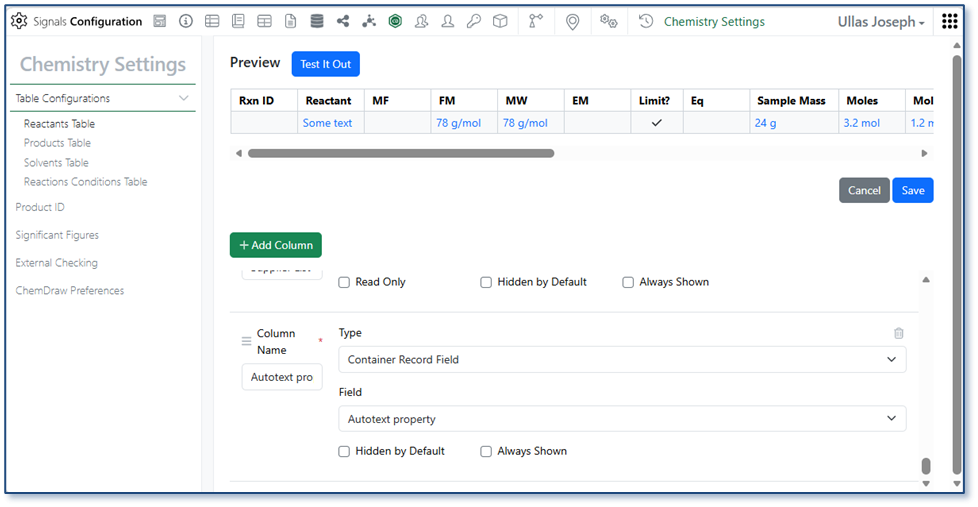
Image 24 from What's New 26.7_finalupdatedv2.docx

Tables can now be configured to display multiple charts, trellised via a categorical column. Configuration options include optionally setting the number of columns and setting if the trellised charts have synchronized axes.

Image 25 from What's New 26.7_finalupdatedv2.docx

The user can choose to focus on a single trellised chart in more detail and iterate through the charts.

Inventory

Image 26 from What's New 26.7_finalupdatedv2.docx
Image 27 from What's New 26.7_finalupdatedv2.docx

Added quick access to container location details directly from the Stoichiometry and Materials tables, allowing users to verify container information without leaving their current workflow.

Image 28 from What's New 26.7_finalupdatedv2.docx

Bulk Edit Home Locations now supports blank Home Location values, providing greater flexibility when updating container location assignments. Users can now clear or leave Home Location values blank during bulk updates, simplifying location management and reducing manual effort.

Image 29 from What's New 26.7_finalupdatedv2.docx

Enhanced Home Location assignment across Create/Edit Grid Location and Bulk Edit workflows with visual indicators and validation rules to ensure Home Location uniqueness and improve data accuracy.

Image 30 from What's New 26.7_finalupdatedv2.docx

Improved the Auto Fill Grids logic to automatically select occupied grid cells while skipping only those designated as Home Locations, making container assignments faster and more intuitive.

Image 31 from What's New 26.7_finalupdatedv2.docx

Added row-level warning indicators in Inventory Decrement Auto Fill to clearly identify containers that are not eligible for inventory decrement, helping users avoid errors while maintaining workflow efficiency.

Image 32 from What's New 26.7_finalupdatedv2.docx

New Label Templates 76×25 mm (6 Slots)

Image 33 from What's New 26.7_finalupdatedv2.docx

New Label Templates 62×29 mm QR

InventoryGo

Image 34 from What's New 26.7_finalupdatedv2.docx
Image 35 from What's New 26.7_finalupdatedv2.docx

Users can now select a specific grid position during Check In and Check Out operations, providing greater control over container placement and improving location accuracy.

Image 36 from What's New 26.7_finalupdatedv2.docx

Reconciliation reports now include Material ID and Expiration Date information, providing better traceability and supporting more effective inventory audits and reviews.

Image 37 from What's New 26.7_finalupdatedv2.docx

Added confirmation prompts for delete actions in Reconciliation and Consume workflows to help prevent accidental data changes and improve user confidence.

Image 38 from What's New 26.7_finalupdatedv2.docx
Image 39 from What's New 26.7_finalupdatedv2.docx

Reconciliation details are now available directly within the Inventory application for both locations and containers, providing greater visibility into reconciliation activities without leaving the inventory workflow.

Tasks and Requests

Image 40 from What's New 26.7_finalupdatedv2.docx

Users will now have the option of completing a Task within the originating experiment assuming the user 1) has write access to the task’s originating experiment and 2) the user in question is assigned the task.

Image 41 from What's New 26.7_finalupdatedv2.docx

If both of these criteria are met, the new “Use This Experiment” option will be available under the hamburger menu and the Bulk Actions menu.

Selecting “Use this Experiment” updates the Task Status to “In Progress” updates the “Experiment Link” to the same Experiment as the “Request Link” and opens up the Analyst fields for the user to update in the Task Table.

This will also allow the analyst/user to transition the Task to “Closed” from this same table allowing the user to complete their task workflow within the same experiment.

Administration

Image 42 from What's New 26.7_finalupdatedv2.docx
Image 43 from What's New 26.7_finalupdatedv2.docx

Data Factory audit events are now accessible from the Signals Audit Log. Data Factory actions are organized by Resource Type, and can be further filtered by Resource Name and Action.

Integrations & APIs

Image 44 from What's New 26.7_finalupdatedv2.docx

We have added new APIs to revoke bearer tokens via API. Bearer tokens can be revoked by email or for all users simultaneously.

Image 45 from What's New 26.7_finalupdatedv2.docx


We have enhanced the Material Fetch APIs to support expanded Chemical Structures output. A new URL parameter “structureFormat” is optionally available. The structure is returned as json encoded strings.

Image 46 from What's New 26.7_finalupdatedv2.docx

We have enhanced the External Enumerator APIs to support RDF files. The “Content-Type” header must best set to “chemical/x-mdl-rdfile".

Image 47 from What's New 26.7_finalupdatedv2.docx

We have added a new API to fetch JSON formatted parser definitions.

The following capabilities are in beta and are available for users, administrators and developers on the Signals platform upon request. Please contact your account representative or our support team if you would like access to the following features.

Fundamentals

Image 48 from What's New 26.7_finalupdatedv2.docx

The Assay Library (beta) enables organizations to register unique Assays and their associated Variants in a centralized repository. Assay and Variant metadata are captured in structured templates, helping standardize assay definitions and improve consistency.

Assays include one or more Variants, allowing users to represent planned experimental differences such as target, cell line, plate format, or other assay conditions while maintaining a clear relationship to the parent assay.

Administrators configure reusable Controlled Fields to enforce standardized terminology across assay registrations. As part of the Assay Template, these fields can also be designated for uniqueness checking.

When registering a new assay, the system automatically evaluates configured uniqueness criteria and alerts users when a potentially duplicate assay already exists.

Assays provide a structured overview of key metadata, supporting content, and registered variants within a single record.

Image 49 from What's New 26.7_finalupdatedv2.docx

The Variant Summary provides a consolidated view of assay variants and their key attributes, making it easier to compare experimental conditions.

Image 50 from What's New 26.7_finalupdatedv2.docx

Controlled Fields allow organizations to standardize terminology across different assay templates, which encourages better data governance and discoverability.

Image 51 from What's New 26.7_finalupdatedv2.docx

When creating an Assay template, administrators must choose from the list of predefined Controlled Fields. Fields can be organized into sections for clearer organization. Configurable uniqueness checking helps prevent duplicate assay registrations by evaluating a defined combination of assay properties and alerting users when similar assays already exist.

Image 52 from What's New 26.7_finalupdatedv2.docx
Image 53 from What's New 26.7_finalupdatedv2.docx

Once Assays are activated and a template is created, shared, and registration privileges defined, Signals One licensed users can begin to register assays. The Assay Library is available from the navigation tool bar.

Image 54 from What's New 26.7_finalupdatedv2.docx

Assay and the initial Variant registration occur together.

Configurable uniqueness checking helps prevent duplicate assay registrations by evaluating a defined combination of assay properties and alerting users when similar assays already exist.

AI

Image 55 from What's New 26.7_finalupdatedv2.docx

Signals AI Explorer is the AI assistant built into Signals Notebook. It helps you explore and understand your Signals Notebook data using natural language instead of manual searching.

Explorer’s Thinking panel lists every step it took to answer a question — for example, establishing who is asking, then finding that user’s experiments, notebooks and pending reviews before responding.

Image 56 from What's New 26.7_finalupdatedv2.docx

Answers come back as real tables built from your records, with the highlights called out, what is waiting on you, and sensible follow-up questions offered.

Image 57 from What's New 26.7_finalupdatedv2.docx

When you ask about an open experiment, the Context line lists exactly what Explorer pulled in — the experiment, the chart, and the rest of its contents.

Image 59 from What's New 26.7_finalupdatedv2.docx
Image 60 from What's New 26.7_finalupdatedv2.docx

Explorer can build hypotheses nobody wrote a report for, laying out a mechanism-of-action hypothesis from experiment data and diagramming the pathway, with every observation linked back to the experiment it came from.

It shows its working and its doubts: building the mechanism from the same records, drawing it, and stating plainly what the data cannot yet support, with follow-up questions offered to close each gap.

Image 61 from What's New 26.7_finalupdatedv2.docx

Explorer will also tell you when the data does not support a stated conclusion — for example, reading a gel table, comparing it with the recorded write-up, flagging that a ‘no contamination’ conclusion is not supported, and suggesting how to resolve it.

Synergy

Image 62 from What's New 26.7_finalupdatedv2.docx

The Synergy Data Exchange is powerful feature that converts unstructured, excel-based reports from CROs into structured, columnar Results Tables ready to use in Data Factory. Under beta, Data Exchange Results Tables can now be published directly from Synergy Experiments.

To publish Data Exchange Results Tables, the administrator must first configure the specific Data Exchange Transformation for publication. In Synergy Configuration > Data Exchange > Library, select a Transformation. In the upper right, click Data Factory Mapping and then Add New Mapping.

Image 63 from What's New 26.7_finalupdatedv2.docx

A map specifies which columns to publish to which Data Factory Measurement Type Attribute and is specific to a Data Factory Project and Measurement Type. First, the administrator selects a Data Factory Measurement Type for the Summary Results Table and then maps the Results Table columns (left) to the Measurement Type Attributes (right). (The system will attempt to auto-map the columns but values should be adjusted as needed.) When the map is complete, press Save Map.

Image 64 from What's New 26.7_finalupdatedv2.docx

Most Transformations produce pairs of Results Tables, such as a Summary table of the calculated endpoints and a Well Details table of the individual measurements. Mapping the Well Details table is optional. The Measurement Type for the Well Details table must a be a child/details Measurement Type for the Summary table Measurement Type. When published together, these Summary and Well Details data will be automatically joined in Data Factory via the Join Value in the Results Tables.

Image 65 from What's New 26.7_finalupdatedv2.docx

After mapping is complete, Activate publishing. The Transformation card will then show a green mapping icon indicating that publishing is activated.
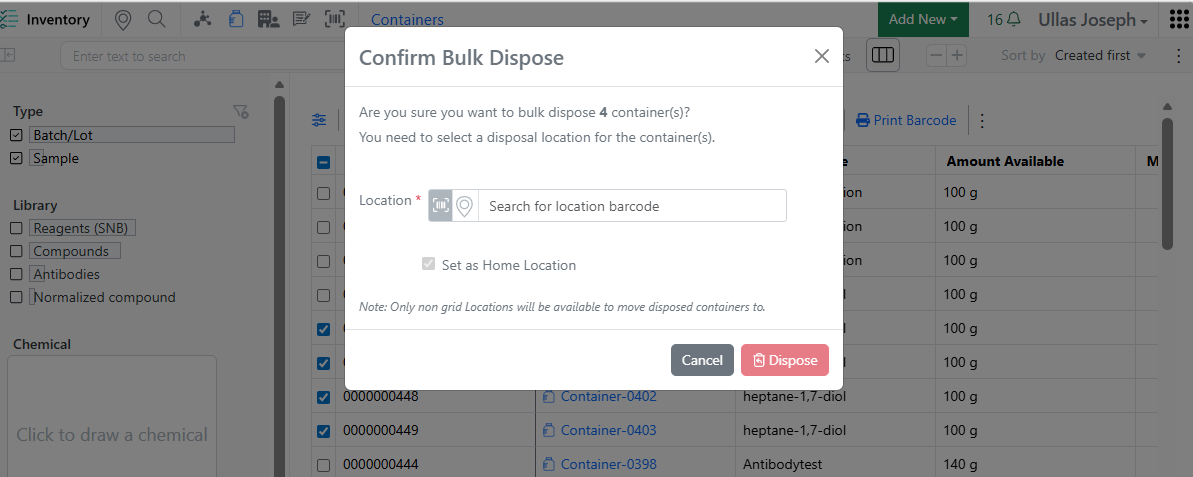
Image 66 from What's New 26.7_finalupdatedv2.docx

Note, to publish Data Exchange Results Tables, the Synergy Experiment must also be mapped and activated for publishing. To map and activate publishing for a Synergy Experiment Template, go to Synergy Configuration > Synergy Experiments > specific Template > Data Factory Mapping. Here the fields of the Synergy Experiment Template, including those which are Hidden from CRO, can be mapped to Data Factory Attributes and will be included in any publication from this type of Synergy Experiment.

Image 67 from What's New 26.7_finalupdatedv2.docx
Image 68 from What's New 26.7_finalupdatedv2.docx

In Synergy, the Sponsor can then publish results from a Data Exchange with this Transformation. First, the Data Exchange element is added to a Synergy Experiment which is activated for publishing and the Transformation is selected. When the CRO user adds the report to the Data Exchange, the Results Tables are automatically populated. After submitting the Synergy Experiment, the Sponsor user selects the Data Factory Project for publication in the Properties (if not already selected) and presses the green Publish button in the upper right corner of the Synergy Experiment. The Sponsor is presented with all tables for publication, which may include Tables and Data Exchange Results Tables. After publication, a notification is provided and the Publication results can be reviewed under Publication in the toolbar.
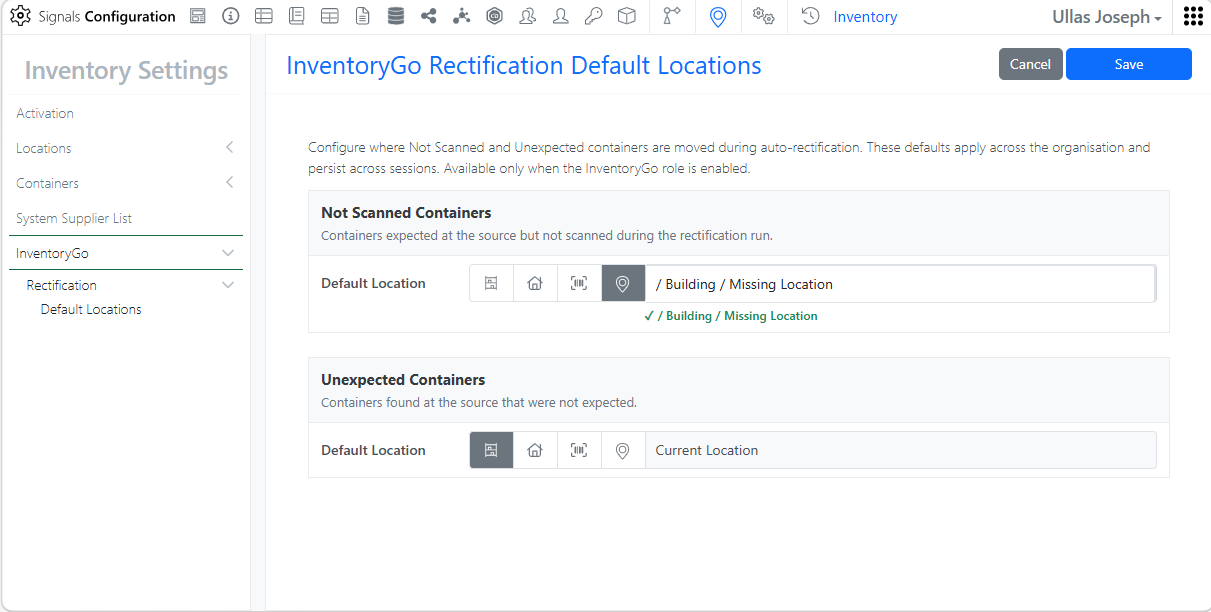
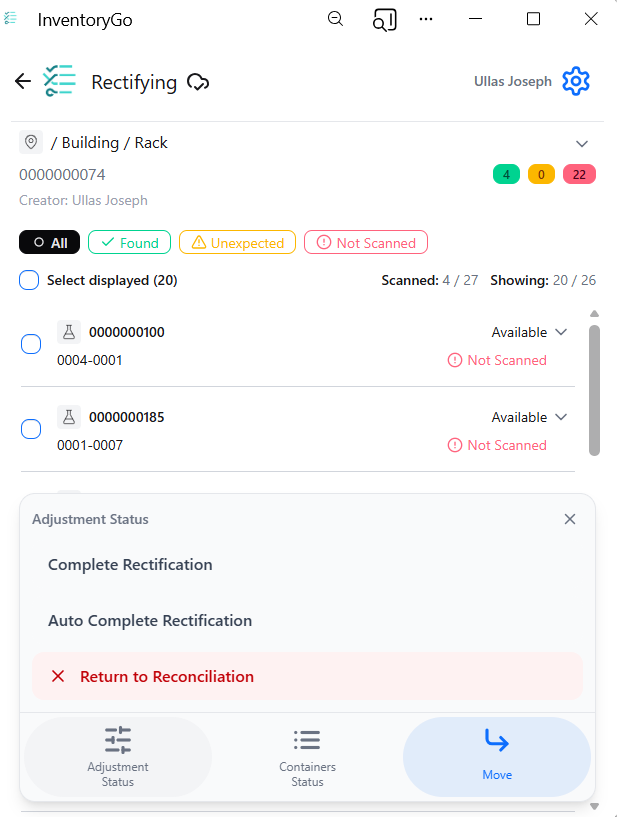
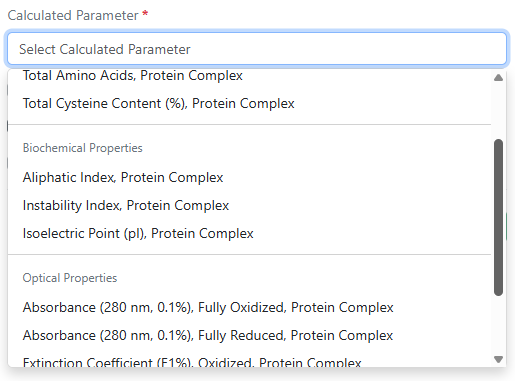
Xynthetica

Image 69 from What's New 26.7_finalupdatedv2.docx

Xynthetica is an AI inference feature currently in Beta. Tenants with Xynthetica beta access can now use AI models in ChemCharts to model predictive properties via Inventa.

Image 70 from What's New 26.7_finalupdatedv2.docx
Image 71 from What's New 26.7_finalupdatedv2.docx

Users can edit in Spotfire as expected. When users select data functions, they will have access to inference models under MaaS (Models-as-a-Service).

Image 72 from What's New 26.7_finalupdatedv2.docx
Image 73 from What's New 26.7_finalupdatedv2.docx

Users should select parameters of interest and progress will display in the lower right as the model computes.

Image 74 from What's New 26.7_finalupdatedv2.docx

Calculations will appear in the table, after which users can graph conventionally.

What’s New

We are delighted to release Signals BioDesign 26.7. This release makes Gibson Assembly cloning available to all systems and includes the ability to create sequences from all cloning outputs. We have also fixed a number of smaller bugs to improve overall product quality.

The following generally available improvements are available to users, administrators, and developers on the Signals platform. Some features may require appropriate licensing and/or administrator enablement.

  • Cloning
  • Gibson Assembly combinatorial assembly available to all systems
  • Promotion of cloning outputs to sequences

Administrators are recommended to subscribe to the channels within our support news site found at https://support.revvitysignals.com/hc/en-us/categories/360004446171-Support-News which contains more information about releases and other pertinent product information.

Further Details

This section provides additional details about generally available improvements and beta capabilities included in Signals BioDesign 26.7. Some features may require appropriate licensing and/or administrator enablement.

Cloning

Image 1 from Signals BioDesign What's New 26.7 External.docx

Previously available as a beta release, administrators can now configure templates that allow users to design combinatorial assemblies using the Gibson Assembly cloning method. A dedicated settings section in Signals Configuration allows administrators to manage and customize Gibson Assembly configurations for their users.
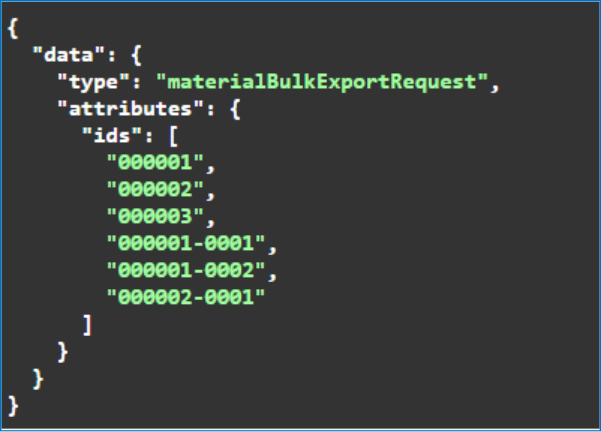

Image 2 from Signals BioDesign What's New 26.7 External.docx

Users can design up to 1,000 molecular constructs using the Gibson Assembly method. Because the assembly is combinatorial, every sequence in Bin 1 is combined with all sequences in subsequent bins. The planner previews the total number of constructs that will be generated by the plan. For longer-running processes, users can optionally receive in-app and email notifications. When the run is complete, the Gibson Assembly provides outputs for Constructs, Fragments, and Primers. Users can inspect any warnings or errors that occur during the assembly process.

Image 3 from Signals BioDesign What's New 26.7 External.docx

Once the user is happy with the Gibson Assembly outputs, they may choose to take a variety of actions on them. This includes downloading output or promoting them as BioDesign Sequences. Once promoted to a BioDesign sequence, any user with access to that DNA collection can access the newly created sequences. Note that creating Gibson Assembly cloning outputs is not subject to any admin defined duplicate check rules, but promotion to sequences adheres to settings on uniqueness set by the administrators.

What’s New

This latest Signals release includes updates to ChemDraw+. Highlights include coloring by element and updates to naming of mixtures. This release also includes bug fixes.

The following improvements are available for users of Signals ChemDraw. Certain features may only be available with enablement by an administrator.

ChemDraw+

  • Color by element
  • Naming of mixtures now reflects component ratios

Color by element

Selected chemical objects can now be colored by element from the Properties panel. ChemDraw+ applies a standard element color palette to the selected structure. If required, individual object colors can still be adjusted using the Properties panel for additional customization.

Naming of mixtures now reflects component ratios

Image 1 from Signals ChemDraw What's New 26.7_Sept_2026.docx

Generated names for grouped mixtures now reflect assigned component ratios more clearly. When a mixture name is regenerated, whole-number and fractional ratios are preserved so the composition is represented more accurately.

What’s New

We are delighted to release our new version of NMR Workbook Suite™, Version 2026.

Highlighted Features

  • Export all NMR spectra in a project to a single JSON file.
  • Automatically detect non-singlet water signal.
  • Improved recognition of CHF2 signals in HSQC spectra.
  • Account for signal attenuation due to water suppression.

Administrators are recommended to subscribe to the channels within our support news site found at https://support.revvitysignals.com/hc/en-us/categories/360004446171-Support-News which contains more information about releases and other pertinent product information.

Further Details

Version 2026 adds new features including the option to export all NMR spectra in a project to a single JSON file. There are also improvements to automatic processing and analysis tools to enable accurate analysis of data for structures containing CHF2 groups and spectra with suppressed water peaks.

Data Analysis & Processing

Export All NMR Spectra in a Project to a Single JSON File

  • You can now export all NMR spectra in a project to a single JSON file.

Automatically Detect Non-Singlet Water Signal

  • You can now automatically detect water signals in spectra where water suppression techniques result in distortion of the water peak shape from the typical broad singlet. The new Allow Any Multiplicity of Water Signal option identifies a signal within the water range in the 1H spectrum that does not have a match in the HSQC 1H projection as the water signal.

Improved Recognition of CHF2 Signals in HSQC Spectra

  • You can now automatically detect and assign CHF2 peaks in HSQC spectra more accurately with improved analysis and assignment algorithms.

Account for Signal Attenuation Due to Water Suppression

  • You can now account for attenuation of signals adjacent to the water peak due to water suppression techniques to enable accurate automatic assignment. The new Adjacent Signals are Attenuated option loosens the integral restrictions for all multiplets within 0.1 ppm of the position of the water peak in the auto-assignment protocol.

Internal Standard qNMR Concentration Calculation Now Included Out of the Box

  • Internal standard qNMR calculations are now available in the interface, similar to the external standard workflow (previously available as a script provided upon request).

Conveniently Calculate Similarity Score Between Two 1D Spectra

  • You can now calculate the Hit Quality Index (HQI) between two 1D spectra of the same nucleus without the need for the reference spectrum to be in a database. This can provide a quick quantification of the match between the current sample spectrum and that of a standard.

Better Peak Handling for 19F Spectra with Strong Couplings

  • You can now automatically pick and assign peaks in 19F spectra of structures containing CHF2 groups more accurately. When the proposed structure contains these groups, the software checks the spectrum for peaks associated with a typical AB spin system for F atoms (two strongly coupled doublets with an evident ‘roof’ effect).

Expanded 1H-31P Coupling Ranges in Auto Assignment

  • You can now more accurately assign and verify structures whose spectra contain large 1H-31P coupling constants with increased upper limits for JHP. The new expanded ranges are: 

    • 3–20 Hz for 2JHP

    • 0–20 Hz for 3JHP

    • 0–6 Hz for 4JHP

Define Parameters Once for All Replicates in External Standard qNMR

  • You can now define parameters including pulse angle, scans, and receiver gain once and have them applied to all selected spectra in external standard qNMR workflows with replicates when they cannot be automatically extracted from the raw data files.

Prediction

Updated Prediction Databases

Image 1 from WN NMR Workbook Suite v2026.docx
  • You can now predict spectra based on databases with thousands more structures, chemical shifts, and coupling constants.

Accurately Predict 19F Spectra of Structures with Diastereotopic Fluorine Atoms

  • You can now predict 19F spectra with an improved algorithm that recognizes diastereotopic fluorine atoms.

Databasing

Ease of Use

  • Choose to hide the “Custom Screen Form” toolbar for greater screen real-estate.
  • You now have a new option to visualize the stereochemical configuration of select stereocenters in database records. Previously you could either display or hide all stereocenters.

Reporting

Set the Relative Height of “Median” Peak in Report

  • You can now better control the “Fit” option for dynamic Y-scaling of the 1D spectra in the reporting templates with the new Ratio parameter that allows you to specify the relative height of the “median” peak in the report.
Image 2 from WN NMR Workbook Suite v2026.docx

Use the new ratio parameter for dynamic y-scaling of 1D spectra. 
Left spectrum has a fit = 90%, right = 10%

Data Import & Export

Import Bio-Sequence Assignments from Any NMR Spectrum

  • You can now import assignments for biomolecules from any NMR spectrum in STR format.

Include Structure Information in Data Exported in JSON Format

  • You can now include structure information in records/databases exported in JSON format via .mol files.

Improved MS & Chrom Data Import

  • Improved import filters for Thermo UVPD MSn data.

Processing MS & Chrom Data

Data Analysis & Processing

Component Spectrum Flexibility

  • You can now create component spectra based on the most abundant adduct ion ([M+H]+, [M+NH4]+, [M+K]+, etc.) This is particularly useful when the [M+H]+ ion is weak or exhibits a very low intensity.

Better Handling of Peptide Structures

  • Peptides can now be displayed in a simplified form in the Table of Components, making it easier to distinguish and interpret individual structures.

Import Components without Retention Time Assignments

  • You can now use existing datafiles to generate target lists (.sdf) for more streamlined batch processing. Components can be imported with or without existing retention times, reducing erroneous assignments and enabling reuse of component files across targeted analysis and other workflows.

Display Combined Retention Time

  • You can now display the combined retention time (tR) instead of scan numbers for clearer interpretation of chromatographic data.

Databasing

Create, View, and Edit LC Simulator Files in the Database

  • You can now edit and update LC Simulator .lc7 files in Spectrus databases.
  • You can now create a Spectrus DB screen form for convenient review of LC Simulator Project records.
Image 3 from WN NMR Workbook Suite v2026.docx

Handle LC Simulator files in database view.

Reporting

Select Components for Reporting

  • You can now choose which components from the Table of Components are included in reports when using the Component/Peak Layout Organizer.

Simplified Peptide Reporting

  • You can now report peptides in a simplified form for clearer presentation in reports.